
Starling drone shut down mid flight
-
@Shivam-Sehgal I connected the cameras back in their basic configration that it is shipped with.
Then I ran voxl-camera-cameras and set it to 06 - D0005 Starling pmd-tof imx214 hires ov7251 tracking.
voxl2:/$ voxl-configure-cameras

Available camera config IDs are as follows:

01 - ov7251 tracking ov7251 stereo
02 - ov7251 tracking
03 - ov7251 tracking ov7251 stereo imx214 hires
04 - ov7251 tracking imx214 hires
05 - pmd-tof ov7251 tracking
06 - D0005 Starling pmd-tof imx214 hires ov7251 tracking
08 - imx214
09 - pmd-tof
10 - ov7251 stereo
11 - D0006 Sentinel
12 - ov9782 stereo
13 - ov9782 stereo imx214 hires
14 - ov9782 stereo pmd-tof ov7251 tracking (copy)
15 - D0008 dual 9782 tracking
16 - pmd-tof ov7251 dual tracking imx214 hires
17 - D0010 pmd-tof imx412 hires ov7251 tracking ov9782 stereo
18 - D0008 triple ov9782
19 - D0005 without tof imx214 hires ov7251 tracking
20 - D0011 imx412 hires ar0144 tracking
21 - old C6
22 - D0013 imx412 flipped ov7251
23 - D0010 without stereo
 C - use user-defined custom camera config in
     (/data/modalai/custom_camera_config.txt)
 q - Quit The Wizard

selection: 6
Selected numerical camera config
Camera Configuration: 6

camera server config helper list:
tof:pmd-tof:0:
hires:imx214:1:
tracking:ov7251:2:

driver binary list:
/usr/share/modalai/chi-cdk/irs1645/com.qti.sensormodule.irs1645_0.bin
/usr/share/modalai/chi-cdk/imx214/com.qti.sensormodule.imx214_2.bin
/usr/share/modalai/chi-cdk/ov7251/com.qti.sensormodule.ov7251_3.bin

calling camera-server-config-helper tof:pmd-tof:0: hires:imx214:1: tracking:ov7251:2:
detected system image 1.7.1
using new imx214 defaults
successfully wrote this camera config to disk:
=================================================================
configuration for 3 cameras:

cam #0
    name:                tof
    sensor type:         pmd-tof
    isEnabled:           1
    camId:               0
    camId2:              -1
    fps:                 5
    en_rotate:           0
    en_rotate2:          0

    en_preview:          1
    pre_width:           224
    pre_height:          1557
    en_raw_preview:      1

    en_small_video:      0
    small_video_width:   -1
    small_video_height:  -1

    en_large_video:      0
    large_video_width:   -1
    large_video_height:  -1

    en_snapshot:         0
    snap_width:          -1
    snap_height:         -1

    ae_mode:             off
    standby_enabled:     0
    decimator:           5
    independent_exposure:0

cam #1
    name:                hires
    sensor type:         imx214
    isEnabled:           1
    camId:               1
    camId2:              -1
    fps:                 30
    en_rotate:           0
    en_rotate2:          0

    en_preview:          0
    pre_width:           640
    pre_height:          480
    en_raw_preview:      0

    en_small_video:      1
    small_video_width:   1024
    small_video_height:  768

    en_large_video:      1
    large_video_width:   4208
    large_video_height:  3120

    en_snapshot:         1
    snap_width:          4208
    snap_height:         3120

    ae_mode:             isp
    standby_enabled:     0
    decimator:           1
    independent_exposure:0

cam #2
    name:                tracking
    sensor type:         ov7251
    isEnabled:           1
    camId:               2
    camId2:              -1
    fps:                 30
    en_rotate:           0
    en_rotate2:          0

    en_preview:          1
    pre_width:           640
    pre_height:          480
    en_raw_preview:      1

    en_small_video:      0
    small_video_width:   -1
    small_video_height:  -1

    en_large_video:      0
    large_video_width:   -1
    large_video_height:  -1

    en_snapshot:         0
    snap_width:          -1
    snap_height:         -1

    ae_mode:             lme_msv
    standby_enabled:     0
    decimator:           1
    independent_exposure:0

=================================================================
camera_server_config_helper is done
copying required camera drivers in place
/usr/share/modalai/chi-cdk/irs1645/com.qti.sensormodule.irs1645_0.bin
/usr/share/modalai/chi-cdk/imx214/com.qti.sensormodule.imx214_2.bin
/usr/share/modalai/chi-cdk/ov7251/com.qti.sensormodule.ov7251_3.bin
enabling voxl-camera-server

------------------------------------------------------------------
Done Configuring Cameras
Please power cycle VOXL to load new drivers
camera server will start on next reboot
------------------------------------------------------------------
After this I manually restarted the voxl-camera-server and the connection broke after the output below.
voxl2:/$ voxl-camera-server detected system image 1.7.1 using new imx214 defaults ================================================================= configuration for 3 cameras: cam #0 name: tof sensor type: pmd-tof isEnabled: 1 camId: 0 camId2: -1 fps: 5 en_rotate: 0 en_rotate2: 0 en_preview: 1 pre_width: 224 pre_height: 1557 en_raw_preview: 1 en_small_video: 0 small_video_width: -1 small_video_height: -1 en_large_video: 0 large_video_width: -1 large_video_height: -1 en_snapshot: 0 snap_width: -1 snap_height: -1 ae_mode: off standby_enabled: 0 decimator: 5 independent_exposure:0 cam #1 name: hires sensor type: imx214 isEnabled: 1 camId: 1 camId2: -1 fps: 30 en_rotate: 0 en_rotate2: 0 en_preview: 0 pre_width: 640 pre_height: 480 en_raw_preview: 0 en_small_video: 1 small_video_width: 1024 small_video_height: 768 en_large_video: 1 large_video_width: 4208 large_video_height: 3120 en_snapshot: 1 snap_width: 4208 snap_height: 3120 ae_mode: isp standby_enabled: 0 decimator: 1 independent_exposure:0 cam #2 name: tracking sensor type: ov7251 isEnabled: 1 camId: 2 camId2: -1 fps: 30 en_rotate: 0 en_rotate2: 0 en_preview: 1 pre_width: 640 pre_height: 480 en_raw_preview: 1 en_small_video: 0 small_video_width: -1 small_video_height: -1 en_large_video: 0 large_video_width: -1 large_video_height: -1 en_snapshot: 0 snap_width: -1 snap_height: -1 ae_mode: lme_msv standby_enabled: 0 decimator: 1 independent_exposure:0 ================================================================= GPS server Connected Starting Camera: tof (id #0) Using gain limits min: 54 max: 8000 gbm_create_device(156): Info: backend name is: msm_drm Starting Camera: hires (id #1) Using gain limits min: 54 max: 431 WARNING: Port Def 0: Count Min: 8 Count Actual: 16 Size: 0x180000 Buffers Contiguous: Yes Buffer Alignment: 0 WARNING: Port Def 1: Count Min: 4 Count Actual: 16 Size: 0x5a0000 Buffers Contiguous: No Buffer Alignment: 0 gbm_create_device(156): Info: backend name is: msm_drm gbm_create_device(156): Info: backend name is: msm_drm gbm_create_device(156): Info: backend name is: msm_drm gbm_create_device(156): Info: backend name is: msm_drm gbm_create_device(156): Info: backend name is: msm_drm gbm_create_device(156): Info: backend name is: msm_drm gbm_create_device(156): Info: backend name is: msm_drm gbm_create_device(156): Info: backend name is: msm_drm gbm_create_device(156): Info: backend name is: msm_drm gbm_create_device(156): Info: backend name is: msm_drm gbm_create_device(156): Info: backend name is: msm_drm gbm_create_device(156): Info: backend name is: msm_drm gbm_create_device(156): Info: backend name is: msm_drm gbm_create_device(156): Info: backend name is: msm_drm gbm_create_device(156): Info: backend name is: msm_drm gbm_create_device(156): Info: backend name is: msm_drm WARNING: Port Def 0: Count Min: 8 Count Actual: 16 Size: 0x17a0000 Buffers Contiguous: Yes Buffer Alignment: 0 WARNING: Port Def 1: Count Min: 4 Count Actual: 16 Size: 0x5ec000 Buffers Contiguous: No Buffer Alignment: 0 gbm_create_device(156): Info: backend name is: msm_drm gbm_create_device(156): Info: backend name is: msm_drm gbm_create_device(156): Info: backend name is: msm_drm gbm_create_device(156): Info: backend name is: msm_drm gbm_create_device(156): Info: backend name is: msm_drm gbm_create_device(156): Info: backend name is: msm_drm gbm_create_device(156): Info: backend name is: msm_drm gbm_create_device(156): Info: backend name is: msm_drm gbm_create_device(156): Info: backend name is: msm_drm gbm_create_device(156): Info: backend name is: msm_drm gbm_create_device(156): Info: backend name is: msm_drm gbm_create_device(156): Info: backend name is: msm_drm gbm_create_device(156): Info: backend name is: msm_drm gbm_create_device(156): Info: backend name is: msm_drm gbm_create_device(156): Info: backend name is: msm_drm gbm_create_device(156): Info: backend name is: msm_drm Starting Camera: tracking (id #2) Using gain limits min: 54 max: 3451 setting ov7251 BLC register for cam id 2 ------ voxl-camera-server: Started 3 of 3 cameras ------ voxl-camera-server: Camera server is now running@Shivam-Sehgal , sorry, can we please take one step back and clarify something..
Does the VOXL2 board now boot with all the cameras plugged into the original configuration?
Also, when you say
After this I manually restarted the voxl-camera-server and the connection broke after the output below.-- which connection are you referring to?If you are able to connect all cameras to their original slots, but something is still not working, i suggest that you test with only one camera enabled at a time and figure out if there is still one camera that is not working.
Alex
-
@Shivam-Sehgal , sorry, can we please take one step back and clarify something..
Does the VOXL2 board now boot with all the cameras plugged into the original configuration?
Also, when you say
After this I manually restarted the voxl-camera-server and the connection broke after the output below.-- which connection are you referring to?If you are able to connect all cameras to their original slots, but something is still not working, i suggest that you test with only one camera enabled at a time and figure out if there is still one camera that is not working.
Alex
@Alex-Kushleyev I hope this clears somethings out, its confusing for me too.
no it does not boot now with all the camera's plugged in original physical connections.
It was not about the physical connections, but when the camera service started then the connection broke.First I shifted the physical connections of the camera's as mentioned above, after which I could boot but the hires and tracking camera did not work or start. (https://forum.modalai.com/post/19383)
Then restored the original physical connnections, set the voxl-configure-camera to it original configuration it's shipped with and then restarted the voxl-camera-server.
When I started the service this the output of it, after this output the adb and ssh connection broke and I was unable to connection to the voxl2 board.
voxl2:/$ voxl-camera-server detected system image 1.7.1 using new imx214 defaults ================================================================= configuration for 3 cameras: cam #0 name: tof sensor type: pmd-tof isEnabled: 1 camId: 0 camId2: -1 fps: 5 en_rotate: 0 en_rotate2: 0 en_preview: 1 pre_width: 224 pre_height: 1557 en_raw_preview: 1 en_small_video: 0 small_video_width: -1 small_video_height: -1 en_large_video: 0 large_video_width: -1 large_video_height: -1 en_snapshot: 0 snap_width: -1 snap_height: -1 ae_mode: off standby_enabled: 0 decimator: 5 independent_exposure:0 cam #1 name: hires sensor type: imx214 isEnabled: 1 camId: 1 camId2: -1 fps: 30 en_rotate: 0 en_rotate2: 0 en_preview: 0 pre_width: 640 pre_height: 480 en_raw_preview: 0 en_small_video: 1 small_video_width: 1024 small_video_height: 768 en_large_video: 1 large_video_width: 4208 large_video_height: 3120 en_snapshot: 1 snap_width: 4208 snap_height: 3120 ae_mode: isp standby_enabled: 0 decimator: 1 independent_exposure:0 cam #2 name: tracking sensor type: ov7251 isEnabled: 1 camId: 2 camId2: -1 fps: 30 en_rotate: 0 en_rotate2: 0 en_preview: 1 pre_width: 640 pre_height: 480 en_raw_preview: 1 en_small_video: 0 small_video_width: -1 small_video_height: -1 en_large_video: 0 large_video_width: -1 large_video_height: -1 en_snapshot: 0 snap_width: -1 snap_height: -1 ae_mode: lme_msv standby_enabled: 0 decimator: 1 independent_exposure:0 ================================================================= GPS server Connected Starting Camera: tof (id #0) Using gain limits min: 54 max: 8000 gbm_create_device(156): Info: backend name is: msm_drm Starting Camera: hires (id #1) Using gain limits min: 54 max: 431 WARNING: Port Def 0: Count Min: 8 Count Actual: 16 Size: 0x180000 Buffers Contiguous: Yes Buffer Alignment: 0 WARNING: Port Def 1: Count Min: 4 Count Actual: 16 Size: 0x5a0000 Buffers Contiguous: No Buffer Alignment: 0 gbm_create_device(156): Info: backend name is: msm_drm gbm_create_device(156): Info: backend name is: msm_drm gbm_create_device(156): Info: backend name is: msm_drm gbm_create_device(156): Info: backend name is: msm_drm gbm_create_device(156): Info: backend name is: msm_drm gbm_create_device(156): Info: backend name is: msm_drm gbm_create_device(156): Info: backend name is: msm_drm gbm_create_device(156): Info: backend name is: msm_drm gbm_create_device(156): Info: backend name is: msm_drm gbm_create_device(156): Info: backend name is: msm_drm gbm_create_device(156): Info: backend name is: msm_drm gbm_create_device(156): Info: backend name is: msm_drm gbm_create_device(156): Info: backend name is: msm_drm gbm_create_device(156): Info: backend name is: msm_drm gbm_create_device(156): Info: backend name is: msm_drm gbm_create_device(156): Info: backend name is: msm_drm WARNING: Port Def 0: Count Min: 8 Count Actual: 16 Size: 0x17a0000 Buffers Contiguous: Yes Buffer Alignment: 0 WARNING: Port Def 1: Count Min: 4 Count Actual: 16 Size: 0x5ec000 Buffers Contiguous: No Buffer Alignment: 0 gbm_create_device(156): Info: backend name is: msm_drm gbm_create_device(156): Info: backend name is: msm_drm gbm_create_device(156): Info: backend name is: msm_drm gbm_create_device(156): Info: backend name is: msm_drm gbm_create_device(156): Info: backend name is: msm_drm gbm_create_device(156): Info: backend name is: msm_drm gbm_create_device(156): Info: backend name is: msm_drm gbm_create_device(156): Info: backend name is: msm_drm gbm_create_device(156): Info: backend name is: msm_drm gbm_create_device(156): Info: backend name is: msm_drm gbm_create_device(156): Info: backend name is: msm_drm gbm_create_device(156): Info: backend name is: msm_drm gbm_create_device(156): Info: backend name is: msm_drm gbm_create_device(156): Info: backend name is: msm_drm gbm_create_device(156): Info: backend name is: msm_drm gbm_create_device(156): Info: backend name is: msm_drm Starting Camera: tracking (id #2) Using gain limits min: 54 max: 3451 setting ov7251 BLC register for cam id 2 ------ voxl-camera-server: Started 3 of 3 cameras ------ voxl-camera-server: Camera server is now running -
@Shivam-Sehgal , sorry, can we please take one step back and clarify something..
Does the VOXL2 board now boot with all the cameras plugged into the original configuration?
Also, when you say
After this I manually restarted the voxl-camera-server and the connection broke after the output below.-- which connection are you referring to?If you are able to connect all cameras to their original slots, but something is still not working, i suggest that you test with only one camera enabled at a time and figure out if there is still one camera that is not working.
Alex
@Alex-Kushleyev I was able to point out maybe it's the hires camera that's the issue. I don't know why but I was singly able to run all other camera's but not the hires camera.
What defect should I look for?
Also, while doing all that I broke the tracking camera's connector and the 2 in 1 camera boards. I will be ordering those. How can I remove the 2 in 1 camera board from the voxl2 board?
-
@Alex-Kushleyev I was able to point out maybe it's the hires camera that's the issue. I don't know why but I was singly able to run all other camera's but not the hires camera.
What defect should I look for?
Also, while doing all that I broke the tracking camera's connector and the 2 in 1 camera boards. I will be ordering those. How can I remove the 2 in 1 camera board from the voxl2 board?
@Alex-Kushleyev any update?
How can can I remove the 2 in 1 camera board? -
@Alex-Kushleyev any update?
How can can I remove the 2 in 1 camera board?@Shivam-Sehgal , sorry for the delay!
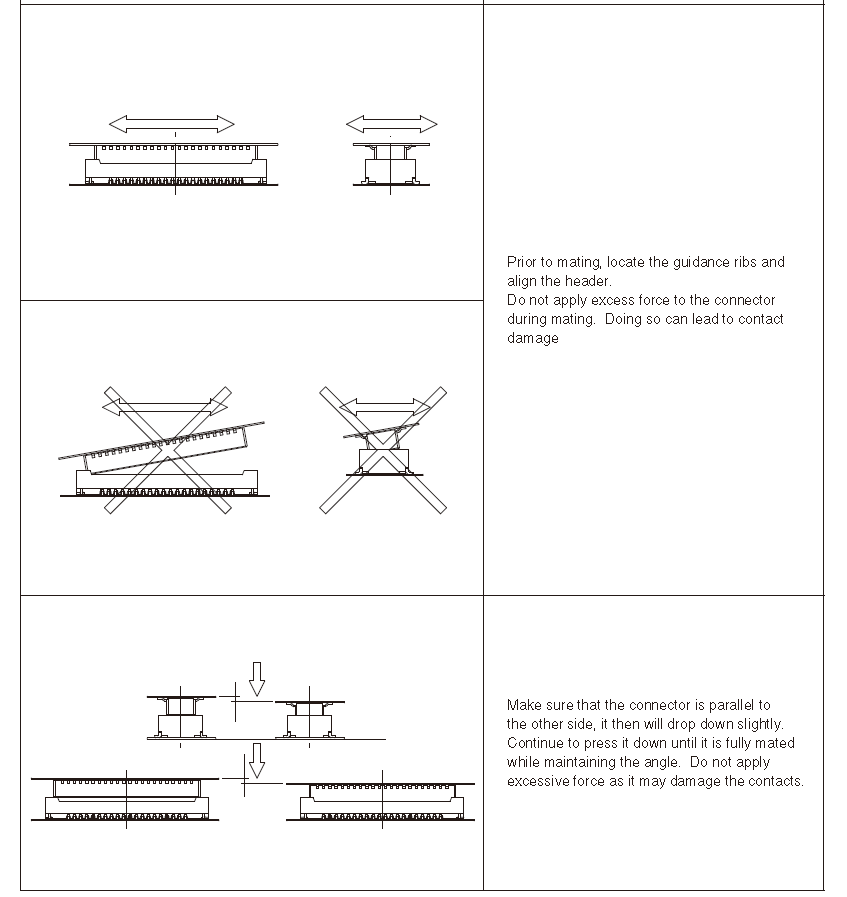
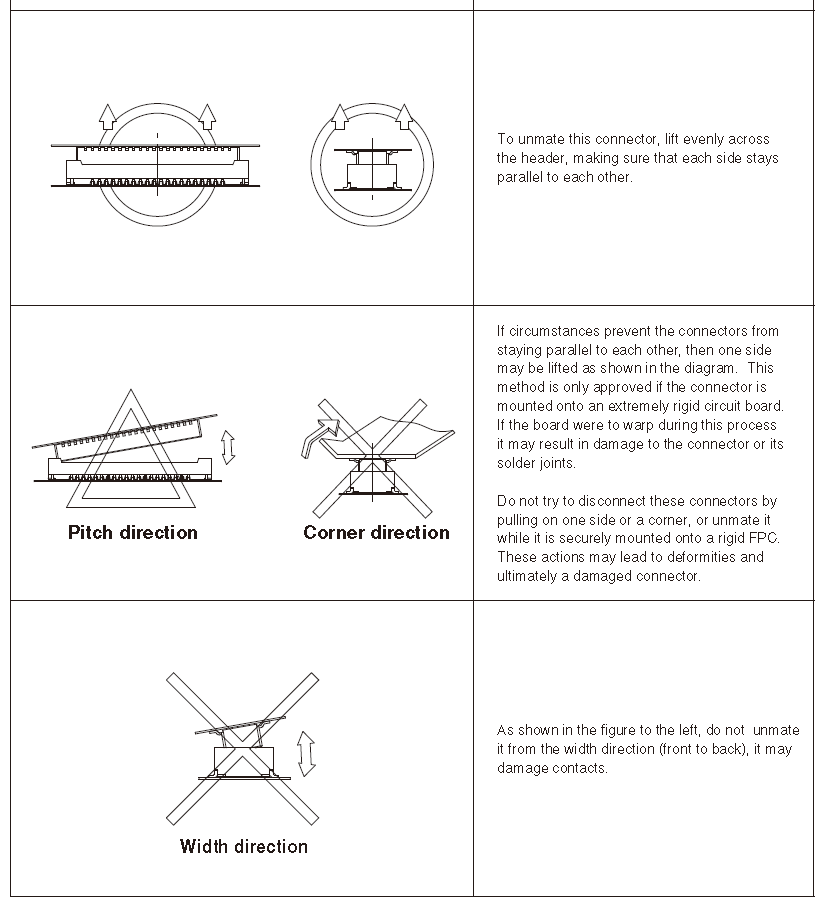
Can you please contact our RMA department and send them the pictures of the current state of the board and camera adapter interposers. Our production team can evaluate the pictures. On some products the interposer boards may be glued in place for robustness, so they can suggest best way to handle it.
In general, here is a diagram from the Hirose's product manual that shows how typically you should remove these connnectors:
Alex
-
@Shivam-Sehgal , sorry for the delay!
Can you please contact our RMA department and send them the pictures of the current state of the board and camera adapter interposers. Our production team can evaluate the pictures. On some products the interposer boards may be glued in place for robustness, so they can suggest best way to handle it.
In general, here is a diagram from the Hirose's product manual that shows how typically you should remove these connnectors:
Alex
@Alex-Kushleyev Yes Alex, it's glued to the board. Sorry, how can I connect with RMA department?
-
@Alex-Kushleyev Yes Alex, it's glued to the board. Sorry, how can I connect with RMA department?
-
@Alex-Kushleyev It's a form to send my drone for repair, can't I repair it myself? I have already ordered all the parts required. I just need to understand how to remove the glue.
-
@Alex-Kushleyev It's a form to send my drone for repair, can't I repair it myself? I have already ordered all the parts required. I just need to understand how to remove the glue.
-
@Alex-Kushleyev It's a form to send my drone for repair, can't I repair it myself? I have already ordered all the parts required. I just need to understand how to remove the glue.
@Shivam-Sehgal
The glue is an easy to remove RTV silicone adhesive. If you follow the instructions posted by Alex, you should be successful. I've done this myself a couple of times.After removing you will need to clean away as much of the remaining glue on the voxl2 as possible before installing the new adapter board. You don't necessarily need to apply glue when installing the new board, but we find it helps with keeping the adapter from accidentally teetering at the hirose connector.
Please let me know if you need further help with this matter
-
@Shivam-Sehgal
The glue is an easy to remove RTV silicone adhesive. If you follow the instructions posted by Alex, you should be successful. I've done this myself a couple of times.After removing you will need to clean away as much of the remaining glue on the voxl2 as possible before installing the new adapter board. You don't necessarily need to apply glue when installing the new board, but we find it helps with keeping the adapter from accidentally teetering at the hirose connector.
Please let me know if you need further help with this matter
@Jeremy-Schmidt So I don't need heat or any special tool for it I can directly remove by hand?
-
@Jeremy-Schmidt So I don't need heat or any special tool for it I can directly remove by hand?
@tom I was able to get the camera board out thank you but ...
When I again add the 2 new camera boards with out the camera's attached it works I can adb into the board, but as soon as any camera is added I cannot adb into the board.
I am using 2 new boards and 2 new camera's tracking and hires it seems like the issue is something else what can I do?
-
@tom I was able to get the camera board out thank you but ...
When I again add the 2 new camera boards with out the camera's attached it works I can adb into the board, but as soon as any camera is added I cannot adb into the board.
I am using 2 new boards and 2 new camera's tracking and hires it seems like the issue is something else what can I do?
-
@Shivam-Sehgal Double check the pinouts to ensure the sensors aren't being plugged in backwards, that is the most likely cause of a board not booting
@tom thanks I had opened the board so I did not notice it, only if I had assemble I would have noticed it.
Thank you so much it worked! -
@tom thanks I had opened the board so I did not notice it, only if I had assemble I would have noticed it.
Thank you so much it worked!@tom @Alex-Kushleyev
I corrected everything and it seemed to work for a minute there then again adb connection broke.I disconnect the cameras and I am able to adb but with the cameras it does work for like 10 seconds and then the connection breaks.
-
@tom @Alex-Kushleyev
I corrected everything and it seemed to work for a minute there then again adb connection broke.I disconnect the cameras and I am able to adb but with the cameras it does work for like 10 seconds and then the connection breaks.
@Shivam-Sehgal , does it look like the board is rebooting after 10 seconds of running with cameras enabled? also, what if you ssh into the board, does the SSH connection stay alive when the cameras are connecting?
Also, how are you powering the drone for this test - battery or power supply?
Alex


Reading along? Create a free ModalAI Forum account to join in.
With an account you can reply, ask your own question, get an email when a ModalAI engineer answers, and mark the reply that solved it. Your place in each thread is saved between visits.
Questions about VOXL, Flight Core, ESCs and ModalAI drones are answered here by the engineers who build them.
Register Login