Skip to content
  • Categories
  • Recent
  • Tags
  • Popular
  • Users
  • Groups
Collapse
Brand Logo

ModalAI Forum

  1. ModalAI Support Forum
  2. Ask your questions right here!
  3. cannot connect to Seeker using usb: adb devices not found

cannot connect to Seeker using usb: adb devices not found
Scheduled Pinned Locked Moved Ask your questions right here!
8 Posts 3 Posters 1.6k Views 1 Watching
  • Oldest to Newest
  • Newest to Oldest
  • Most Votes
Reply
  • Reply as topic
Log in to reply
This topic has been deleted. Only users with topic management privileges can see it.
  • A Offline
    A Offline
    ahmed-mustahid
    Contributor
    wrote on last edited by
    #1

    I was trying to write a python script to automate the image flashing (using install.sh file proveided inside voxl_platform3.8) and package installation processes.
    I stopped the process installation process before completing and after this, adb could not find the device anymore.
    Previously, adb could always find the device.

    The python script for installation:

    In [3]: p = subprocess.Popen(['./install.sh'], cwd="/home/ahmed/work/modalAI/voxl_platform_3.8.0-0.7/", s                                                                                                          
       ...: tdin=subprocess.PIPE, universal_newlines=True,shell=True)                                                                                                                                                  
                                                                                                                                                                                                                       
    [INFO] adb installed                                                                                                                                                                                               
    In [4]: [INFO] fastboot installed                                                                                                                                                                                  
    ----Starting System Image Flash----                                                                                                                                                                                
                                                                                                                                                                                                                       
    This process will completely wipe your VOXL's file system but will                                                                                                                                                 
    preserve the /data/ partition which contains things like calibration,                                                                                                                                              
    wifi config, and docker images.                                                                                                                                                                                    
    you can optionally wipe the /data/ parition, although we encourage                                                                                                                                                 
    you not to unless you have a good reason.                                                                                                                                                                          
                                                                                                                                                                                                                       
    1) preserve(recommended)                                                                                                                                                                                           
    2) wipe                                                                                                                                                                                                            
    In [4]: p.communicate(input="1")                                                                                                                                                                                   
                                                                                                                                                                                                                       
    [INFO] Rebooting into fastboot...                                                                                                                                                                                  
    [INFO] Waiting for fastboot...                                                                                                                                                                                     
    < waiting for any device >                                                                                                                                                                                         
    target reported max download size of 536870912 bytes                                                                                                                                                               
    sending 'aboot' (494 KB)...                                                                                                                                                                                        
    OKAY [  0.057s]                                                                                                                                                                                                    
    writing 'aboot'...                                                                                       
    OKAY [  0.567s]                                                                                          
    finished. total time: 0.624s                                                                             
    target reported max download size of 536870912 bytes 
    sending 'boot' (56090 KB)...
    OKAY [  2.930s]                                     
    writing 'boot'...                                   
    OKAY [  0.405s]                                                                                          
    finished. total time: 3.335s                                                                             
    target reported max download size of 536870912 bytes 
    erasing 'system'...                                 
    OKAY [  0.013s]                                     
    sending sparse 'system' 1/4 (522964 KB)...
    ^C---------------------------------------------------------------------------


    I stopped the process using CTRL+C
    and now

    ➜  modalAI adb devices
    List of devices attached
    

    additionally, fastboot cannot detect it either.

    ➜  utils git:(main) ✗ sudo fastboot device
    [sudo] password for ahmed: 
    < waiting for any device >
    

    I have tried looking into the https://docs.modalai.com/unbrick-voxl/ but I could not find any fastboot switch in my device.
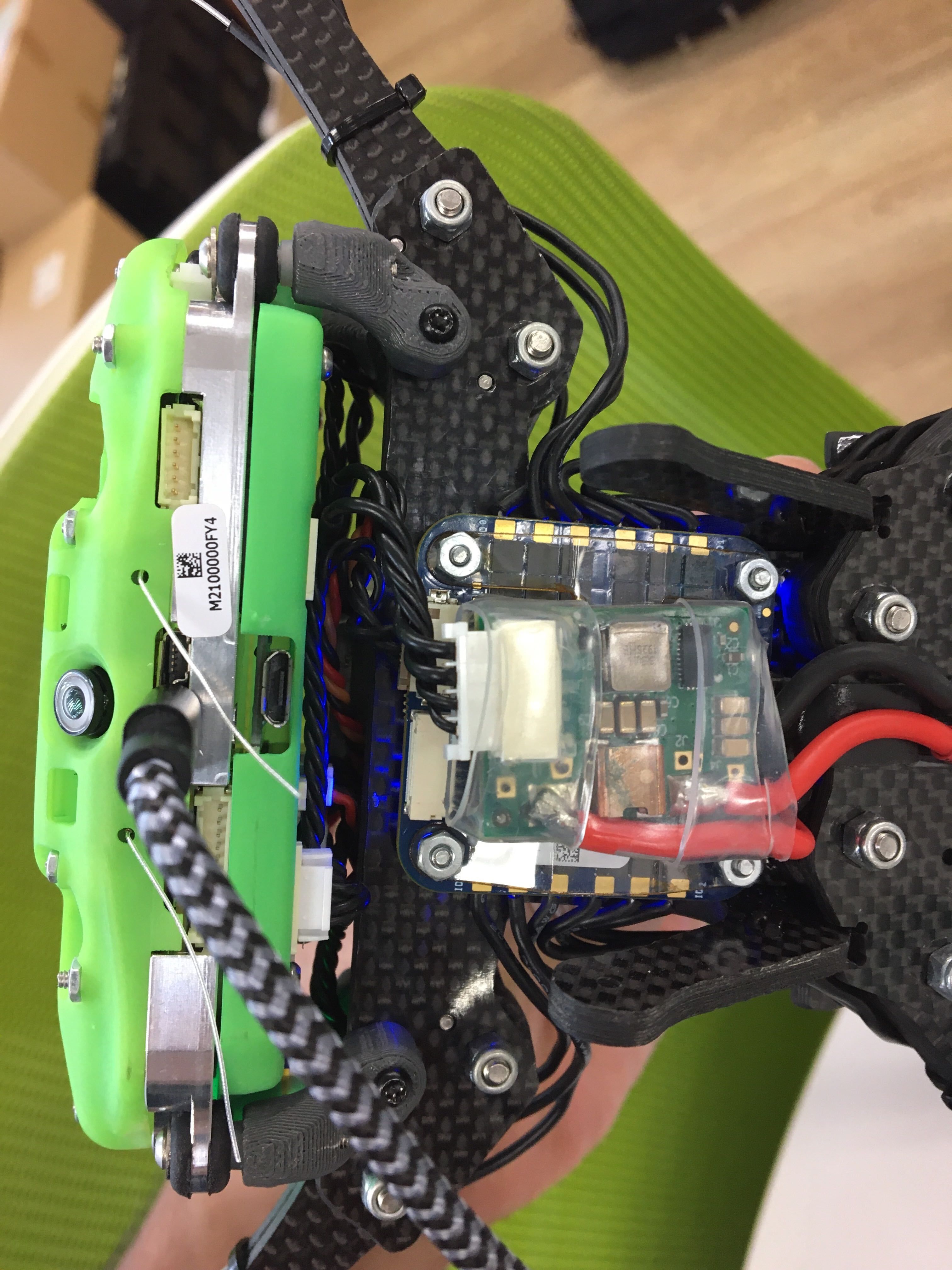
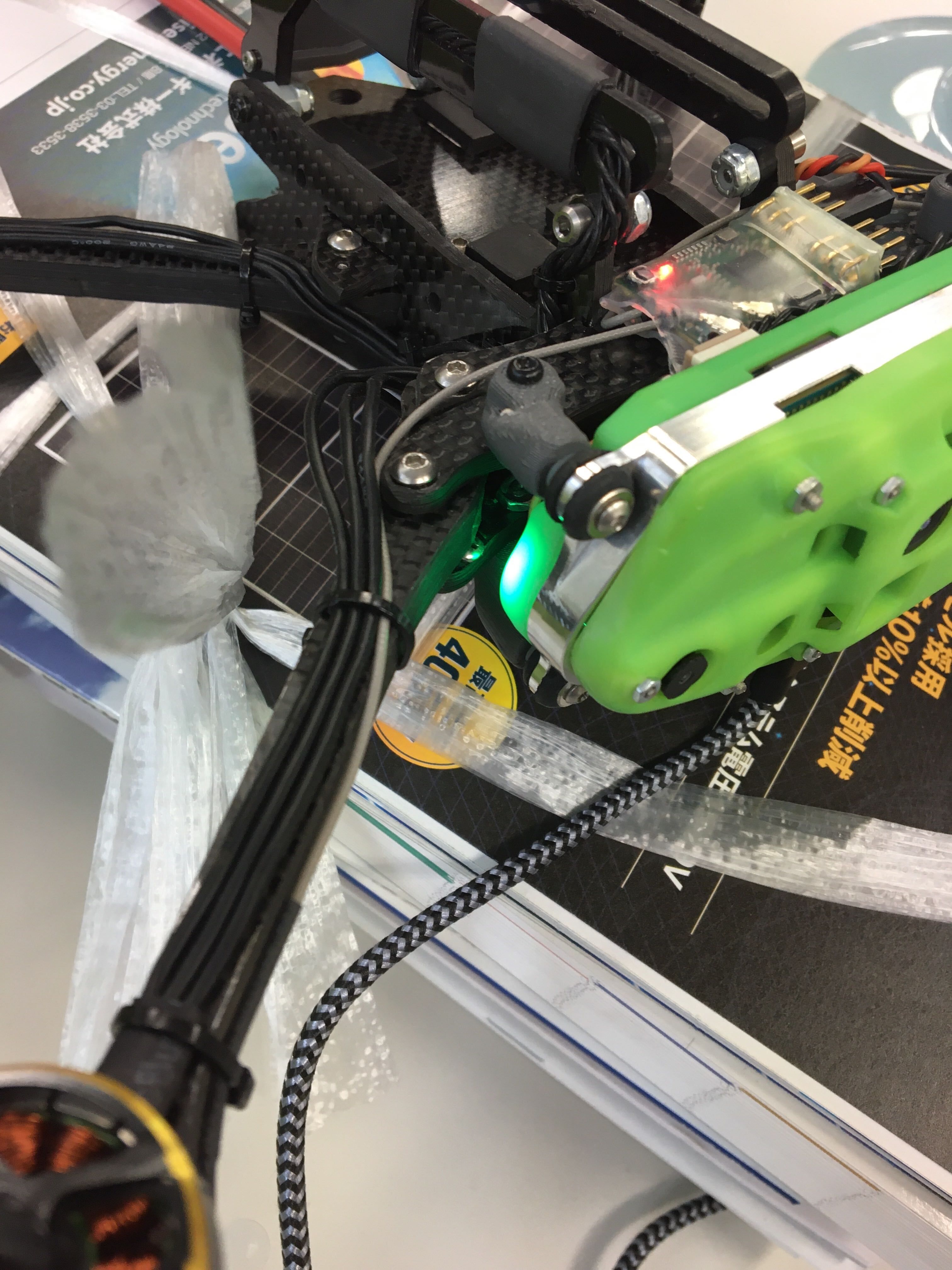
    As reference,
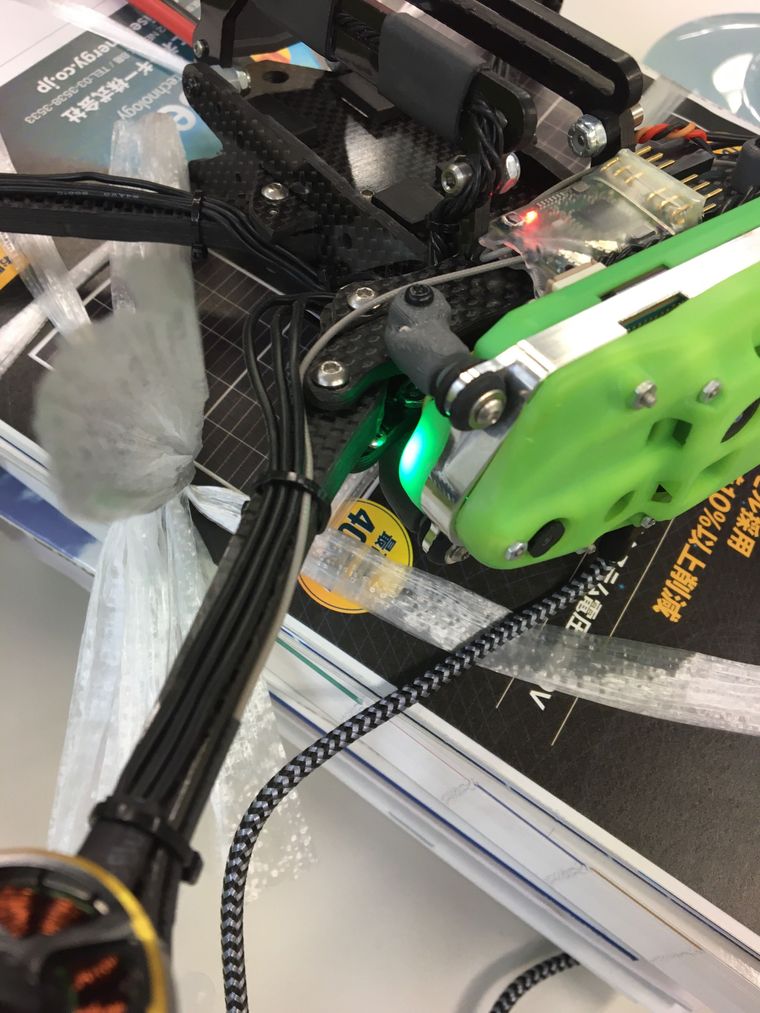
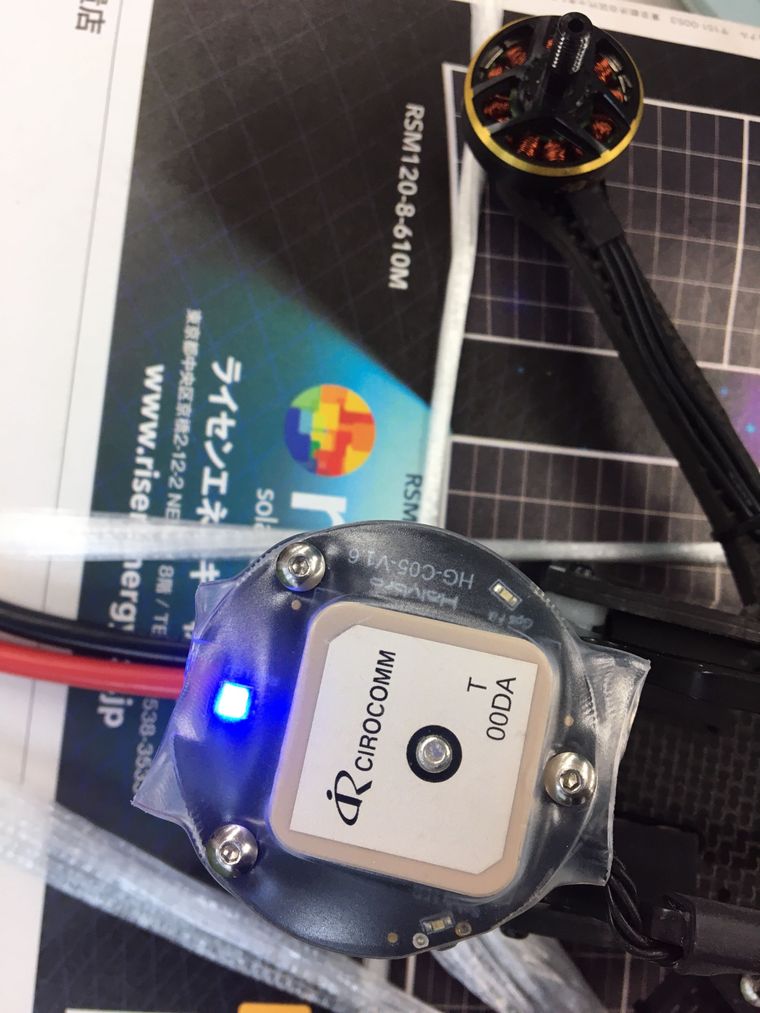
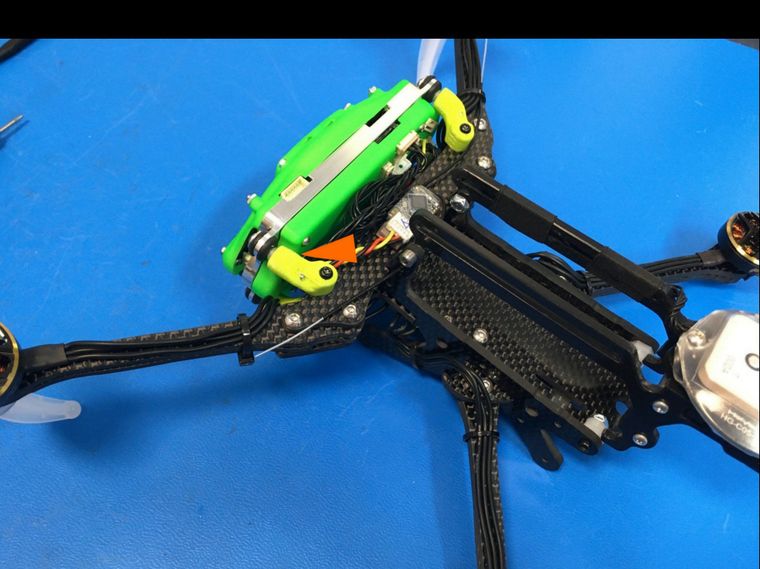
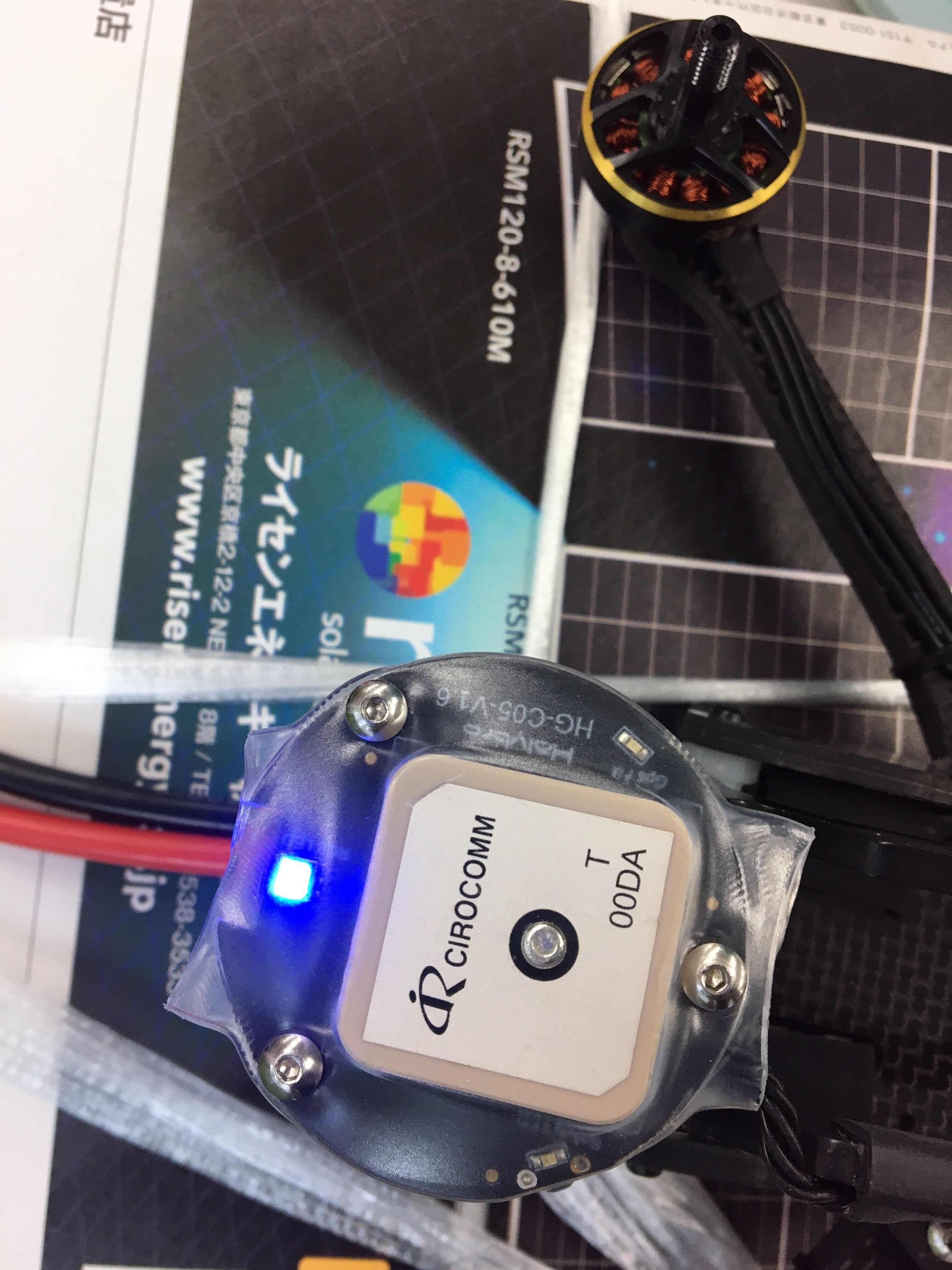
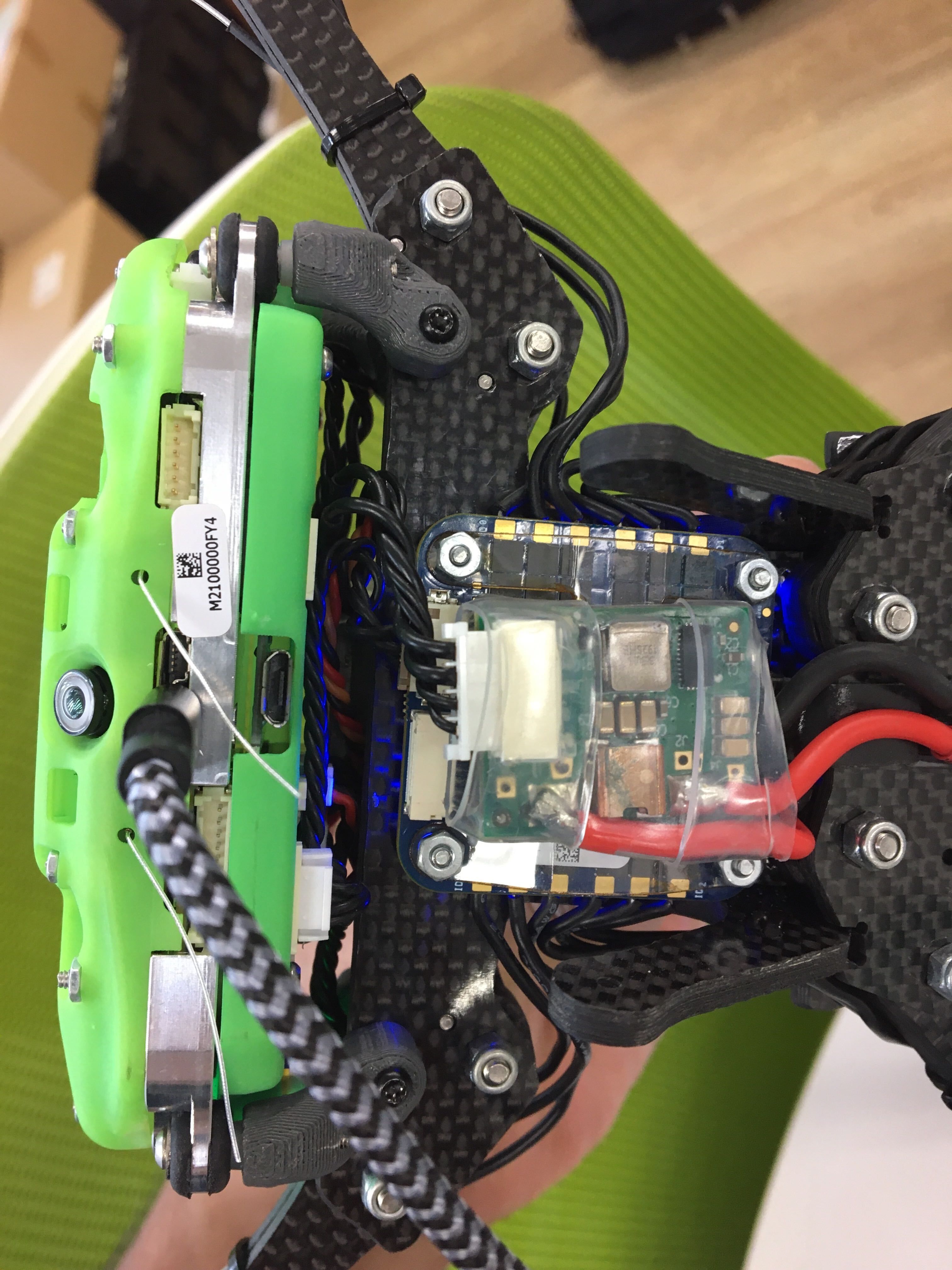
    IMG_3737.jpg
    ![0_1666163268099_IMG_3738.jpg](Uploading 100%)
    IMG_3739.jpg
    IMG_3739.jpg
    IMG_3740.jpg

    1 Reply Last reply
    0
    • Adrian HidalgoA Offline
      Adrian HidalgoA Offline
      Adrian Hidalgo
      ModalAI Team
      wrote on last edited by
      #2

      @ahmed-mustahid if you interrupt the flashing script, especially the install script, you run the risk of corrupting the file, thus bricking the Voxl. You will need to unbrick it by following the unbricking procedure which you've found. For your Seeker, the fastboot switch is on the back of the Voxl-Cam. There should be a small slot from which you can flip the switch on and off.
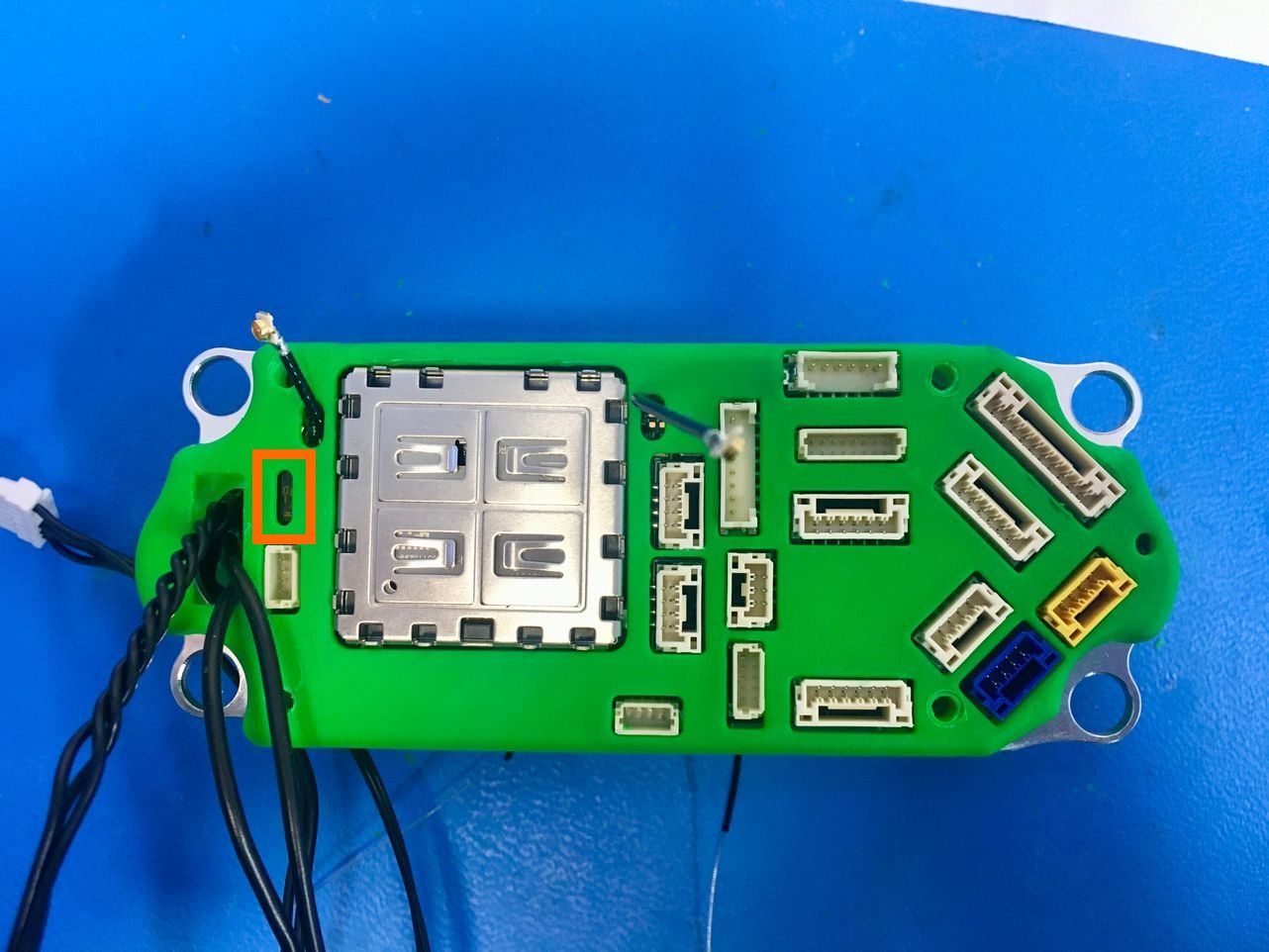
      Voxl-Cam Fastboot Switch Location.jpeg
      ![0_1666193766215_Seeker Fastboot Switch Location.jpeg](Uploading 100%)

      A 1 Reply Last reply
      0
      • Adrian HidalgoA Offline
        Adrian HidalgoA Offline
        Adrian Hidalgo
        ModalAI Team
        wrote on last edited by
        #3

        Seeker Fastboot Switch Location.jpeg

        1 Reply Last reply
        0
        • Adrian HidalgoA Adrian Hidalgo

          @ahmed-mustahid if you interrupt the flashing script, especially the install script, you run the risk of corrupting the file, thus bricking the Voxl. You will need to unbrick it by following the unbricking procedure which you've found. For your Seeker, the fastboot switch is on the back of the Voxl-Cam. There should be a small slot from which you can flip the switch on and off.
          Voxl-Cam Fastboot Switch Location.jpeg
          ![0_1666193766215_Seeker Fastboot Switch Location.jpeg](Uploading 100%)

          A Offline
          A Offline
          ahmed-mustahid
          Contributor
          wrote on last edited by
          #4

          @Adrian-Hidalgo Thank you for the reply.
          Is it possible to switch it on without disassembling the seeker ?
          I have tried flipping the switch that you have shown in the image from outside the green cover. There was no click and sudo fastboot device was showing only < waiting for any device >.

          1. Is there any specific tool or some specific way to flip the switch ? Does it make a click when flipped ?
          2. Is it not possible to flip the switch without disassembling the device ? If so, would you let me know the tools with which I can disassmble it?
            Thank you
          1 Reply Last reply
          0
          • tomT Offline
            tomT Offline
            tom
            admin
            wrote on last edited by
            #5

            @ahmed-mustahid When you power and plug in your Seeker to your host PC what do you seen in lsusb? Does a new device appear? That would be the place to start to ensure your host machine is seeing the VOXL.

            A 1 Reply Last reply
            0
            • Adrian HidalgoA Offline
              Adrian HidalgoA Offline
              Adrian Hidalgo
              ModalAI Team
              wrote on last edited by
              #6

              @ahmed-mustahid The switch should be able to be flipped without taking the Voxl-Cam off of the Seeker. The switch doesn't make any noise when it's flipped. You can use an angled spudger tool/ scratch awl/ or flat-tipped screwdriver.

              1 Reply Last reply
              0
              • tomT tom

                @ahmed-mustahid When you power and plug in your Seeker to your host PC what do you seen in lsusb? Does a new device appear? That would be the place to start to ensure your host machine is seeing the VOXL.

                A Offline
                A Offline
                ahmed-mustahid
                Contributor
                wrote on last edited by
                #7

                @tom I have tried the following steps, but still adb could not find the device

                1. I can see it using lsusb | grep Qual
                ➜  work lsusb | grep Qual
                Bus 003 Device 006: ID 05c6:900e Qualcomm, Inc. QUSB__BULK
                
                ➜  work cat /etc/udev/rules.d/51-android.rules
                SUBSYSTEM=="usb", ATTRS{idVendor}=="05c6", ATTRS{idProduct}=="900e", MODE="0660", GROUP="plugdev", SYMLINK+="voxl%n"
                SUBSYSTEM=="usb", ATTRS{idVendor}=="18d1", ATTRS{idProduct}=="d00d", MODE="0660", GROUP="plugdev", SYMLINK+="voxl-fastboot%n"
                
                
                sudo service udev restart
                
                ➜  work adb kill-server && adb start-server        
                * daemon not running; starting now at tcp:5037
                * daemon started successfully
                
                
                1. adb still could not find the device
                ➜  work adb devices
                List of devices attached
                
                
                1. fastboot could not find it either
                ➜  work sudo fastboot device
                < waiting for any device >
                ^C
                
                
                1. just to try out, I made the SYMLINK+="voxl-fastboot%n" identical to that of SYMLINK+="voxl%n" and repeated the above steps.
                ➜  work cat /etc/udev/rules.d/51-android.rules    
                SUBSYSTEM=="usb", ATTRS{idVendor}=="05c6", ATTRS{idProduct}=="900e", MODE="0660", GROUP="plugdev", SYMLINK+="voxl%n"
                SUBSYSTEM=="usb", ATTRS{idVendor}=="05c6", ATTRS{idProduct}=="900e", MODE="0660", GROUP="plugdev", SYMLINK+="voxl-fastboot%n"
                #SUBSYSTEM=="usb", ATTRS{idVendor}=="18d1", ATTRS{idProduct}=="d00d", MODE="0660", GROUP="plugdev", SYMLINK+="voxl-fastboot%n"


                But adb could not recognise the device this time either.
                Is there any other way that I can use to make adb recognise the device?

                1 Reply Last reply
                0
                • tomT Offline
                  tomT Offline
                  tom
                  admin
                  wrote on last edited by
                  #8

                  @ahmed-mustahid Unfortunately the "QUSB_BULK" mode that your VOXL is enumerating in cannot be fixed by our unbricking process and will have to be sent in for an RMA. See here for info on the RMA process: https://www.modalai.com/pages/rma

                  1 Reply Last reply
                  0

                  Hello! It looks like you're interested in this conversation, but you don't have an account yet.

                  Getting fed up of having to scroll through the same posts each visit? When you register for an account, you'll always come back to exactly where you were before, and choose to be notified of new replies (either via email, or push notification). You'll also be able to save bookmarks and upvote posts to show your appreciation to other community members.

                  With your input, this post could be even better 💗

                  Register Login
                  Reply
                  • Reply as topic
                  Log in to reply
                  • Oldest to Newest
                  • Newest to Oldest
                  • Most Votes


                  ModalAI
                  Categories Recent Tags ModalAI.com Docs
                  © 2026 ModalAI® · Accelerating autonomy for smaller, smarter, safer drones · Powered by NodeBB
                  • Login

                  • Login or register to search.
                  • First post
                    Last post
                  0
                  • Categories
                  • Recent
                  • Tags
                  • Popular
                  • Users
                  • Groups