
Microhard Carrier USB Dongles do not work with microhard pMDDL2450
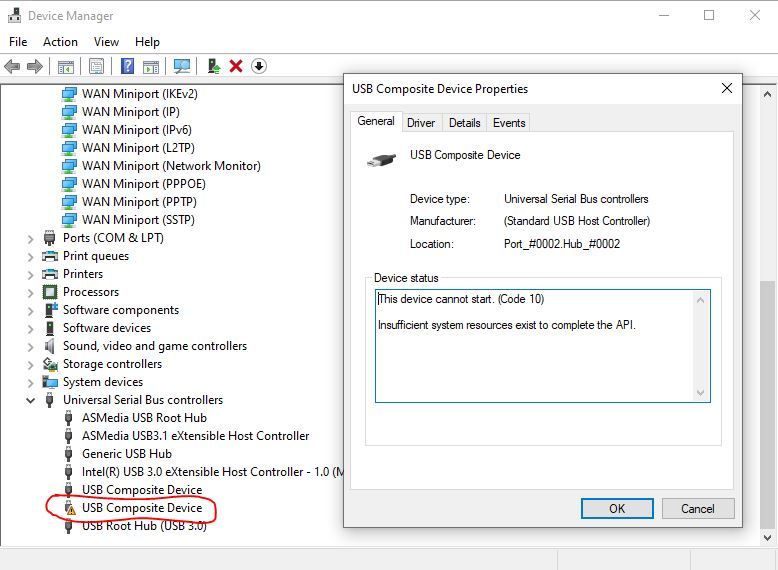
-
We use these internally and have dozens of customers integrating as well. Can you take a picture of your setup? Are you sure you're plugged in to the correct connector?
On Linux, what does
lsusboutput? -
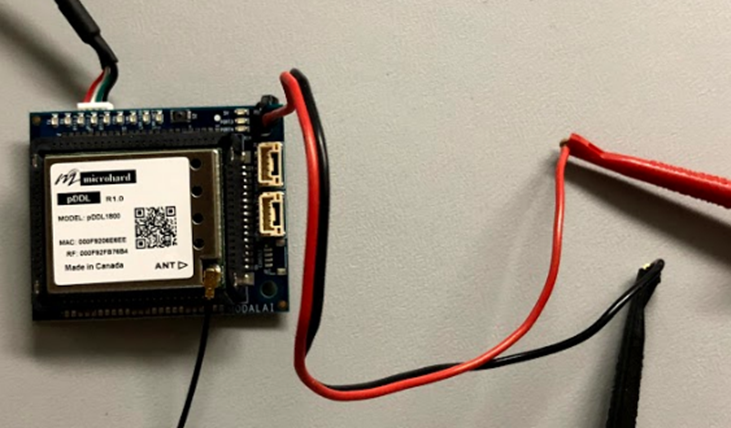
Your should be connected like the image below. We test all of the units prior to shipment using a ping between two boards. It is very likely a setup issue
-
We use these internally and have dozens of customers integrating as well. Can you take a picture of your setup? Are you sure you're plugged in to the correct connector?
On Linux, what does
lsusboutput?@Chad-Sweet we are 100% sure we use the correct connector.
Like i said we have all 5 x LAN7580 versions working A ok. No issues. -
@Chad-Sweet said in Microhard Carrier USB Dongles do not work with microhard pMDDL2450:
On Linux, what does lsusb output?
On Linux, what does lsusb output?
Can you please send a picture of your Microhard dongle connected to a Linux computer?
-
Your should be connected like the image below. We test all of the units prior to shipment using a ping between two boards. It is very likely a setup issue
@Chad-Sweet Have you tested the LAN7500 dongle version with a recent pMDDL2450 as in our image? You can see the version we have is a pMDDL2450 'G2'. This is the only version that microhard now sell of the pMDDL2450- 'latest version'.
Perhaps there is some incompatibility with LAN7500 whilst the LAN7850 works fine.We are 99.99% sure this is related to the recent pMDDL2450 and the LAN7500 dongle version. I will repeat that when this pMDDL2450 is inserted into the official microhard eval kit it works and when used in the LAN7850 modal Dongle it works ok. It's only the LAN7500 versions that have an issue. For the first two days of debugging this we also thought we had made a mistake somewhere but we are very confident about the issue.
I'll send you an image of the setup tomorrow once im back in the office.
Best Regards,
Ross
-
Re: Microhard Carrier USB Dongles do not work with microhard pMDDL2450
Hi Chad, Please see the requested info below.
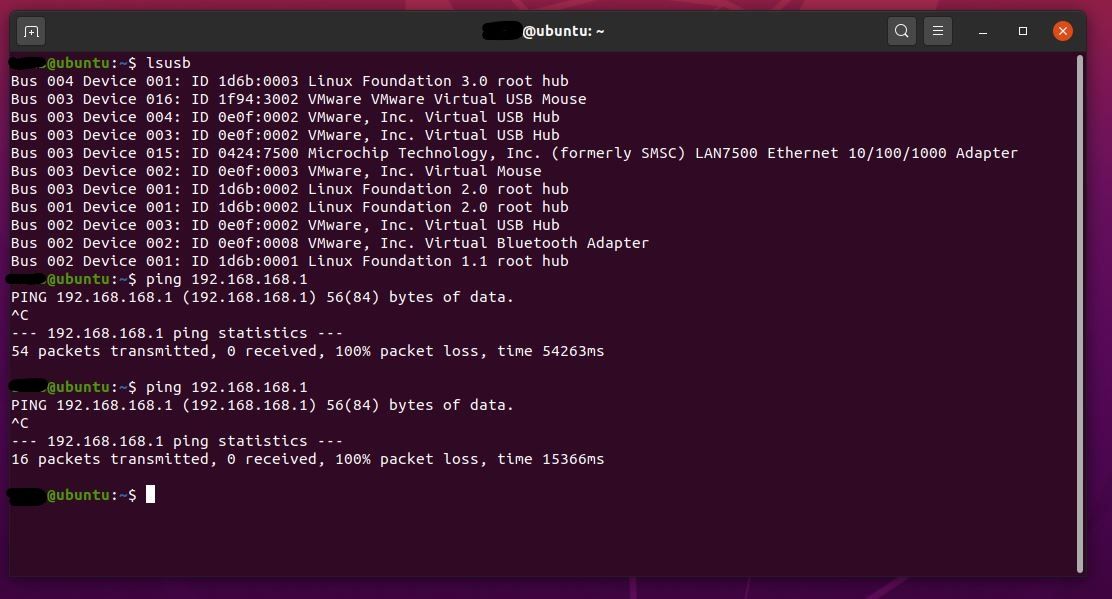
lsusb of LAN7500 Dongle - not working on any platform.
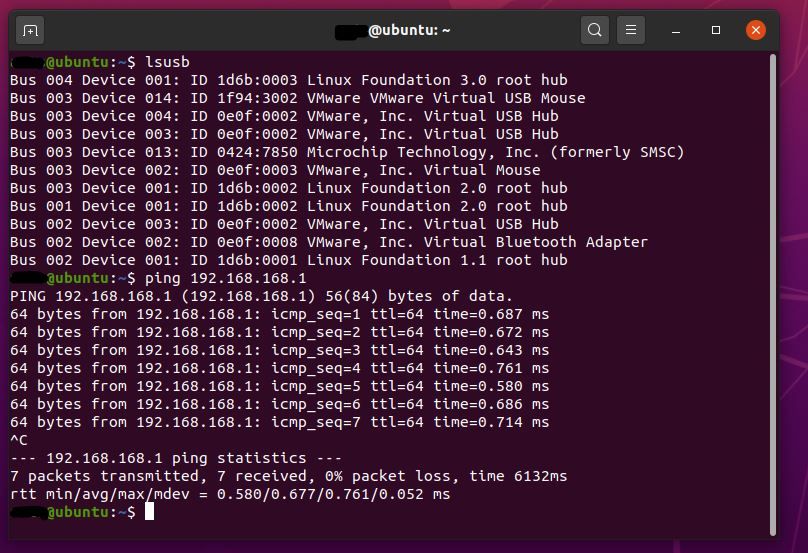
lsusb of LAN7850 Dongle - Working fine on all platforms - Linux/Android and Windows.
Dongle connected image -
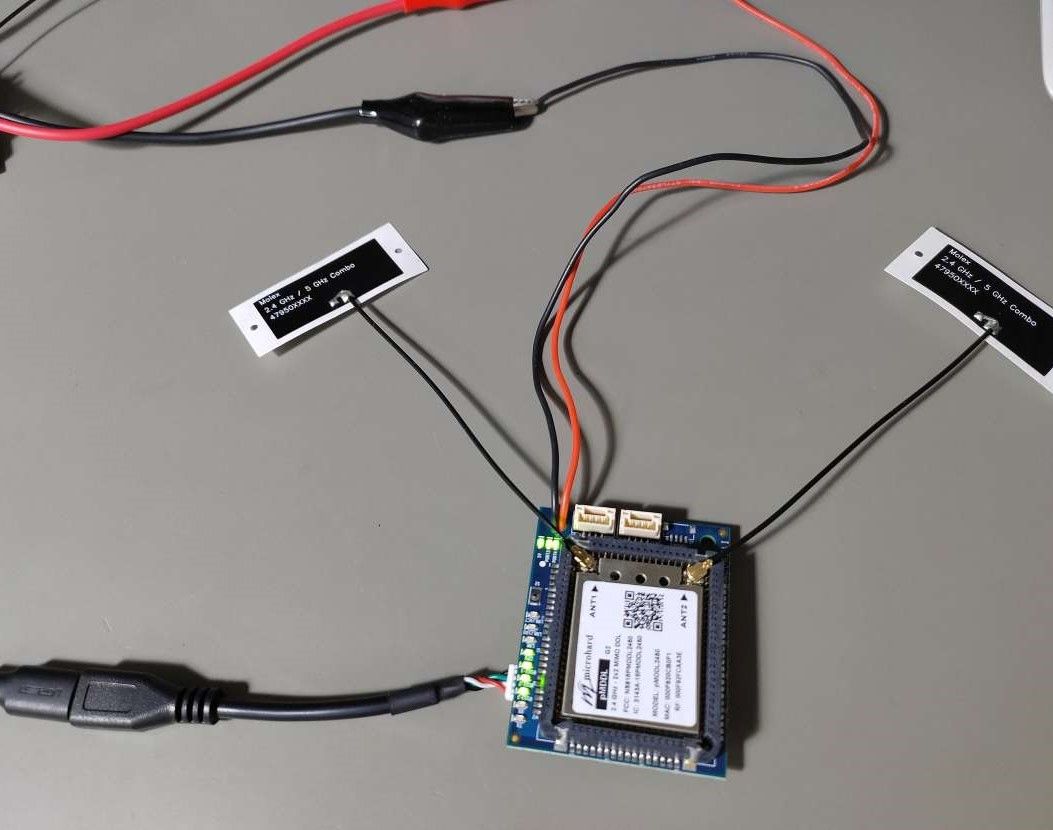
-
@Ross I have replicated your setup as seen below, just using an APM for cable (shouldn't make a difference).
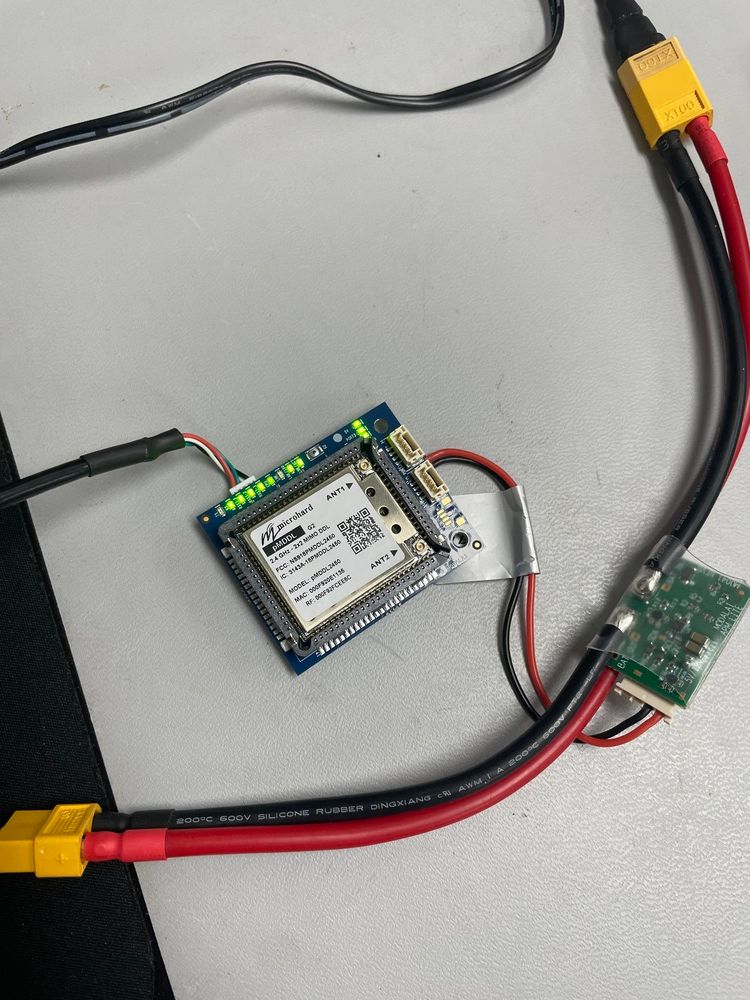
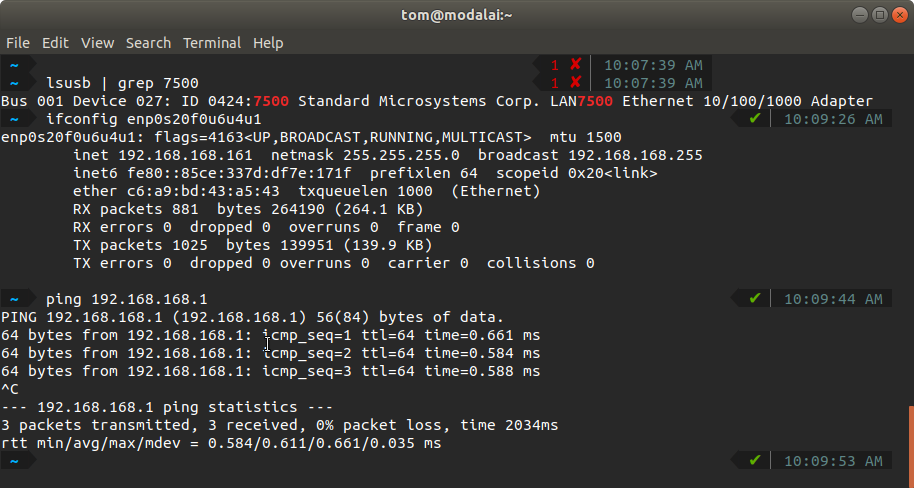
Just like yours, it is enumerating and can be seen in
lsusbYou can use
ifconfigto look at the list of network interfaces on your host device. It will enumerate as type "USB ethernet"
and will be auto-assigned an IP address by the modem (in the form 192.168.168.*)As you can see, mine gave my host PC an address of
192.168.168.161Next, I pinged the modem. My modem was setup in "master" mode, so it has an IP of
192.168.168.1. You can read more about the difference between slave and master modes here: https://docs.modalai.com/microhard-add-on-manual/It's possible yours is in "slave" mode and therefore has an IP of
192.168.168.2In order to modify the settings you can navigate in your browser to the IP of the modem, as seen below:
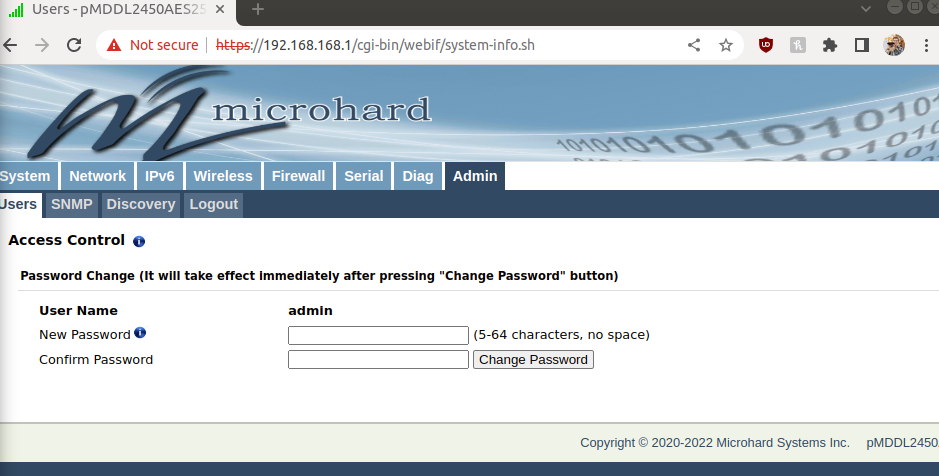
Here you can change modes and modify any other modem settings.
The default login is:
user: admin
password: adminIn order for two Microhard modems to talk to eachother, one needs to be in "master" mode and the other needs to be in "slave" mode. Microhard recommends having the drone be "master" and the ground station to be "slave"
-
Hi @tom, Thanks.
I will get you a screengrab tomorrow when back at the desk.
This should be easy to replicate your side but you will need the same radio and only using the LAN7500 version of your dongle.
As i mentioned to @Chad-Sweet its the pMDDL2450 - microhard call it a 'g2' revision.
According to Microhard its the only one they sell now. -
You can see in Tom's picture, we are using "G2" as well. This is the most common setup
-
@Ross I have replicated your setup as seen below, just using an APM for cable (shouldn't make a difference).
Just like yours, it is enumerating and can be seen in
lsusbYou can use
ifconfigto look at the list of network interfaces on your host device. It will enumerate as type "USB ethernet"
and will be auto-assigned an IP address by the modem (in the form 192.168.168.*)As you can see, mine gave my host PC an address of
192.168.168.161Next, I pinged the modem. My modem was setup in "master" mode, so it has an IP of
192.168.168.1. You can read more about the difference between slave and master modes here: https://docs.modalai.com/microhard-add-on-manual/It's possible yours is in "slave" mode and therefore has an IP of
192.168.168.2In order to modify the settings you can navigate in your browser to the IP of the modem, as seen below:
Here you can change modes and modify any other modem settings.
The default login is:
user: admin
password: adminIn order for two Microhard modems to talk to eachother, one needs to be in "master" mode and the other needs to be in "slave" mode. Microhard recommends having the drone be "master" and the ground station to be "slave"
-
R rjpking92 referenced this topic on


Reading along? Create a free ModalAI Forum account to join in.
With an account you can reply, ask your own question, get an email when a ModalAI engineer answers, and mark the reply that solved it. Your place in each thread is saved between visits.
Questions about VOXL, Flight Core, ESCs and ModalAI drones are answered here by the engineers who build them.
Register Login