
Seeker connection to QGC
-
@tom If your seeker has a Flight Core v1 it'll be the same process but just loading the FCv1 binary instead
@tom Thank you for the information.
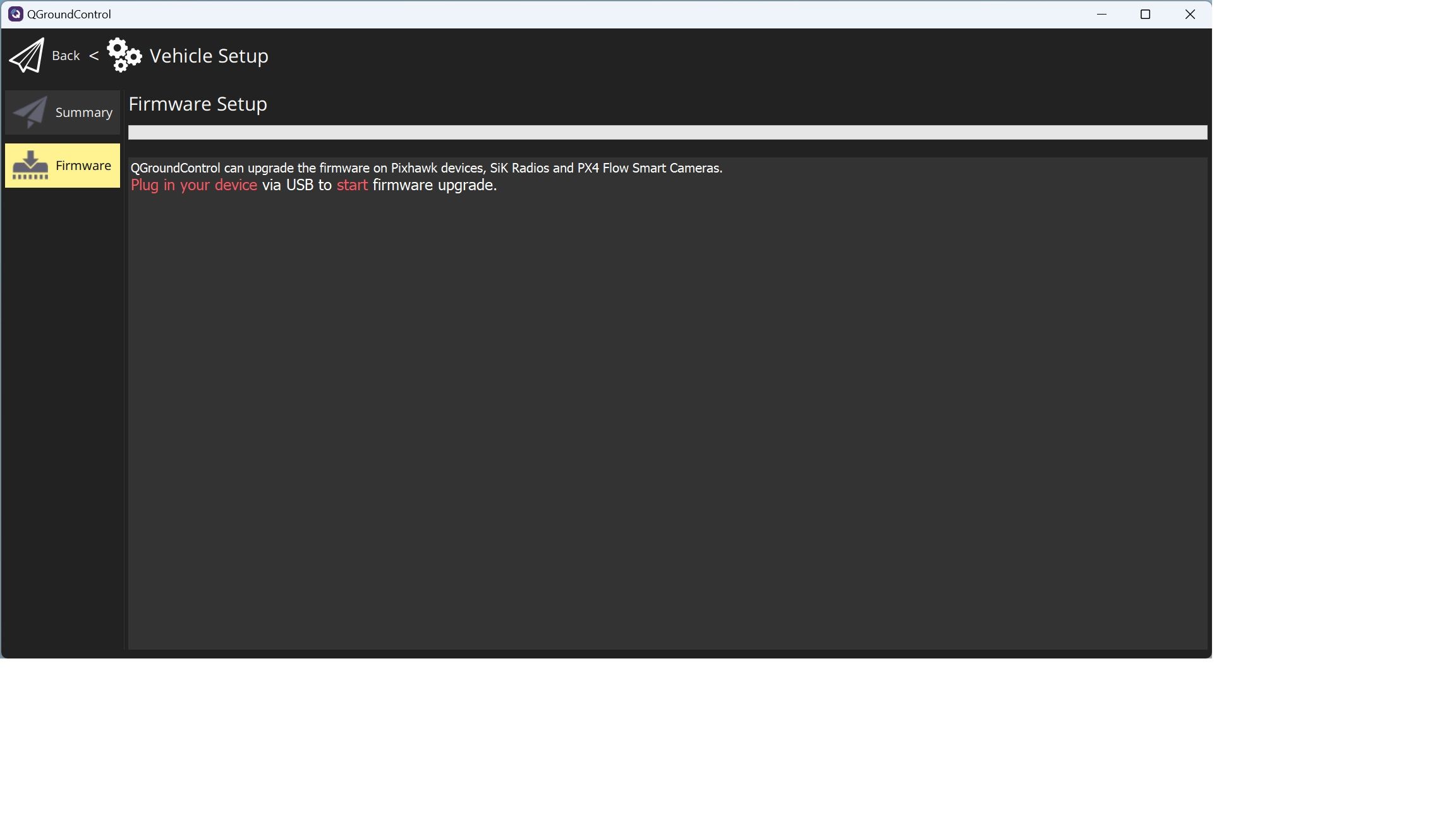
For the QGC, I should connect it through the USB while when I do it with either Windows or Ubuntu, nothing will happen and QGC will not recognize the Seeker! I would appreciate it if you could give me some hints on this situation.
I have tried the link you sent me on Ubuntu, but the bootloader will not find the Seeker after using the following code:
./Tools/px_uploader.py --port /dev/ttyACM1 --baud-bootloader 1152000 /home/hulabs/Downloads/seeker/voxl_SDK_1.1.2/flight-core/modalai_fc-v2_1.14.0-2.0.63.px4
The location of the fc-v2, is from downloading the SDK 1.1.2 and the directory you told me to find it from.
I have tried both v1 and v2.
How can I know my flight Core is v1 or v2?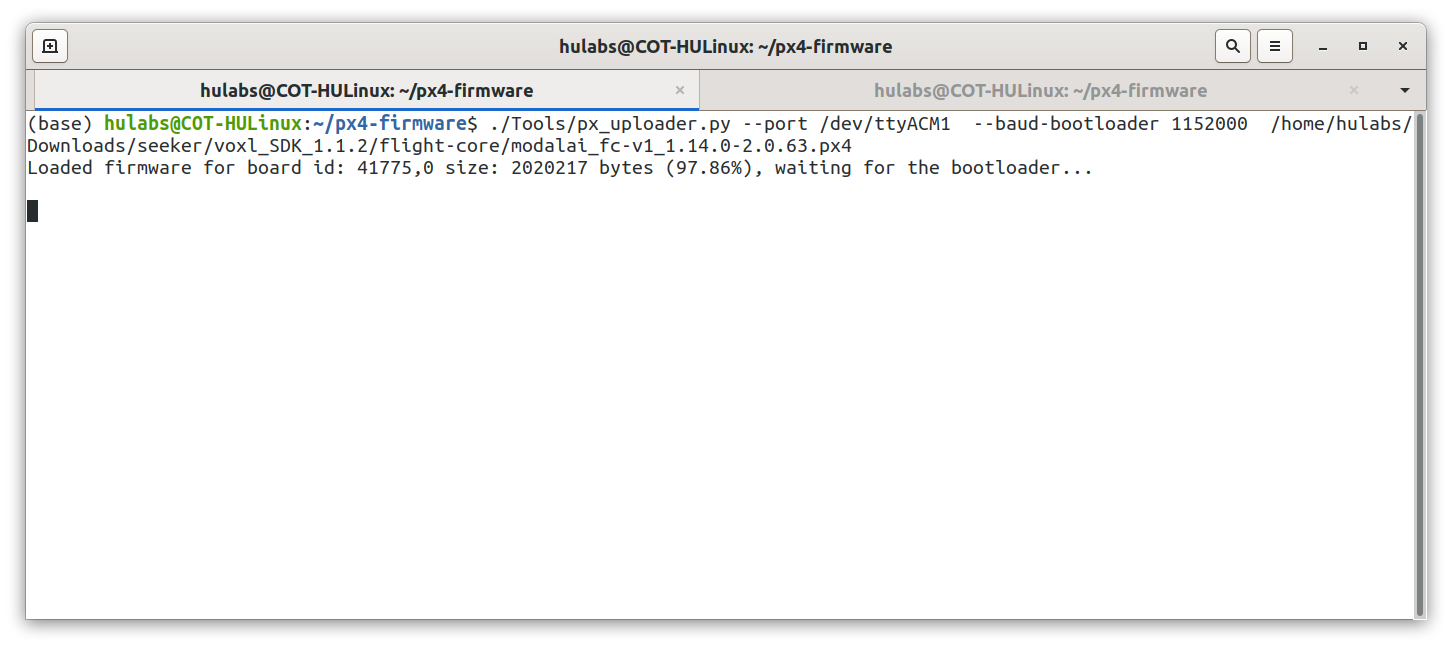
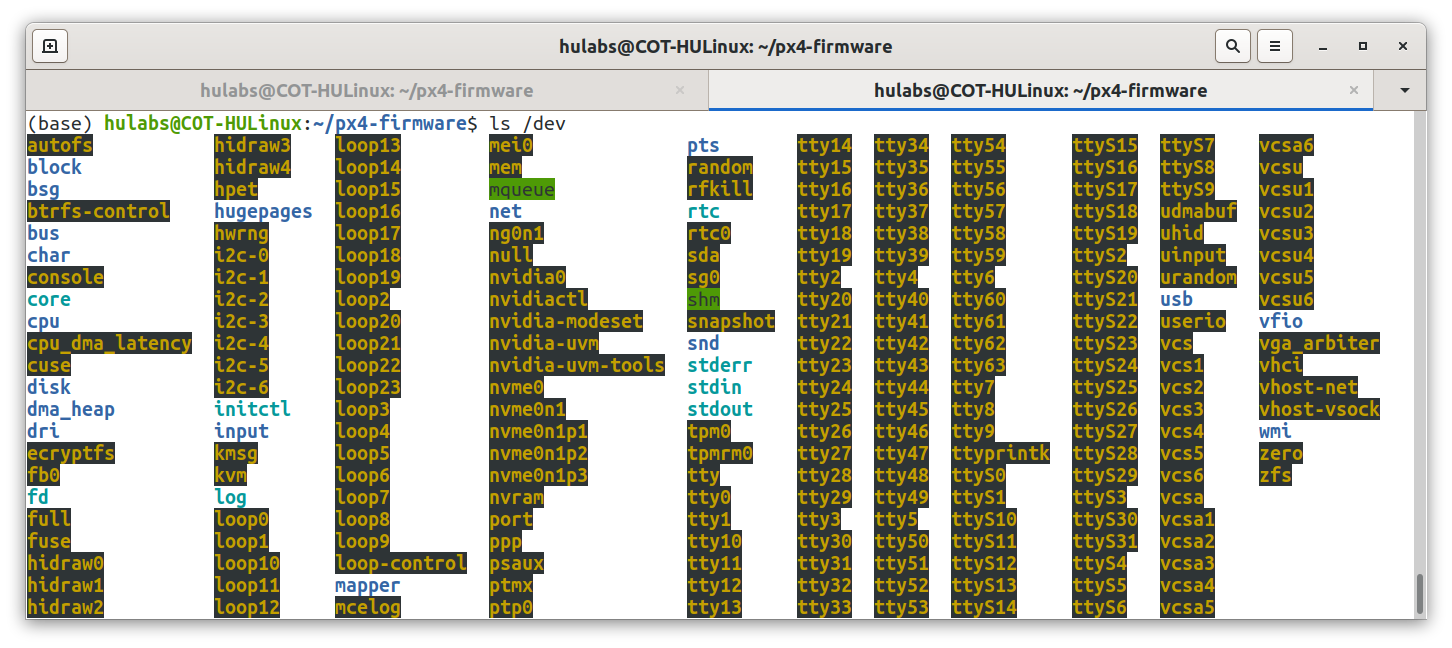
I think maybe the problem is with "/dev/ttyACM1" which I don't know my USB name in /dev location. what I have in my /dev directory is as follow:
The other thing is that in the link you sent me, it was said that for the bootloader step I have to connect the USB and I dont need to use external power source, however, if I dont power up the Seeker using its battery, there would be no USB connection. Is using USB connection with powering up the Seeker with its battery correct?
Sorry for providing too many problems and question at the same time.
-
@tom Thank you for the information.
For the QGC, I should connect it through the USB while when I do it with either Windows or Ubuntu, nothing will happen and QGC will not recognize the Seeker! I would appreciate it if you could give me some hints on this situation.
I have tried the link you sent me on Ubuntu, but the bootloader will not find the Seeker after using the following code:
./Tools/px_uploader.py --port /dev/ttyACM1 --baud-bootloader 1152000 /home/hulabs/Downloads/seeker/voxl_SDK_1.1.2/flight-core/modalai_fc-v2_1.14.0-2.0.63.px4
The location of the fc-v2, is from downloading the SDK 1.1.2 and the directory you told me to find it from.
I have tried both v1 and v2.
How can I know my flight Core is v1 or v2?I think maybe the problem is with "/dev/ttyACM1" which I don't know my USB name in /dev location. what I have in my /dev directory is as follow:
The other thing is that in the link you sent me, it was said that for the bootloader step I have to connect the USB and I dont need to use external power source, however, if I dont power up the Seeker using its battery, there would be no USB connection. Is using USB connection with powering up the Seeker with its battery correct?
Sorry for providing too many problems and question at the same time.
@Pooyan What is the serial number of your seeker? There should be a sticker on the frame of the drone with a number in the form MXX00000XXX
I should be able determine whether you have a v1 or v2 based off of that
If you're able to get a QGC connection via. USB you should be able to see the hardware version in qgc
-
@Pooyan What is the serial number of your seeker? There should be a sticker on the frame of the drone with a number in the form MXX00000XXX
I should be able determine whether you have a v1 or v2 based off of that
If you're able to get a QGC connection via. USB you should be able to see the hardware version in qgc
-
@tom The serial is this: M22000001WW. Thank you for Checking. Do you think if you could give me some hints about the problems as well?
@Pooyan That serial number seems to be the number for your power module. Maybe there's another elsewhere.
As for other tips...
Make sure you don't have the package
brlttyinstalled as that will often hijack devices on ttyACM, you can remove it withsudo apt remove brlttyAlso, if you do in fact have a FCv2, you have to remove both power and usb and then only plug in power. It'll provide enough power via. usb in order to flash the device.
-
@Pooyan That serial number seems to be the number for your power module. Maybe there's another elsewhere.
As for other tips...
Make sure you don't have the package
brlttyinstalled as that will often hijack devices on ttyACM, you can remove it withsudo apt remove brlttyAlso, if you do in fact have a FCv2, you have to remove both power and usb and then only plug in power. It'll provide enough power via. usb in order to flash the device.
@tom Hello again and sorry for my late response.
There is another serial number: M2100000J6P
Thank you so much for checking that.
One thing I want to mention is that I couldn't ever get connected via USB only. I have tried both Windows and Linux. I need to connect the battery first, and then the USB will be recognized. Having said that even in that situation, it will not be recognized with QGC. I would appreciate it if you could give some hints on this.
On Ubuntu, I tried dmesg -w and made sure that till the power is not connected, the USB will not get connected.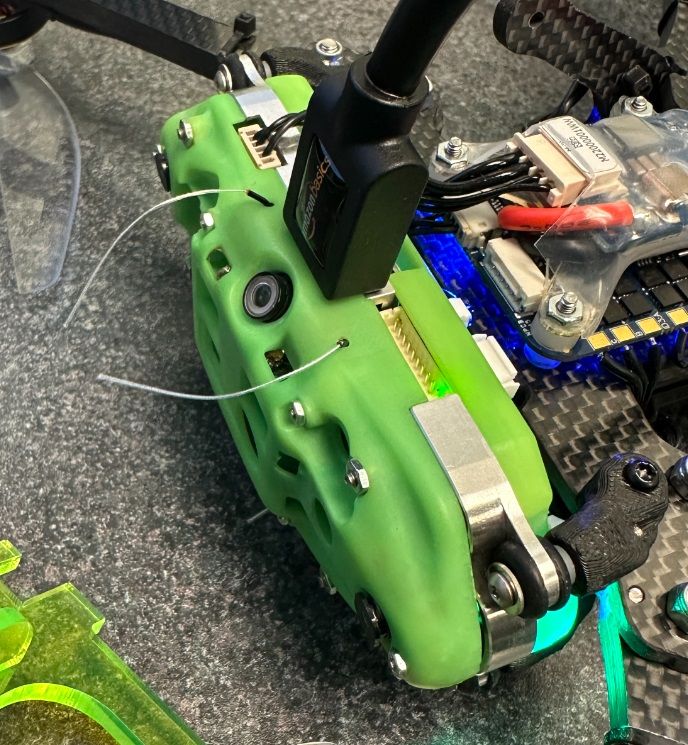
I did sudo apt remove brltty as you said, and tried again but everything is still the same as screenshots I sent previously.
Do you have any more suggestions?
-
@tom Hello again and sorry for my late response.
There is another serial number: M2100000J6P
Thank you so much for checking that.
One thing I want to mention is that I couldn't ever get connected via USB only. I have tried both Windows and Linux. I need to connect the battery first, and then the USB will be recognized. Having said that even in that situation, it will not be recognized with QGC. I would appreciate it if you could give some hints on this.
On Ubuntu, I tried dmesg -w and made sure that till the power is not connected, the USB will not get connected.I did sudo apt remove brltty as you said, and tried again but everything is still the same as screenshots I sent previously.
Do you have any more suggestions?
-
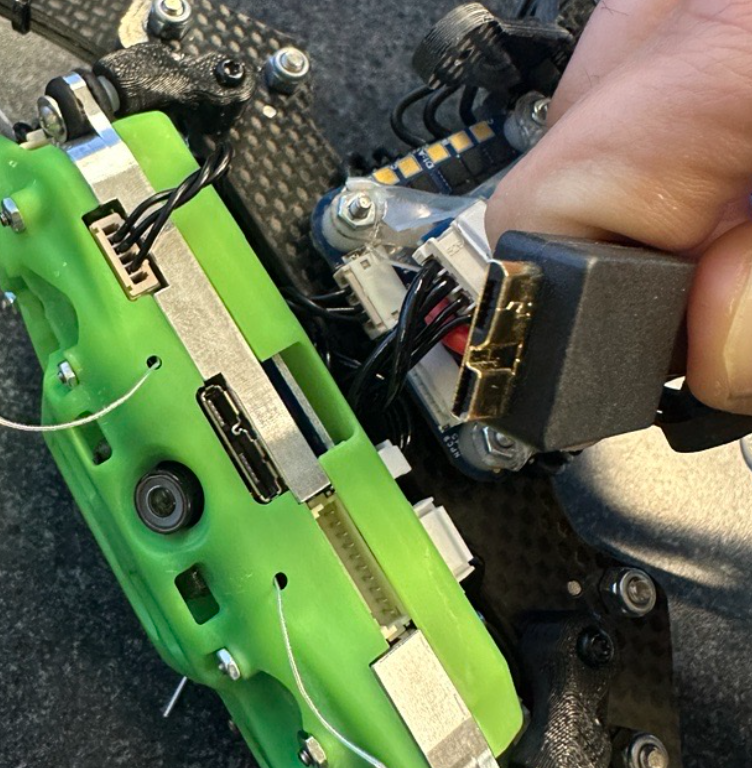
@Pooyan Okay great thanks, It does appear that you have a FCv2. Can you show point out the USB port you are using in order to connect the flight core to your PC?
-
@Pooyan So in the voxl-cam there are two separate boards: VOXL and Flight Core. That connector you're plugging into is USB port that allows you to access ADB on VOXL, seen here: https://docs.modalai.com/voxl-cam-user-guide-core/#connect-to-voxl-cam-with-adb
What you need to connect to in order to flash flight core is J3, which can be seen here: https://docs.modalai.com/flight-core-v2-usb-to-qgc/#j3---usb--qgroundcontrol
In the photo on this page it is the blue connector: https://docs.modalai.com/voxl-cam-user-guide-flight/#voxl-cam-v1-flight-core-setup
You need to use an MCBL-00010, seen here: https://docs.modalai.com/cable-datasheets/#mcbl-00010 in combination with a usb to micro-usb cable to plug into your pc
It can be purchased here: https://www.modalai.com/products/mcbl-00010?_pos=26&_sid=5684dd53e&_ss=r
-
@Pooyan So in the voxl-cam there are two separate boards: VOXL and Flight Core. That connector you're plugging into is USB port that allows you to access ADB on VOXL, seen here: https://docs.modalai.com/voxl-cam-user-guide-core/#connect-to-voxl-cam-with-adb
What you need to connect to in order to flash flight core is J3, which can be seen here: https://docs.modalai.com/flight-core-v2-usb-to-qgc/#j3---usb--qgroundcontrol
In the photo on this page it is the blue connector: https://docs.modalai.com/voxl-cam-user-guide-flight/#voxl-cam-v1-flight-core-setup
You need to use an MCBL-00010, seen here: https://docs.modalai.com/cable-datasheets/#mcbl-00010 in combination with a usb to micro-usb cable to plug into your pc
It can be purchased here: https://www.modalai.com/products/mcbl-00010?_pos=26&_sid=5684dd53e&_ss=r
-
@Pooyan So in the voxl-cam there are two separate boards: VOXL and Flight Core. That connector you're plugging into is USB port that allows you to access ADB on VOXL, seen here: https://docs.modalai.com/voxl-cam-user-guide-core/#connect-to-voxl-cam-with-adb
What you need to connect to in order to flash flight core is J3, which can be seen here: https://docs.modalai.com/flight-core-v2-usb-to-qgc/#j3---usb--qgroundcontrol
In the photo on this page it is the blue connector: https://docs.modalai.com/voxl-cam-user-guide-flight/#voxl-cam-v1-flight-core-setup
You need to use an MCBL-00010, seen here: https://docs.modalai.com/cable-datasheets/#mcbl-00010 in combination with a usb to micro-usb cable to plug into your pc
It can be purchased here: https://www.modalai.com/products/mcbl-00010?_pos=26&_sid=5684dd53e&_ss=r
@tom Hello again,
I got the USB cable and did the update for the FC2 using the QGC application. The versions I can see in QGC are as follow:
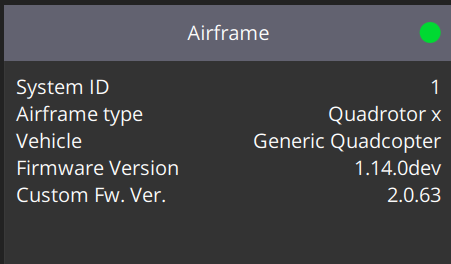
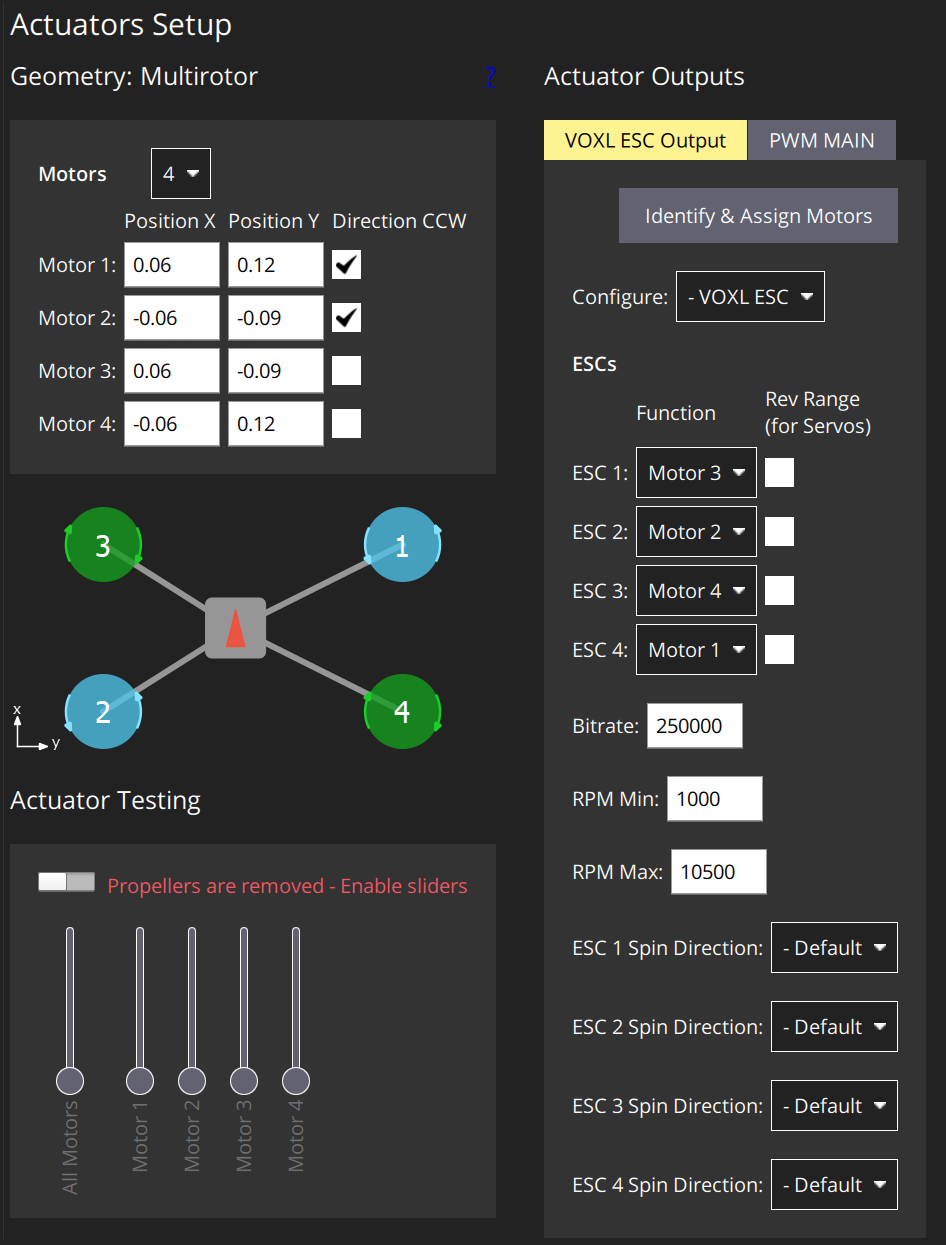
At first the Airframe and Actuators tabs were red, but now they are not. I tried to update the parameters through QGC, however, still in Actuators I am not sure if everything is fine:
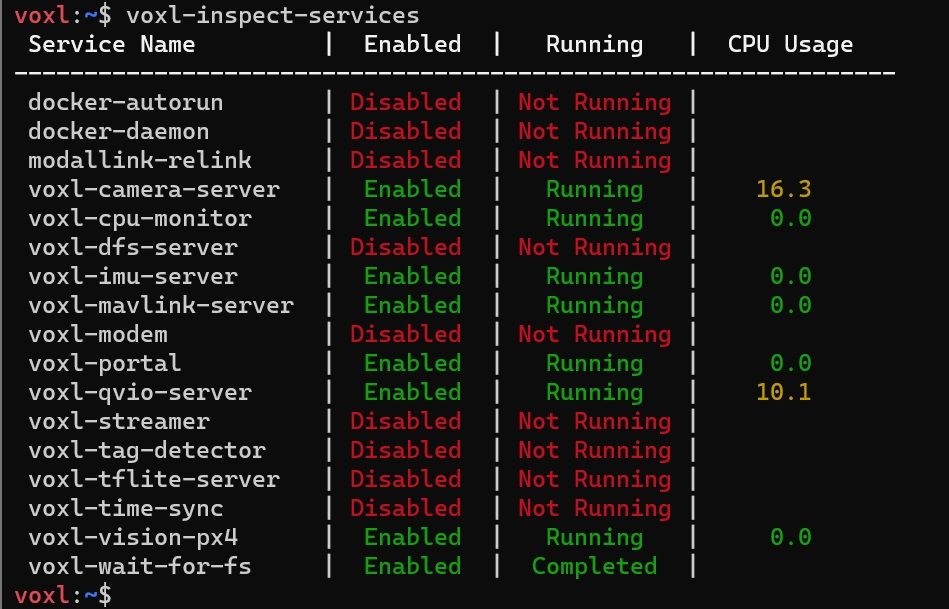
Now, if I disconnect the USB and connect through wi-fi, still I can't get connected to the QGC, the red led will blink and the VOXL-inspect-services is as it was after flashing (no px4 is there in the list):
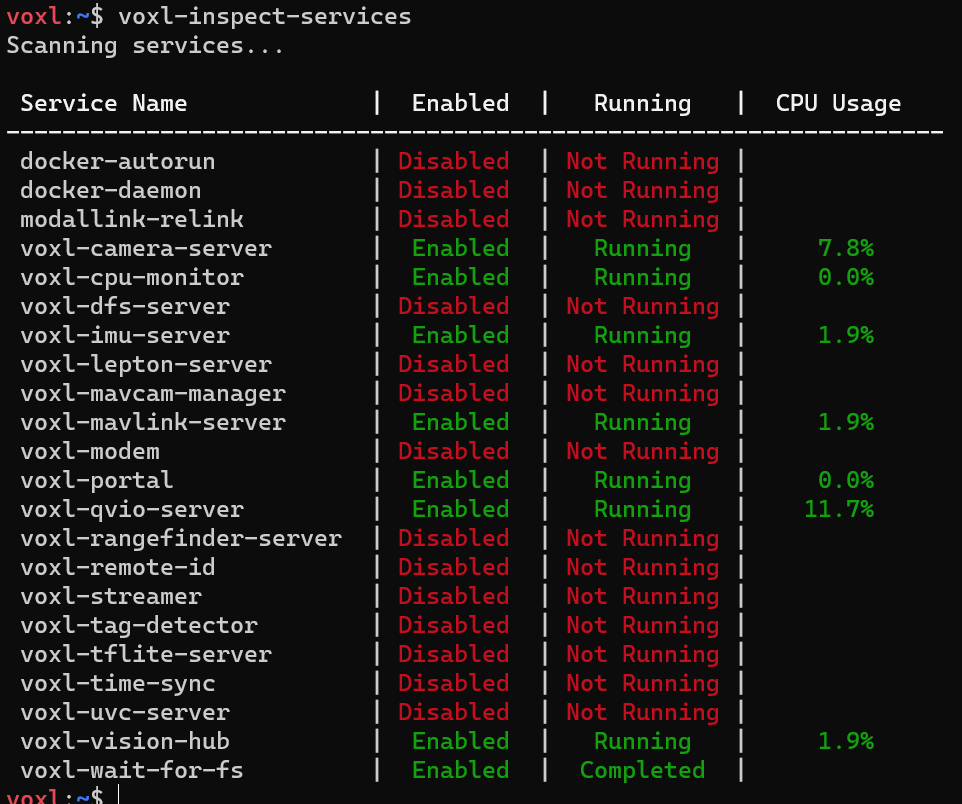
I will appreciate it if you could give me some hints on that. -
@Pooyan So in the voxl-cam there are two separate boards: VOXL and Flight Core. That connector you're plugging into is USB port that allows you to access ADB on VOXL, seen here: https://docs.modalai.com/voxl-cam-user-guide-core/#connect-to-voxl-cam-with-adb
What you need to connect to in order to flash flight core is J3, which can be seen here: https://docs.modalai.com/flight-core-v2-usb-to-qgc/#j3---usb--qgroundcontrol
In the photo on this page it is the blue connector: https://docs.modalai.com/voxl-cam-user-guide-flight/#voxl-cam-v1-flight-core-setup
You need to use an MCBL-00010, seen here: https://docs.modalai.com/cable-datasheets/#mcbl-00010 in combination with a usb to micro-usb cable to plug into your pc
It can be purchased here: https://www.modalai.com/products/mcbl-00010?_pos=26&_sid=5684dd53e&_ss=r
@tom to get connected to the QGC, I need to configure the voxl-vision-px4 and add the ip to it in order to be able to get connected to the QGC, but this file does not exist and when I try voxl-vision-hub, there is no place for an ip to get connected to QGC.
-
@tom to get connected to the QGC, I need to configure the voxl-vision-px4 and add the ip to it in order to be able to get connected to the QGC, but this file does not exist and when I try voxl-vision-hub, there is no place for an ip to get connected to QGC.
@Pooyan You won't see
voxl-px4in the last because that is only on voxl2 where px4 runs on voxl itself. In your case, px4 is running on the flight core.In newer SDKs, you can set the gcs ip in
/etc/modalai/voxl-mavlink-server.conf{ "primary_static_gcs_ip": "192.168.8.10", -
@Pooyan You won't see
voxl-px4in the last because that is only on voxl2 where px4 runs on voxl itself. In your case, px4 is running on the flight core.In newer SDKs, you can set the gcs ip in
/etc/modalai/voxl-mavlink-server.conf{ "primary_static_gcs_ip": "192.168.8.10",
Reading along? Create a free ModalAI Forum account to join in.
With an account you can reply, ask your own question, get an email when a ModalAI engineer answers, and mark the reply that solved it. Your place in each thread is saved between visits.
Questions about VOXL, Flight Core, ESCs and ModalAI drones are answered here by the engineers who build them.
Register Login