
Hardware configuration for 2× M0014 tracking + 1× M0169 PMD ToF + 1× M0024 HiRes
-
Hello Team, I’m working with a VOXL2 Mini and would like guidance on the correct hardware configuration (cables and ports) for the following camera setup:
Cameras
-
2× M0014 (OV7251 tracking cameras)
-
1× M0169 (PMD ToF camera)
-
1× M0024 (IMX214 high-resolution camera)
Available accessories
-
M0084 flex cables
-
M0135 interface board
Could you please confirm the correct physical connection / port mapping for this setup on VOXL2 Mini?
-
-
Hello Team, I’m working with a VOXL2 Mini and would like guidance on the correct hardware configuration (cables and ports) for the following camera setup:
Cameras
-
2× M0014 (OV7251 tracking cameras)
-
1× M0169 (PMD ToF camera)
-
1× M0024 (IMX214 high-resolution camera)
Available accessories
-
M0084 flex cables
-
M0135 interface board
Could you please confirm the correct physical connection / port mapping for this setup on VOXL2 Mini?
Hello @Sarika-Sharma ,
Do you have all these cameras already and are asking how to connect them, or are you looking to purchase them?
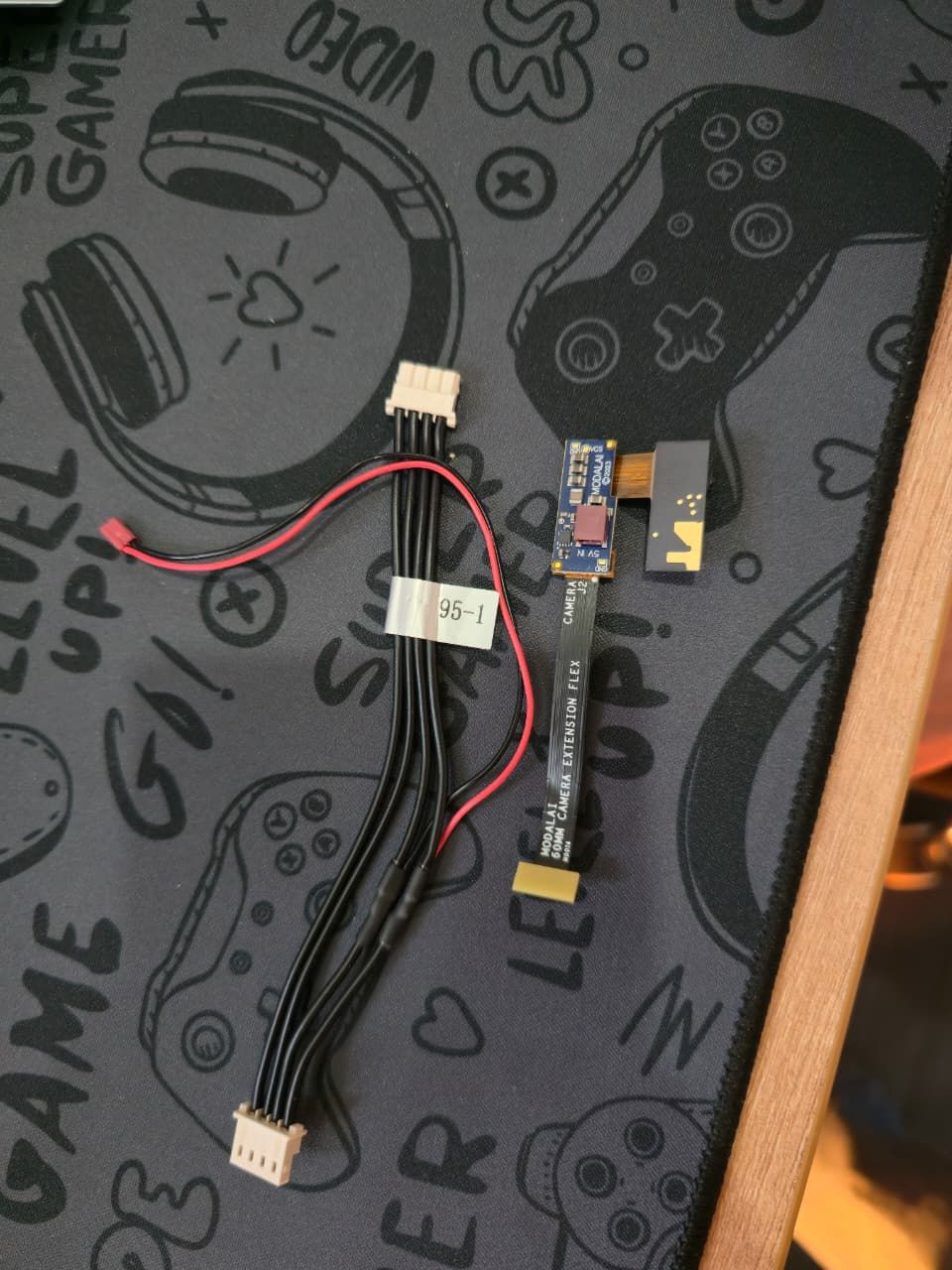
If you do have the M0169, can you please post the picture of the TOF module and attached adapters that came with it? I just want to make sure I know exactly what you have, since there are several adapter options.
Also, are you open to any updates to the camera selection, as I can make suggestions to use better cameras (both tracking cameras and hires cameras).
Alex
-
-
Hello @Sarika-Sharma ,
Do you have all these cameras already and are asking how to connect them, or are you looking to purchase them?
If you do have the M0169, can you please post the picture of the TOF module and attached adapters that came with it? I just want to make sure I know exactly what you have, since there are several adapter options.
Also, are you open to any updates to the camera selection, as I can make suggestions to use better cameras (both tracking cameras and hires cameras).
Alex
Hello @Alex-Kushleyev
Thank you for getting back to me.Yes, I already have the above cameras.I am attaching image of the PMD TOF image sensor along with the adapters that were included, so you can confirm exactly which configuration I have.
I would also be very open to your suggestions regarding updates or improvements to the camera selection. Please feel free to recommend better options based on your experience.
Looking forward to your guidance.
-
Hello @Alex-Kushleyev
Thank you for getting back to me.Yes, I already have the above cameras.I am attaching image of the PMD TOF image sensor along with the adapters that were included, so you can confirm exactly which configuration I have.
I would also be very open to your suggestions regarding updates or improvements to the camera selection. Please feel free to recommend better options based on your experience.
Looking forward to your guidance.
@Sarika-Sharma and I also wanna tell you my goal i.e. stable indoor flight without GPS
-
@Sarika-Sharma and I also wanna tell you my goal i.e. stable indoor flight without GPS
@Sarika-Sharma , thanks for the sending the picture of the TOF module.
In terms of connecting all 4 cameras to VOXL2 Mini, there is a lot of flexibility:
- both M0084 and M0135 provide two camera ports each
- any camera can be connected to any port, but i would probably group two tracking cameras together and then TOF + IMX214
- you could choose where to connect the cameras based on the mechanical integration requirements
- you can replace M0084 with another M0135 if you do not need a longer extension that M0084 provides
- depending on the actual locations of each camera, each camera will have a corresponding camera slot ID (0 through 3) and the camera drivers (
sensormodules) will need to be set up correctly, but that is not difficult (we have a helper tools to help with that). - a few notes about the TOF sensor
- it needs external power (not from voxl), so you have to connect the red/black wire that branches off from the APM cable to the dark red power connector on the TOF module assembly
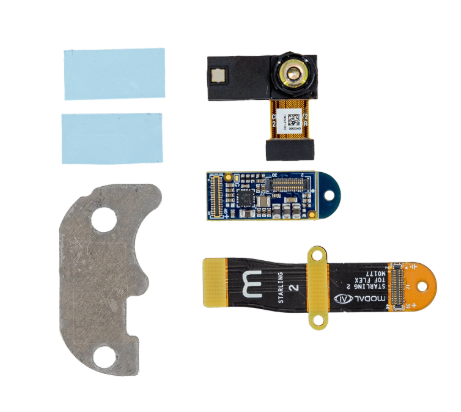
- TOF module is pretty powerful and can potentially overheat if uncooled (with a heat spreader). Please check notes here:
- https://docs.modalai.com/M0169/
- https://docs.modalai.com/M0178/ (this is slightly newer version of the assembly, but should have some applicable info as well)
- to prevent overheating, you can limit maximum "exposure" time for the ToF sensor (that is time the IR emitter is on), please see notes here : https://docs.modalai.com/M0178/#currentpower-consumption (the limit can be set in
voxl-camera-server.conf. - TOF temperature is currently not possible to display anywhere, but if the TOF sensor overheats, the camera server will show an error and the sensor will stop working until until camera server is reset.
- my suggestion is to limit the exposure to 2ms (2000us) instead of maximum 6ms in default mode if you do not have a heat spreader attached.
- you can see the heat spreader we now provide with the bundle here (https://www.modalai.com/products/m0178), screenshot below - heat spreader shown in lower left. (note this is the updated adapter configuration for tof sensor, not requiring external power, but we can work with what you already have).
Please make sure as you are plugging in all the interposers / flex cables (M0135 and M0084) and cameras that you line up pin1 locations (marked with a dot), so that you can make the connections properly.
Once you connect everything, you can send a picture of the board, flexes and cameras, i can double check the orientation and provide instructions how to actually set up the camera server for your config.
Alex
-
@Sarika-Sharma , thanks for the sending the picture of the TOF module.
In terms of connecting all 4 cameras to VOXL2 Mini, there is a lot of flexibility:
- both M0084 and M0135 provide two camera ports each
- any camera can be connected to any port, but i would probably group two tracking cameras together and then TOF + IMX214
- you could choose where to connect the cameras based on the mechanical integration requirements
- you can replace M0084 with another M0135 if you do not need a longer extension that M0084 provides
- depending on the actual locations of each camera, each camera will have a corresponding camera slot ID (0 through 3) and the camera drivers (
sensormodules) will need to be set up correctly, but that is not difficult (we have a helper tools to help with that). - a few notes about the TOF sensor
- it needs external power (not from voxl), so you have to connect the red/black wire that branches off from the APM cable to the dark red power connector on the TOF module assembly
- TOF module is pretty powerful and can potentially overheat if uncooled (with a heat spreader). Please check notes here:
- https://docs.modalai.com/M0169/
- https://docs.modalai.com/M0178/ (this is slightly newer version of the assembly, but should have some applicable info as well)
- to prevent overheating, you can limit maximum "exposure" time for the ToF sensor (that is time the IR emitter is on), please see notes here : https://docs.modalai.com/M0178/#currentpower-consumption (the limit can be set in
voxl-camera-server.conf. - TOF temperature is currently not possible to display anywhere, but if the TOF sensor overheats, the camera server will show an error and the sensor will stop working until until camera server is reset.
- my suggestion is to limit the exposure to 2ms (2000us) instead of maximum 6ms in default mode if you do not have a heat spreader attached.
- you can see the heat spreader we now provide with the bundle here (https://www.modalai.com/products/m0178), screenshot below - heat spreader shown in lower left. (note this is the updated adapter configuration for tof sensor, not requiring external power, but we can work with what you already have).
Please make sure as you are plugging in all the interposers / flex cables (M0135 and M0084) and cameras that you line up pin1 locations (marked with a dot), so that you can make the connections properly.
Once you connect everything, you can send a picture of the board, flexes and cameras, i can double check the orientation and provide instructions how to actually set up the camera server for your config.
Alex
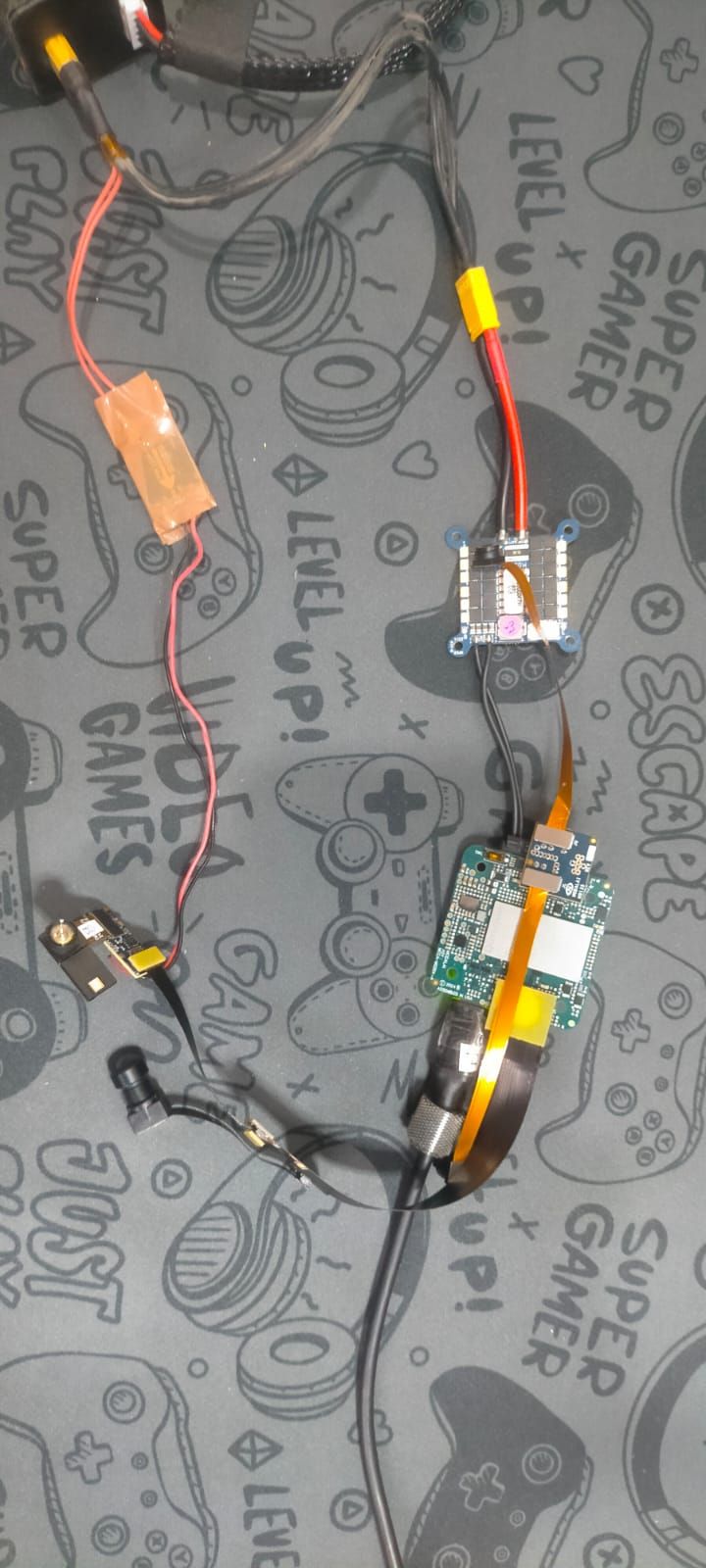
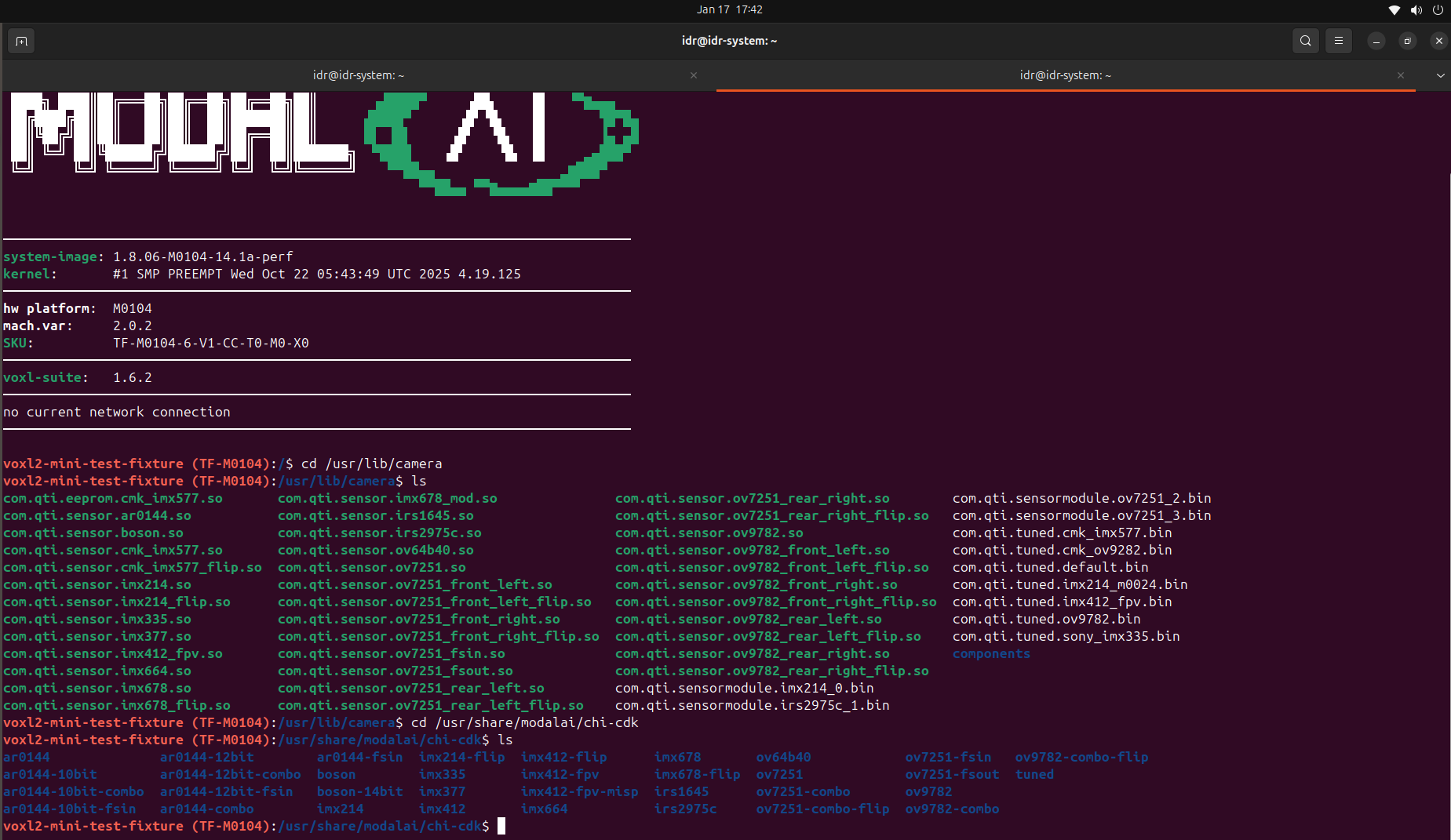
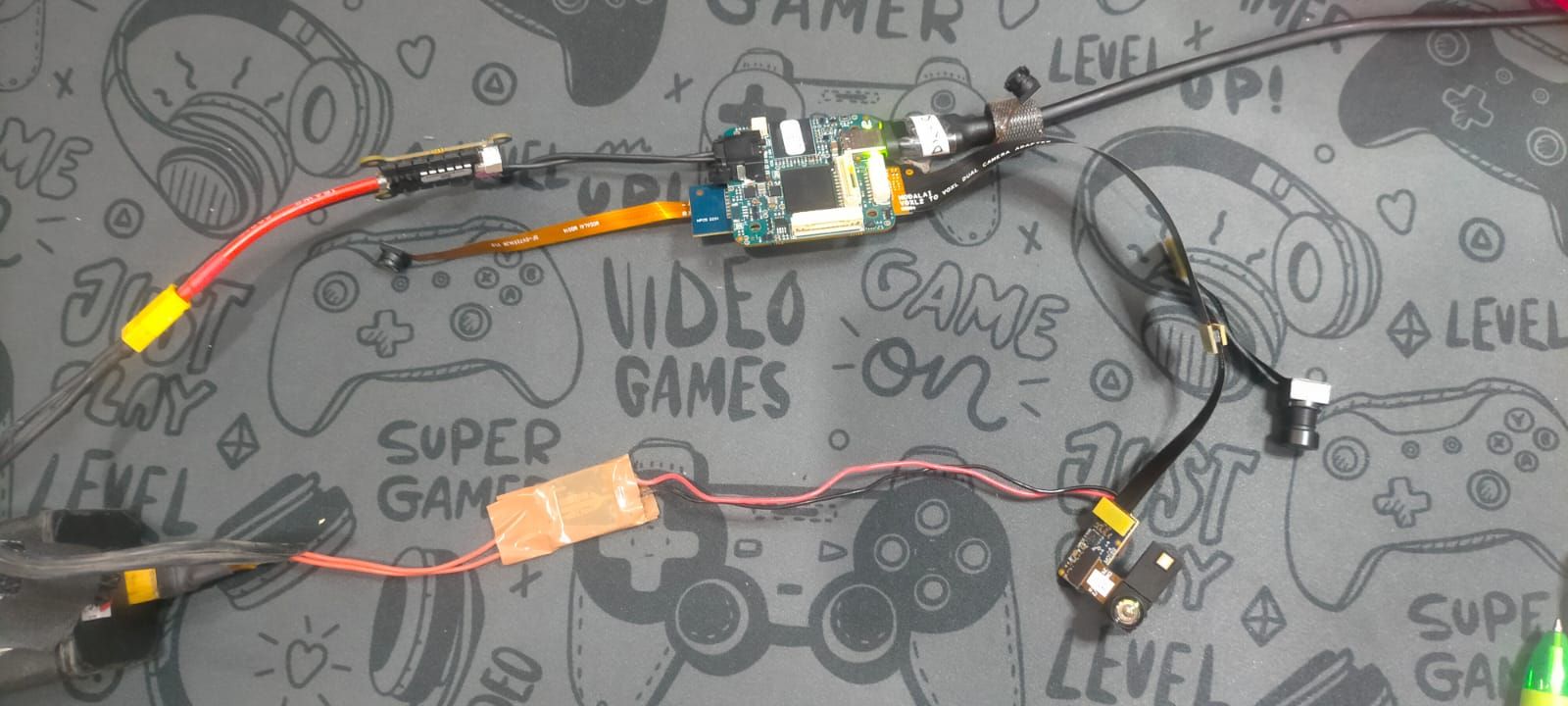
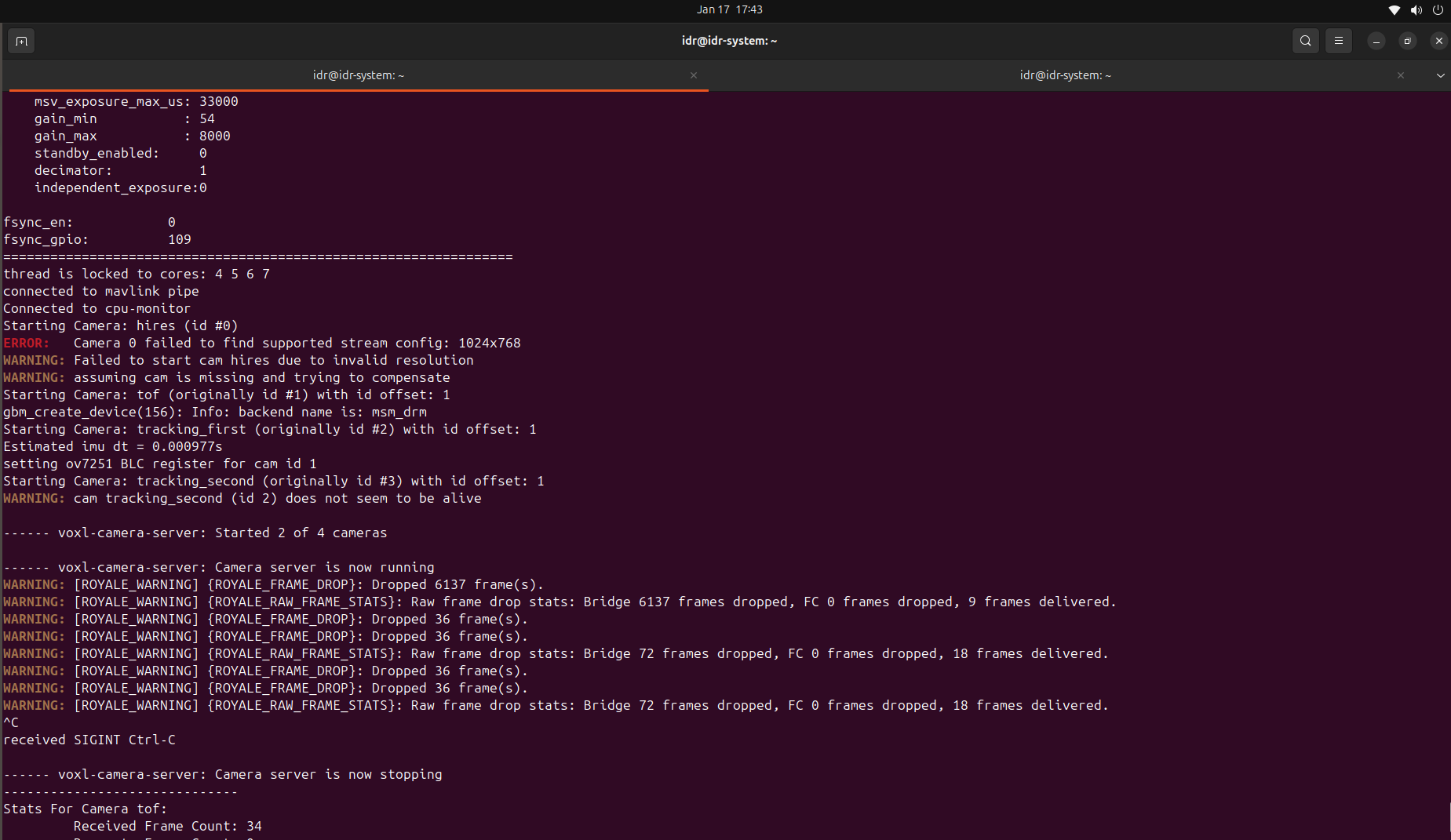
@Alex-Kushleyev Hii, Kindly look at the hardware configuration .
I am only able to detect 2 cameras out of 4 cameras .
Hires and one out of 2 tracking are not detected.
-
@Alex-Kushleyev Hii, Kindly look at the hardware configuration .
I am only able to detect 2 cameras out of 4 cameras .
Hires and one out of 2 tracking are not detected.
Your VOXL2 mini uses a kernel variant 2.0.2 (you can see in
mach.varfield, in the log-in message in your terminal). This kernel is used with M0188, M0195 camera adapter boards and is not compatible with all use cases that use the older adapters and interposers liike M0135 and M0084.Since you are using older interposers / cables, you need to switch to the original kernel, which you can do during the SDK setup (it will ask you which kernel variant to install, there are only two options).
You can also test and update your kernel without re-installing the sdk. I suggest testing first to see if you can detect all 4 cameras:
- you can find the kernel in your SDK in
system-imagedirectory. the original voxl2 mini kernel isqti-ubuntu-robotics-image-m0104-1-boot.img - test and update kernel instructions here : https://docs.modalai.com/voxl2-kernel-build-guide/#test
By testing the kernel you will temporarily load it into RAM and boot using the kernel, after which you can check if all cameras are detected. If you want the kernel update to persist after power cycle, you need to update it, as documented.
Alex
- you can find the kernel in your SDK in
-
A Alex Kushleyev referenced this topic on
-
Your VOXL2 mini uses a kernel variant 2.0.2 (you can see in
mach.varfield, in the log-in message in your terminal). This kernel is used with M0188, M0195 camera adapter boards and is not compatible with all use cases that use the older adapters and interposers liike M0135 and M0084.Since you are using older interposers / cables, you need to switch to the original kernel, which you can do during the SDK setup (it will ask you which kernel variant to install, there are only two options).
You can also test and update your kernel without re-installing the sdk. I suggest testing first to see if you can detect all 4 cameras:
- you can find the kernel in your SDK in
system-imagedirectory. the original voxl2 mini kernel isqti-ubuntu-robotics-image-m0104-1-boot.img - test and update kernel instructions here : https://docs.modalai.com/voxl2-kernel-build-guide/#test
By testing the kernel you will temporarily load it into RAM and boot using the kernel, after which you can check if all cameras are detected. If you want the kernel update to persist after power cycle, you need to update it, as documented.
Alex
@Alex-Kushleyev Hi ,
Thanks for the explanation.
I tested this on VOXL2 Mini and can confirm the following observations:
With kernel 2.0.0, all 4 cameras are detected correctly, but only with the specific hardware configuration below.Working hardware configuration:
J6 → M0135
JL: HiRes
JU: Tracking
J7 → M0135
JL: Tracking
JU: PMD-ToF
In this configuration, all four cameras are detected successfully.
Additional observation regarding M0084 flex cables(with kernel 2.0.0):
I have two different M0084 flex cables, and I’m seeing :With one M0084 cable, the HiRes camera is detected, but no high-resolution stream appears in voxl-portal.
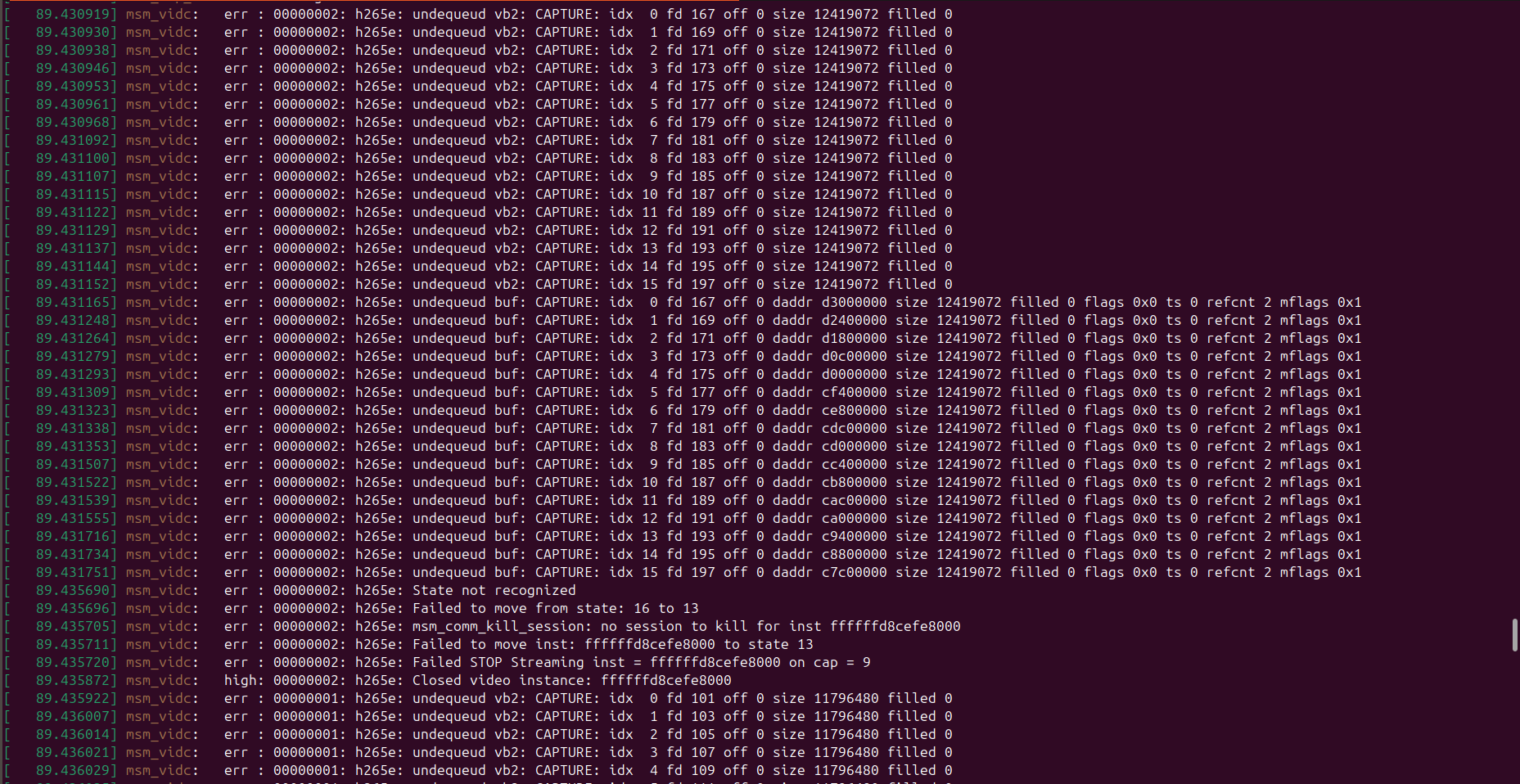
With the other M0084 cable, the HiRes camera is not detected properly. The voxl-camera-server log shows:
Starting Camera: hires (id #0)
ERROR: Camera 0 failed to find supported stream config: 1024x768
WARNING: Failed to start cam hires due to invalid resolution
WARNING: assuming cam is missing and trying to compensate - you can find the kernel in your SDK in
-
@Alex-Kushleyev Hi ,
Thanks for the explanation.
I tested this on VOXL2 Mini and can confirm the following observations:
With kernel 2.0.0, all 4 cameras are detected correctly, but only with the specific hardware configuration below.Working hardware configuration:
J6 → M0135
JL: HiRes
JU: Tracking
J7 → M0135
JL: Tracking
JU: PMD-ToF
In this configuration, all four cameras are detected successfully.
Additional observation regarding M0084 flex cables(with kernel 2.0.0):
I have two different M0084 flex cables, and I’m seeing :With one M0084 cable, the HiRes camera is detected, but no high-resolution stream appears in voxl-portal.
With the other M0084 cable, the HiRes camera is not detected properly. The voxl-camera-server log shows:
Starting Camera: hires (id #0)
ERROR: Camera 0 failed to find supported stream config: 1024x768
WARNING: Failed to start cam hires due to invalid resolution
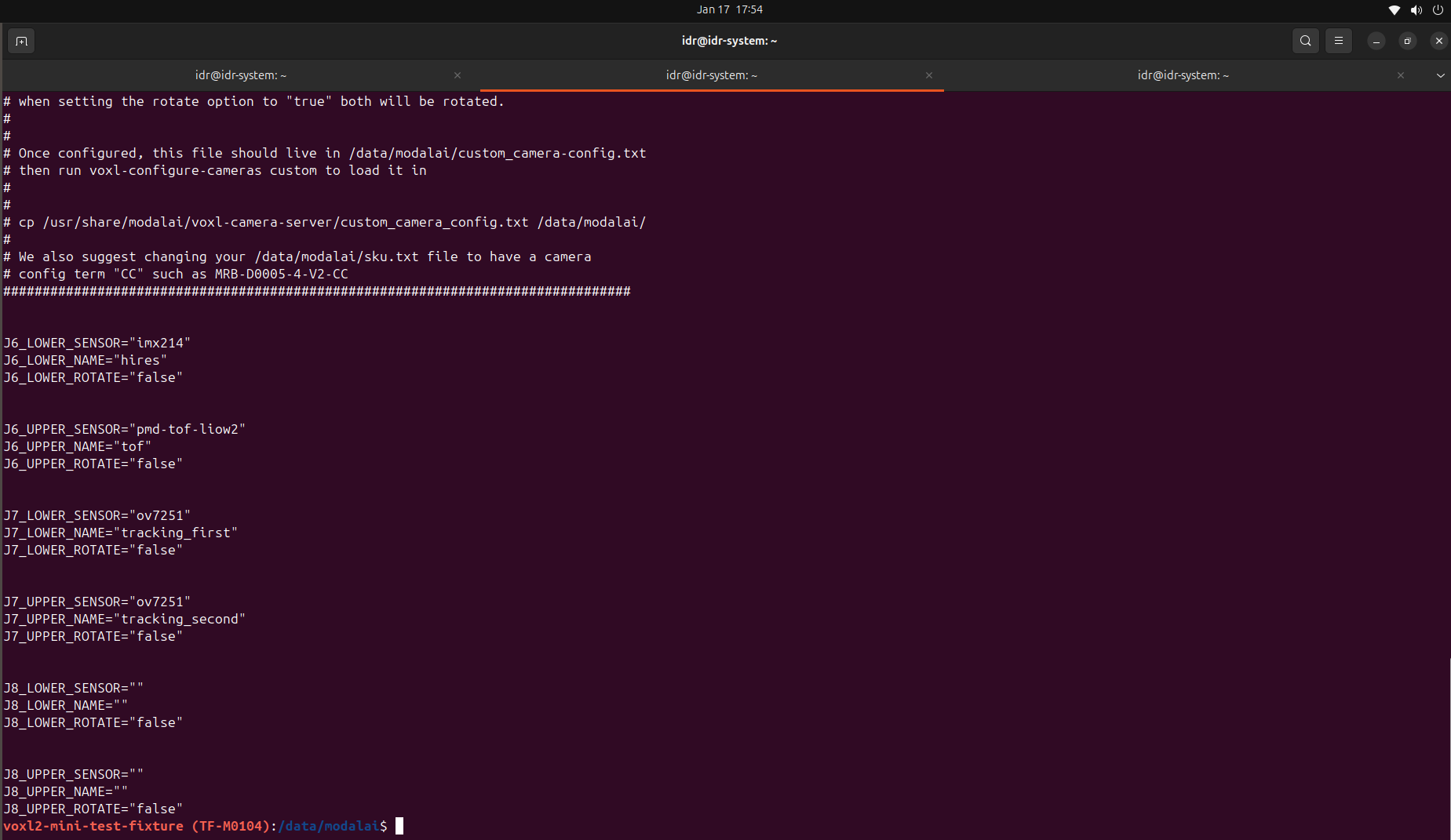
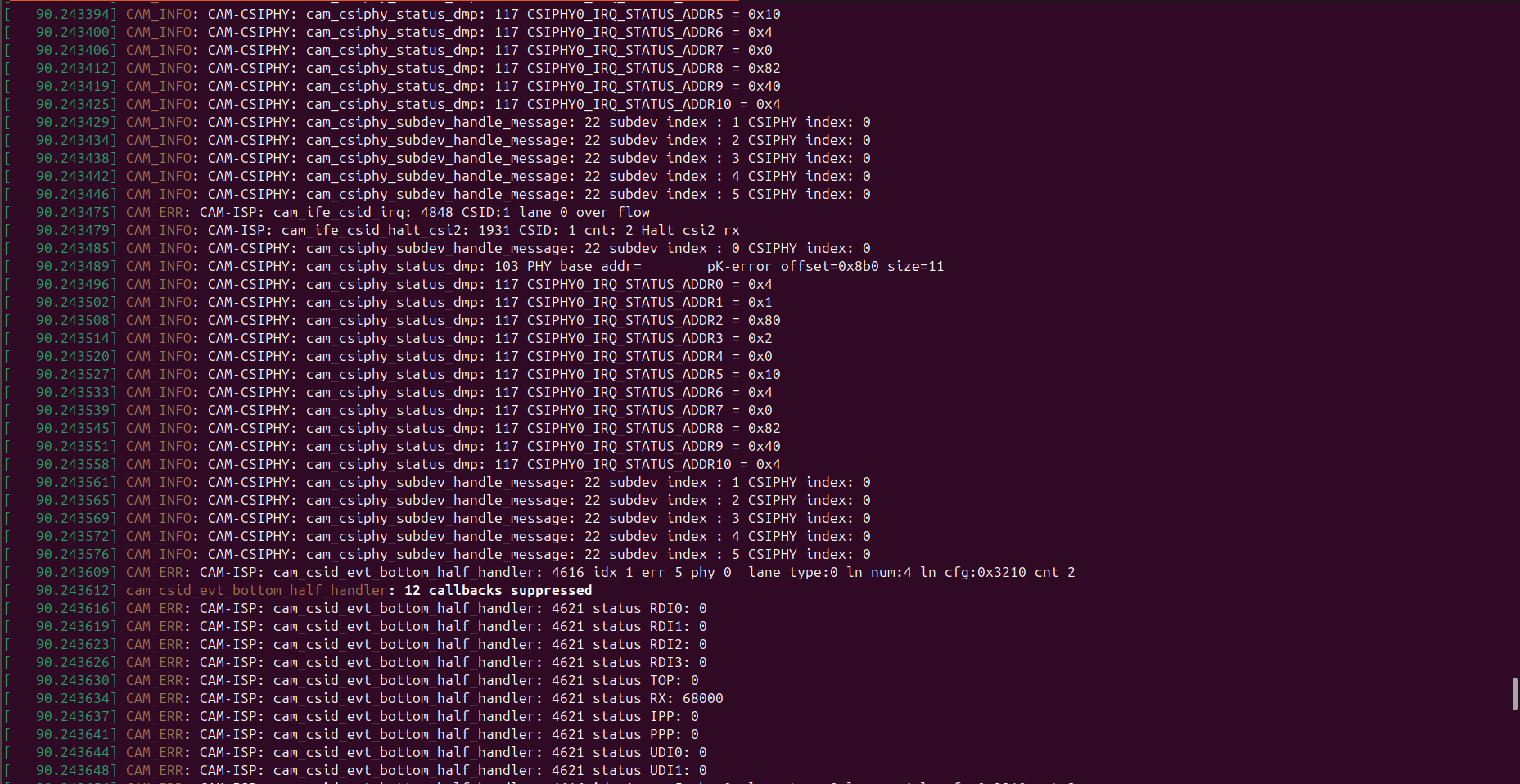
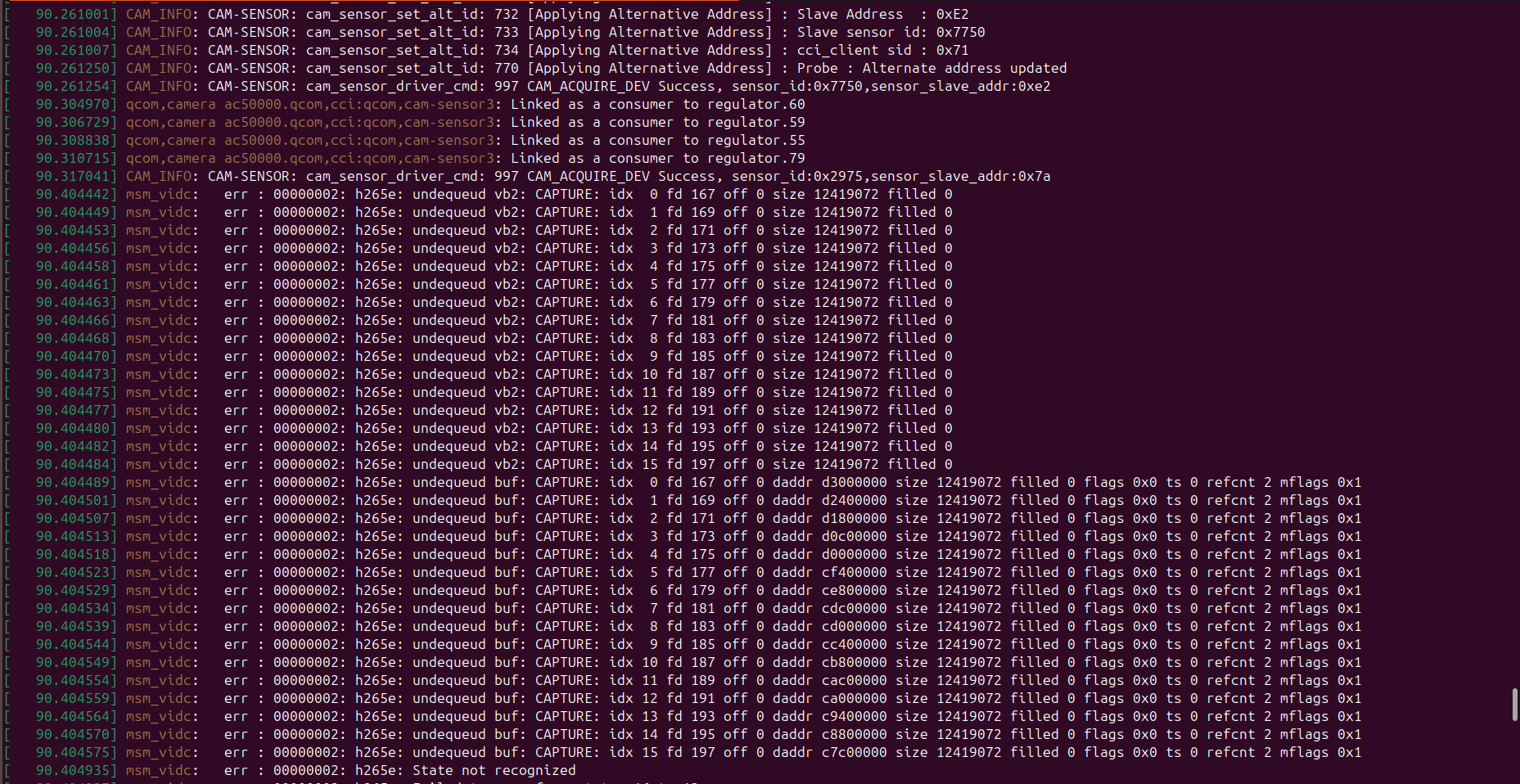
WARNING: assuming cam is missing and trying to compensateCan you please take a look at output of
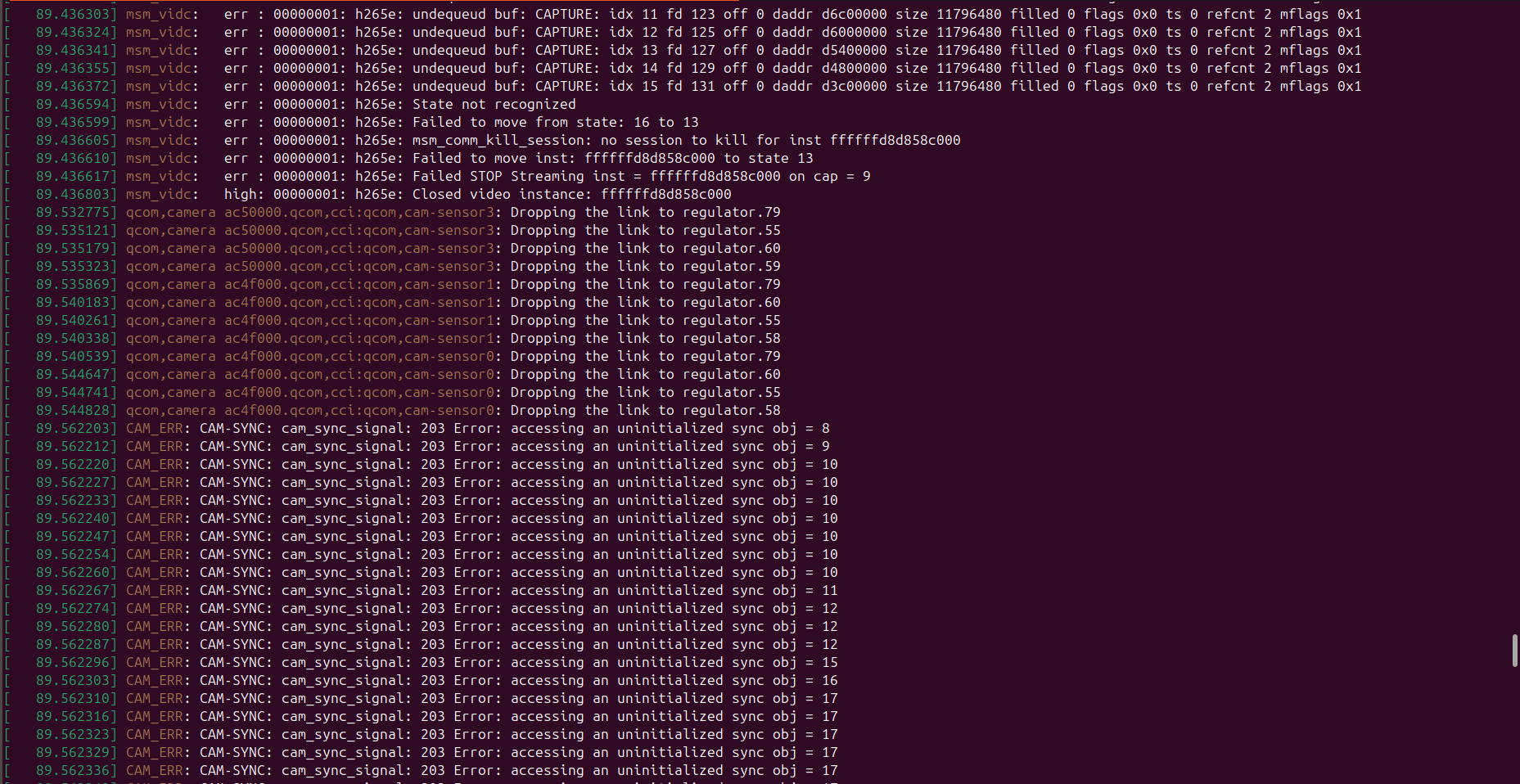
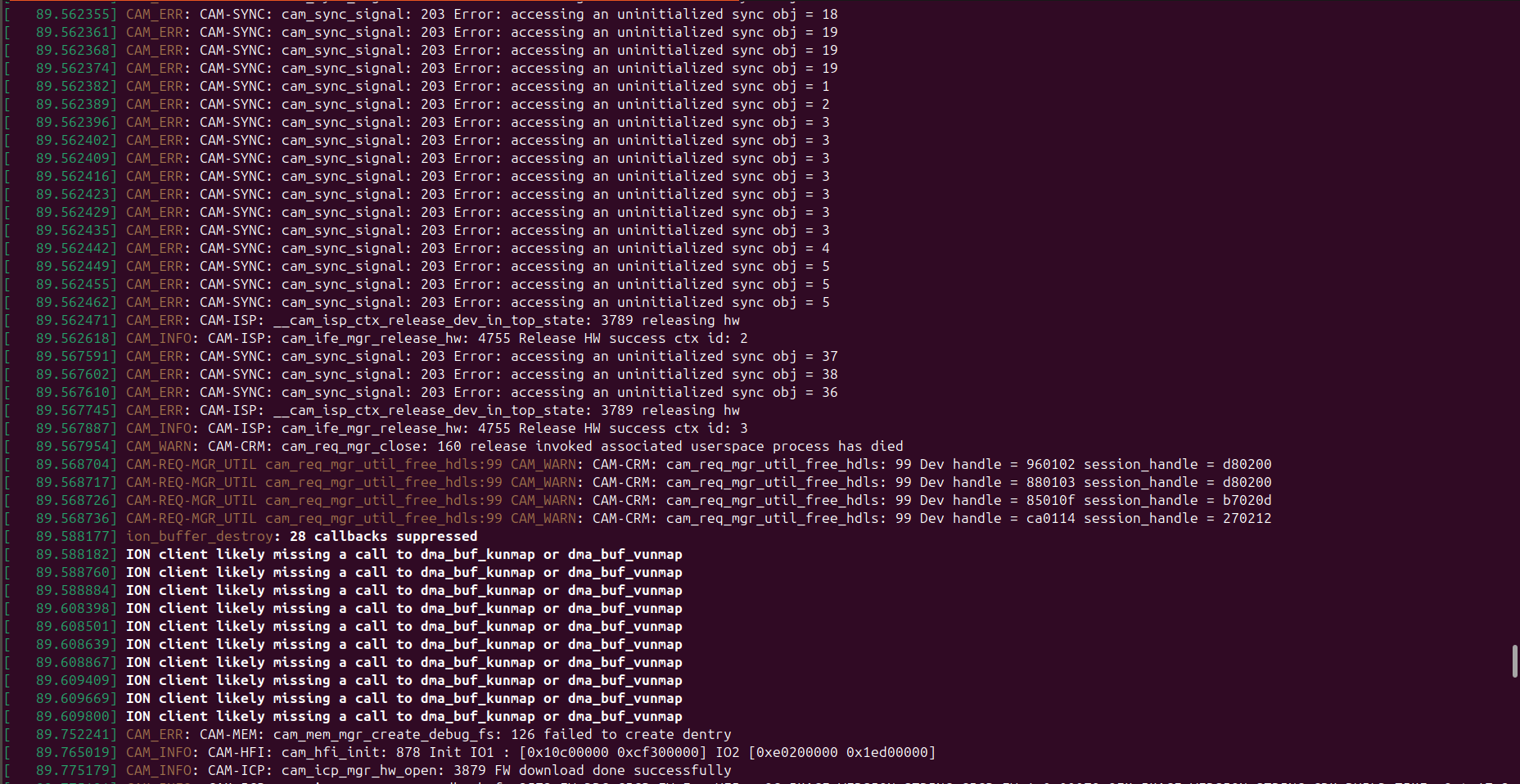
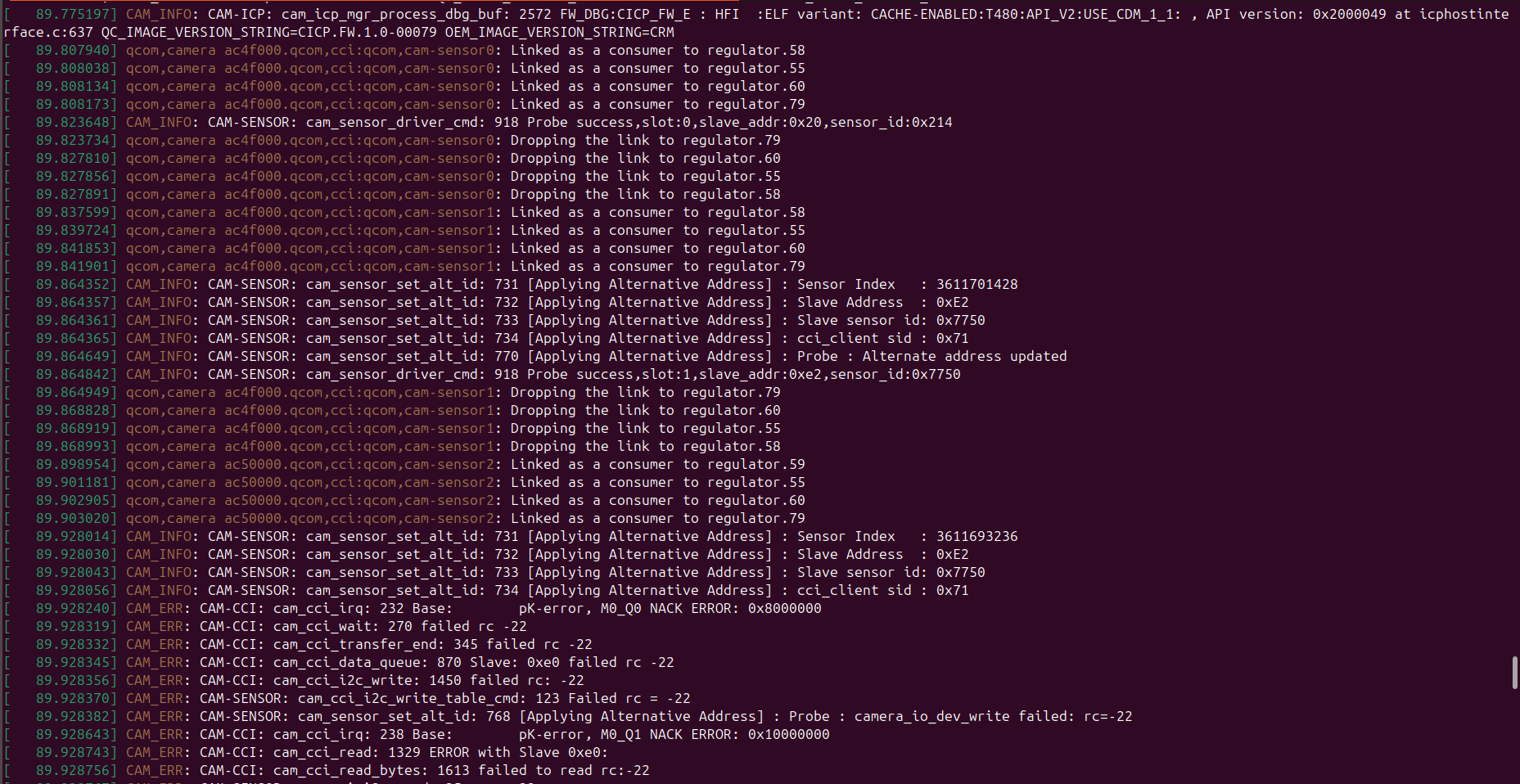
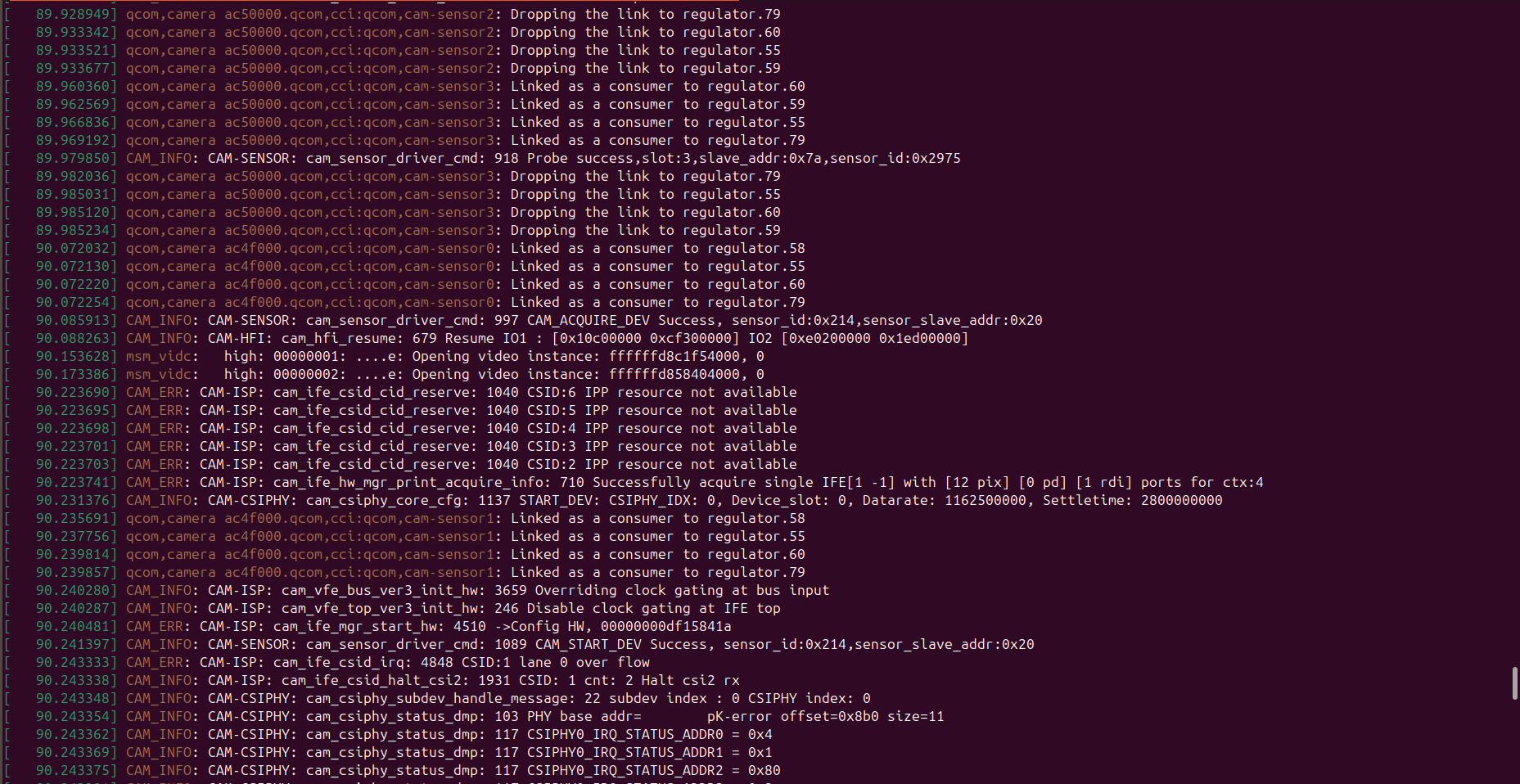
dmesg -w, and paste here only the part that prints after you start the camera server. Use the flex cable that is able to detect all 4 cameras, but streaming does not work. You should try to view the stream in voxl-portal so that the camera is actually activated in this test. Also please post the output of voxl-camera-server.Alex
-
Can you please take a look at output of
dmesg -w, and paste here only the part that prints after you start the camera server. Use the flex cable that is able to detect all 4 cameras, but streaming does not work. You should try to view the stream in voxl-portal so that the camera is actually activated in this test. Also please post the output of voxl-camera-server.Alex
-
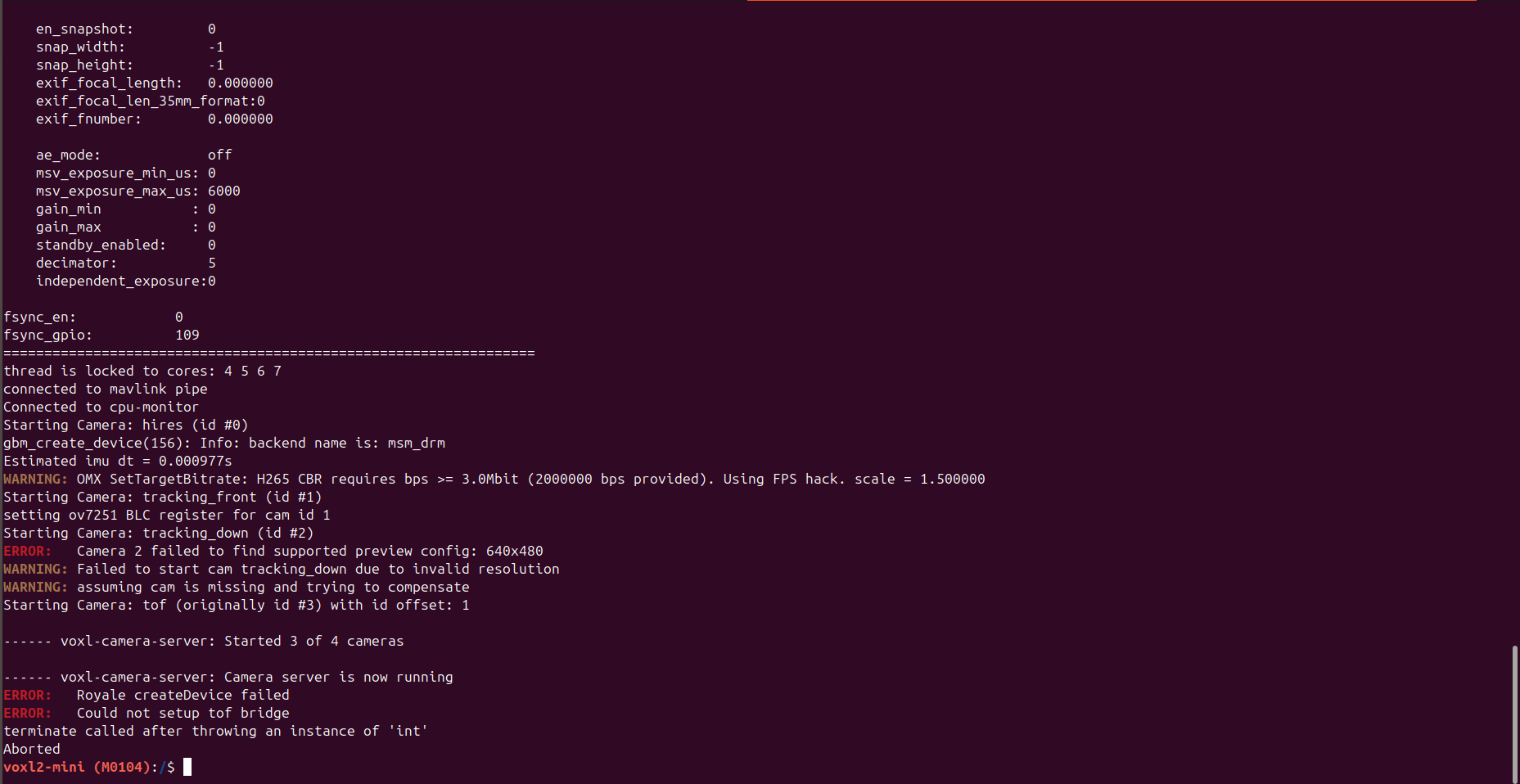
the screen shot you pasted shows that the second tracking camera has not been found. But above, you mentioned that it is detected. Can you check that?
You can also see which cameras are detected using
voxl-camera-server -lto list the cameras and please make sure all 4 cameras are found.Meanwhile, i wlll test this configuration and get back to you soon.
Alex
-
-
the screen shot you pasted shows that the second tracking camera has not been found. But above, you mentioned that it is detected. Can you check that?
You can also see which cameras are detected using
voxl-camera-server -lto list the cameras and please make sure all 4 cameras are found.Meanwhile, i wlll test this configuration and get back to you soon.
Alex
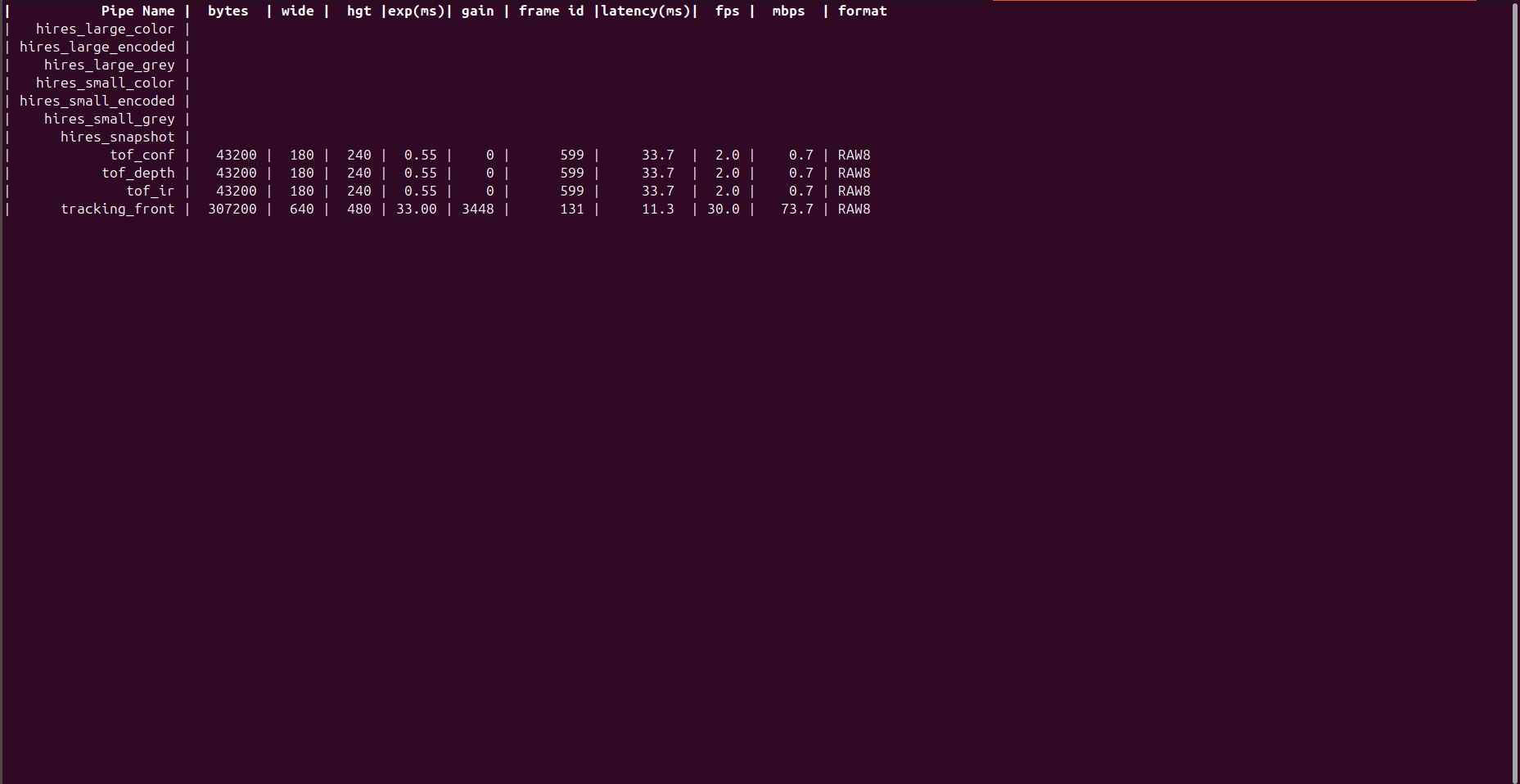
Hii @Alex-Kushleyev , Thankyou so much for your time...
Previously, I said 4 cameras are detected and working properly only with M0135 interposer not with M0084 flex cable and the screenshot above is taken while using M0084 flex cables that's why only 3 cameras are detected out of 4 and hires is not streaming. -
Hii @Alex-Kushleyev , Thankyou so much for your time...
Previously, I said 4 cameras are detected and working properly only with M0135 interposer not with M0084 flex cable and the screenshot above is taken while using M0084 flex cables that's why only 3 cameras are detected out of 4 and hires is not streaming.Since you are testing different configurations, i would suggest to reduce the number of cameras first to find working cases and see if you may have a bad camera or a bad flex cable.
So, try both tracking camera one at a time, then hires camera by itself, then two tracking cameras, then two tracking + hires, etc..
Alex
Reading along? Create a free ModalAI Forum account to join in.
With an account you can reply, ask your own question, get an email when a ModalAI engineer answers, and mark the reply that solved it. Your place in each thread is saved between visits.
Questions about VOXL, Flight Core, ESCs and ModalAI drones are answered here by the engineers who build them.
Register Login