
MIPI Ports in Camera Group 1 Stopped working
-
We had a M0014 Tracking Camera and a M0107 Hires, configured correctly for camera group 1 on MIPI J7. We had done some test flights of this aircraft, Hires camera looked great, tracking camera was working perfect. The aircraft was not involved in any crashes.
While performing a stationary range test, the cameras stopped working. Running voxl-inspect-cam -a results in this error:
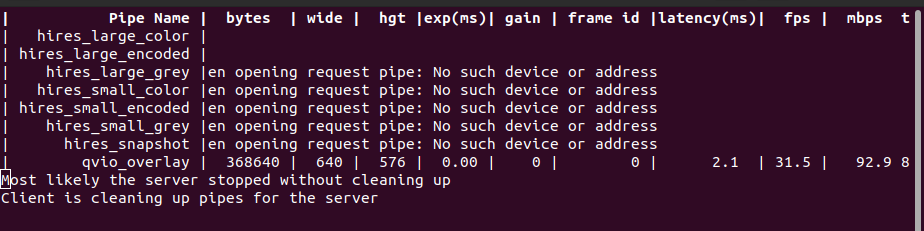
Voxl-inspect-services show that the voxl-camera-server is enabled but not running. Trying to restart the camera-server does nothing.I tried all new cameras and cables, and it produced the same error.
Is something corrupted in the camera driver? Would reflashing the SDK potentially solve it?
Reconfiguring the cameras in group 2 shows the cameras working fine again. But as far as I know VIO tracking can only be set up in camera group 1. Is it possible to set up the VIO pipeline through a different camera group?
Final note, we conformal coated the Voxl2 prior to flight testing, but the MIPI ports are free from conformal coating or any other visible damage.
-
We had a M0014 Tracking Camera and a M0107 Hires, configured correctly for camera group 1 on MIPI J7. We had done some test flights of this aircraft, Hires camera looked great, tracking camera was working perfect. The aircraft was not involved in any crashes.
While performing a stationary range test, the cameras stopped working. Running voxl-inspect-cam -a results in this error:
Voxl-inspect-services show that the voxl-camera-server is enabled but not running. Trying to restart the camera-server does nothing.I tried all new cameras and cables, and it produced the same error.
Is something corrupted in the camera driver? Would reflashing the SDK potentially solve it?
Reconfiguring the cameras in group 2 shows the cameras working fine again. But as far as I know VIO tracking can only be set up in camera group 1. Is it possible to set up the VIO pipeline through a different camera group?
Final note, we conformal coated the Voxl2 prior to flight testing, but the MIPI ports are free from conformal coating or any other visible damage.
@swickliff , as you already probably figured out, the OV7251 camera (M0014) can work in any hardware slot 0-5 and you can find the needed sensormodule drivers in
/usr/share/modalai/chi-cdk/ov7251.If you move the cameras around on J6/7/8 connectors, their camera IDs (from
voxl-camera-serverpoint of view) may change, but as long as you adjust/etc/voxl-camera-server.confwith correct camera id, the rest of the processes will not know which camera connector, the images are actually coming from.You can check camera IDs vs slot ids using
voxl-camera-server -l.Please let me know if you need any further clarification.
Regarding what happened to the original connector, please run
voxl-camera-server -lin foreground and see if the cameras are still detected and then justvoxl-camera-serverin foreground to see what the error is.Alex
-
@swickliff , as you already probably figured out, the OV7251 camera (M0014) can work in any hardware slot 0-5 and you can find the needed sensormodule drivers in
/usr/share/modalai/chi-cdk/ov7251.If you move the cameras around on J6/7/8 connectors, their camera IDs (from
voxl-camera-serverpoint of view) may change, but as long as you adjust/etc/voxl-camera-server.confwith correct camera id, the rest of the processes will not know which camera connector, the images are actually coming from.You can check camera IDs vs slot ids using
voxl-camera-server -l.Please let me know if you need any further clarification.
Regarding what happened to the original connector, please run
voxl-camera-server -lin foreground and see if the cameras are still detected and then justvoxl-camera-serverin foreground to see what the error is.Alex
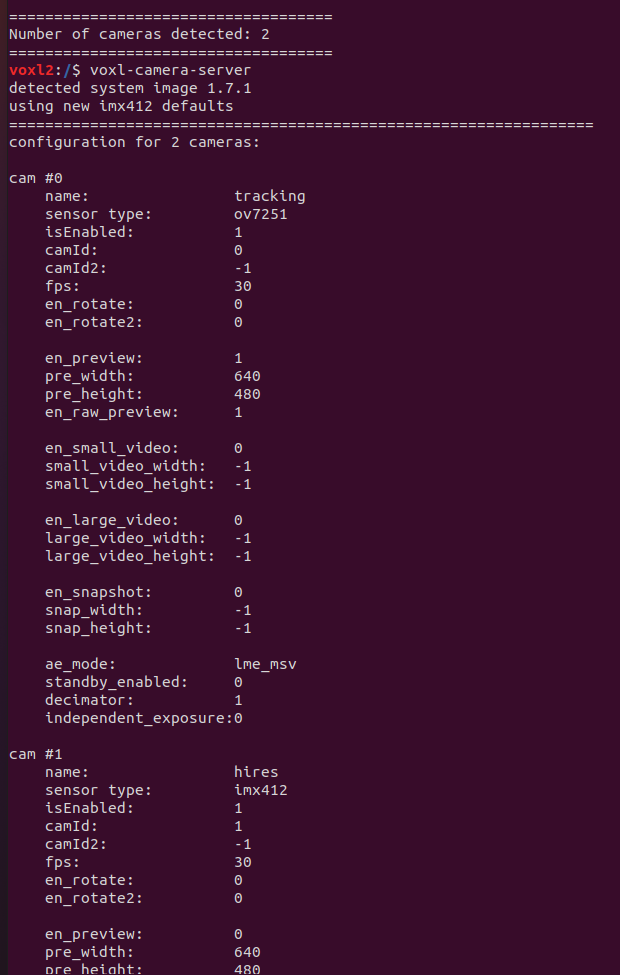
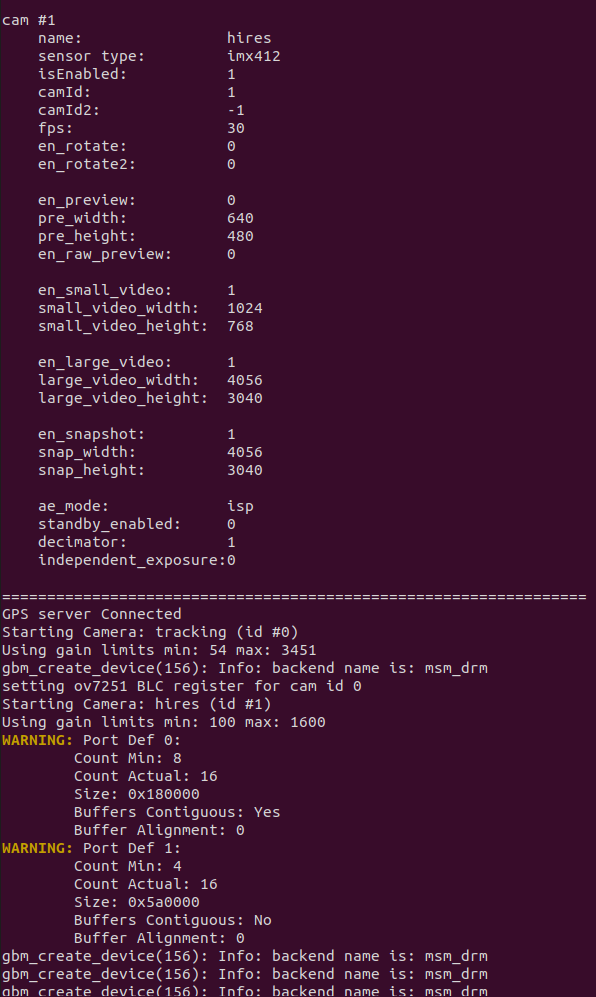
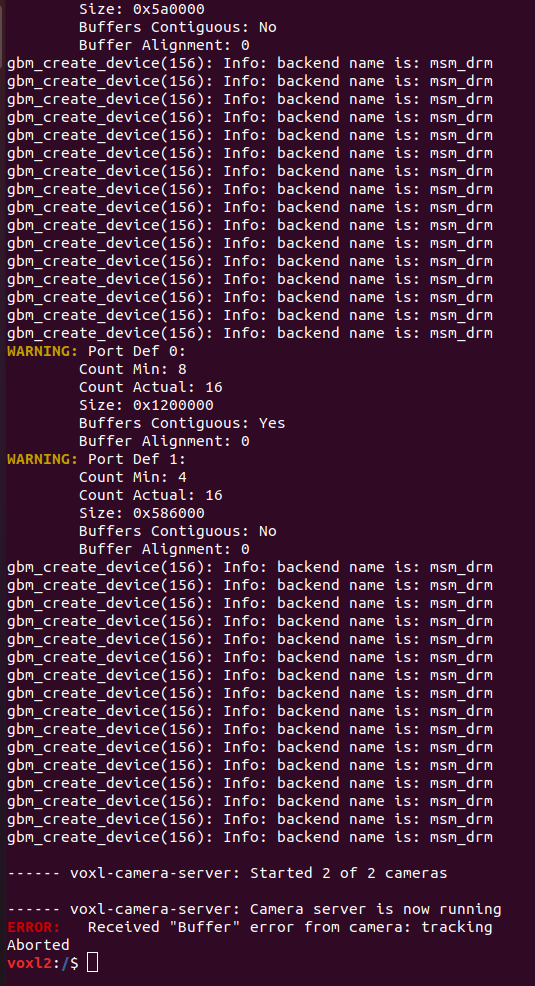
voxl-camera-server -l detected both cameras
voxl-camera-server threw a few warnings and Error: Received "Buffer" error from camera: tracking
The whole read out is below:
-
voxl-camera-server -l detected both cameras
voxl-camera-server threw a few warnings and Error: Received "Buffer" error from camera: tracking
The whole read out is below:
@swickliff , thanks for sharing the voxl-camera-server output. When the "Buffer" error happens, do you get any frames at (you could check using voxl-portal)?
If you just enable the tracking camera (disable hires), does the same issue occur?
One way to see if you are receiving frames into the ISP, is to enable a special debug mode and then monitor output of
dmesg:#enable debug mode (the debug mode will reset after reboot) echo 0xf > /sys/kernel/debug/camera_ife/ife_csid_debug- open another terminal and run
dmesg -wto monitor the kernel messages - then start
voxl-camera-serverin the first terminal (with just tracking camera enabled) and see if you start getting SOF and EOF debug messages in thedmesgterminal, you can try with a working configuration and non-working configuration. This should also print out any errors that the ISP produces.
For each frame, there should be one SOF (start of frame) and one EOF (end of frame) message printed in the terminal. The timestamps of SOF should be 33ms apart for 30FPS and the EOF (for the tracking camera) will typically come about 9.5ms after SOF)
Alex
- open another terminal and run
-
@swickliff , thanks for sharing the voxl-camera-server output. When the "Buffer" error happens, do you get any frames at (you could check using voxl-portal)?
If you just enable the tracking camera (disable hires), does the same issue occur?
One way to see if you are receiving frames into the ISP, is to enable a special debug mode and then monitor output of
dmesg:#enable debug mode (the debug mode will reset after reboot) echo 0xf > /sys/kernel/debug/camera_ife/ife_csid_debug- open another terminal and run
dmesg -wto monitor the kernel messages - then start
voxl-camera-serverin the first terminal (with just tracking camera enabled) and see if you start getting SOF and EOF debug messages in thedmesgterminal, you can try with a working configuration and non-working configuration. This should also print out any errors that the ISP produces.
For each frame, there should be one SOF (start of frame) and one EOF (end of frame) message printed in the terminal. The timestamps of SOF should be 33ms apart for 30FPS and the EOF (for the tracking camera) will typically come about 9.5ms after SOF)
Alex
@Alex-Kushleyev , I believe we are not receiving any frames.
I disabled the hires and the same buffer error occurs.
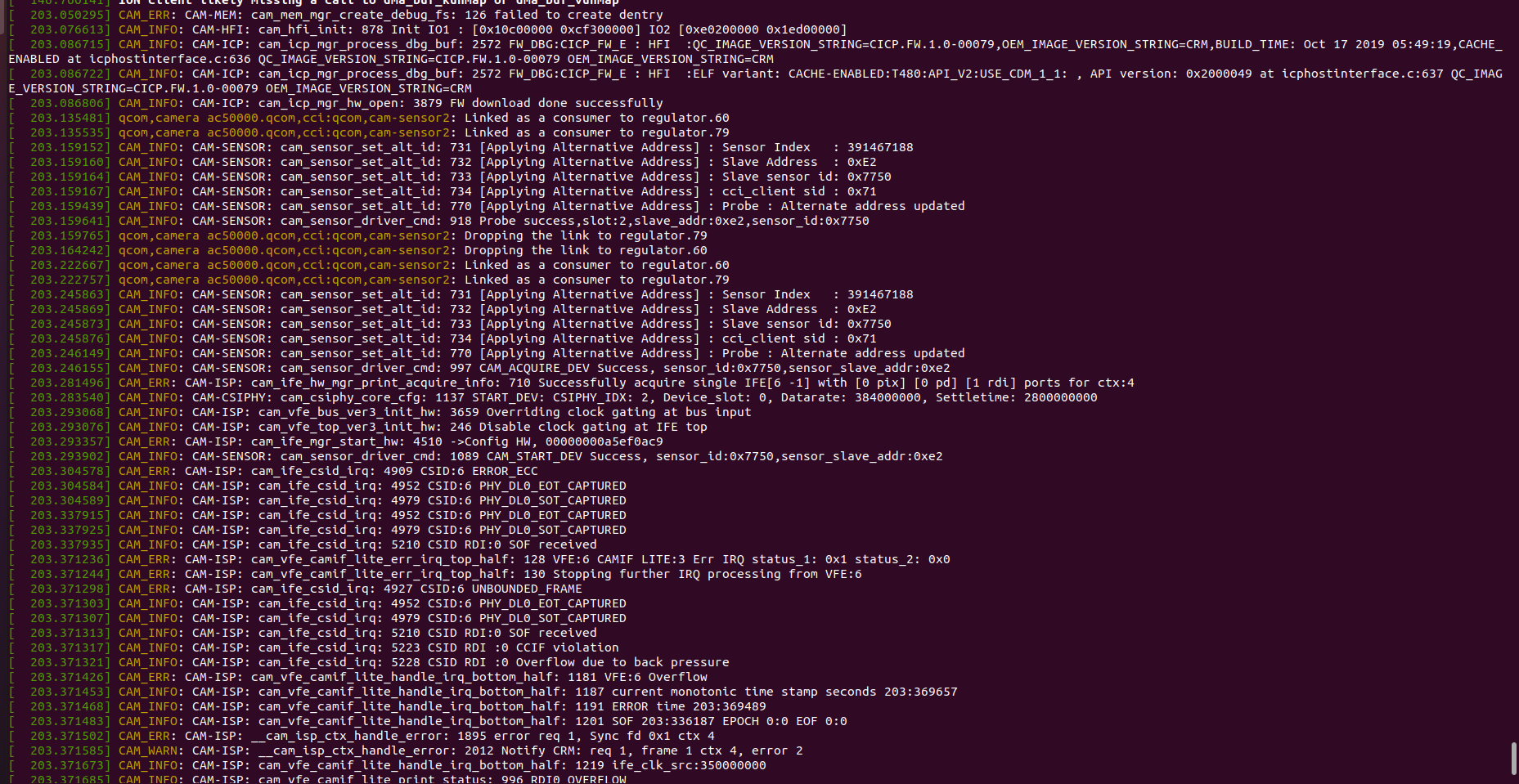
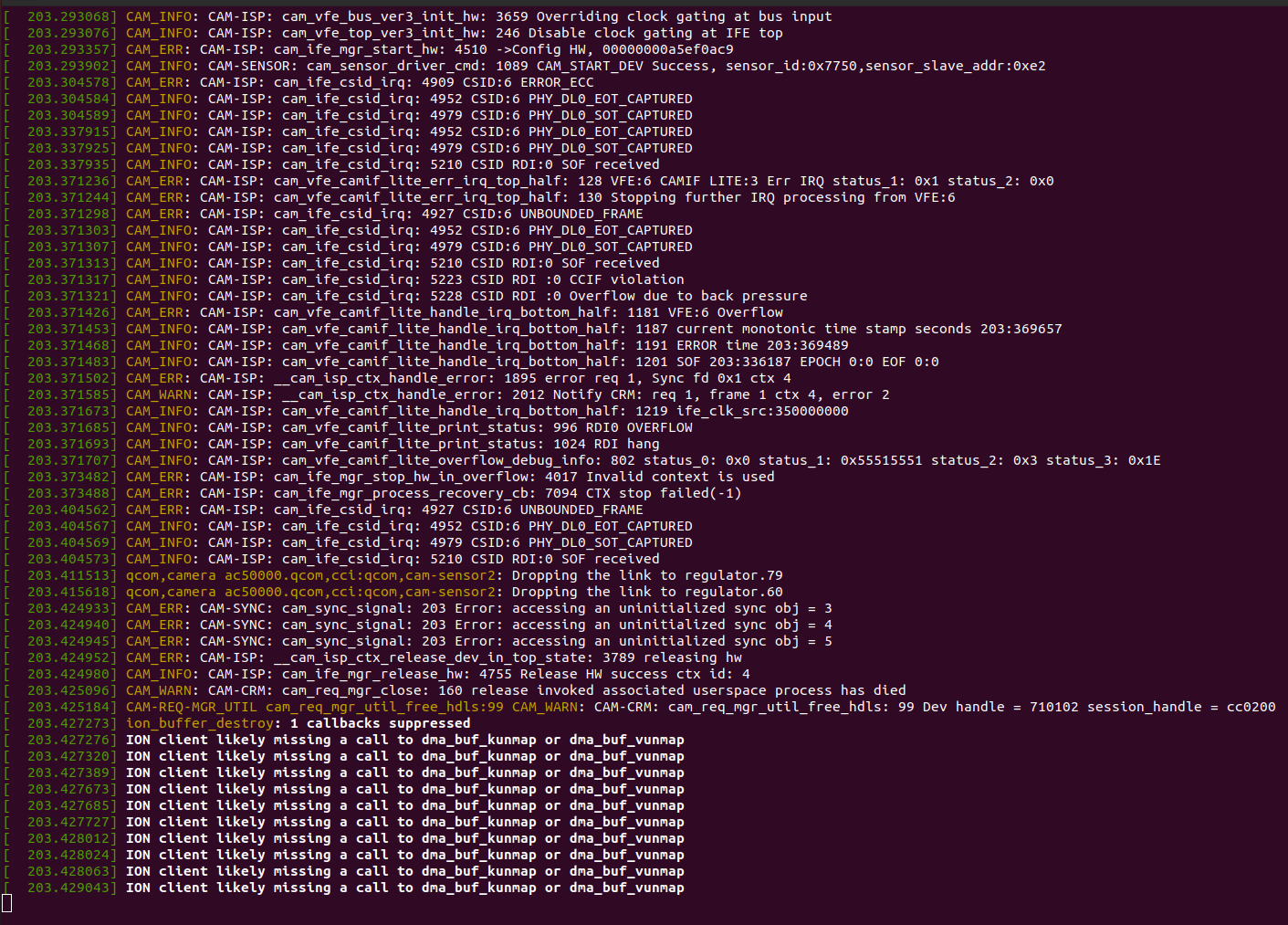
Here is the readout from the dmesg -w command when I run voxl-camera-server in another terminal. I don't see any SOF or EOF messages:
- open another terminal and run
-
@Alex-Kushleyev , I believe we are not receiving any frames.
I disabled the hires and the same buffer error occurs.
Here is the readout from the dmesg -w command when I run voxl-camera-server in another terminal. I don't see any SOF or EOF messages:
@swickliff , I do see
SOF receivedat t=203.337935 and t=203.371313, however there are errors reported right after. It looks like there is actually a issue in data transmission over the high-speed camera interface.Since the same camera unit appears to be working when plugged into a different camera port (per your report), it seems there is some damaged that occurred on the original camera connector or components around the connector. Please inspect the connector and surrounding components again.
Alex
Reading along? Create a free ModalAI Forum account to join in.
With an account you can reply, ask your own question, get an email when a ModalAI engineer answers, and mark the reply that solved it. Your place in each thread is saved between visits.
Questions about VOXL, Flight Core, ESCs and ModalAI drones are answered here by the engineers who build them.
Register Login