
Setting up Voxl2 MicroDDS Communication with PX4
-
Hello, I tried following this guide to set up Voxl2 MicroDDS Communication with PX4. After running the two commands given in the documentation:
- apt install -y voxl-microdds-agent
- voxl-configure-microdds
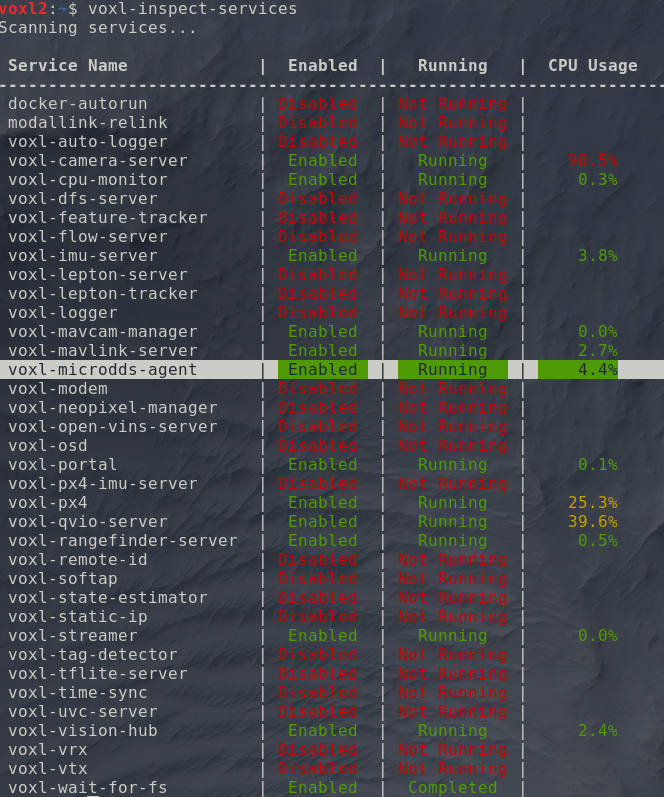
I don't see any uORB topics published in ROS2. I have tried using voxl-inspect-services and the micro-dds-agent is indeed running in the voxl2. Am I missing something here? Thanks!
-
Hi @James-KDH - just to confirm have you installed ros2 foxy and the mpa-to-ros2 deb's on there as well? Those packages contain all the prebuilt ros2 messages that allow you to see the topics.
apt-get install voxl-ros2-foxy && apt-get install voxl-mpa-to-ros2followed by
voxl-configure-mpa-to-ros2- then please do a reboot o nthe entire system and then check the output of the dds viaros2 topic listand if nothing is there please paste the following:systemctl status voxl-microdds-agentand paste the output here.Thanks!
-
Hi @James-KDH - just to confirm have you installed ros2 foxy and the mpa-to-ros2 deb's on there as well? Those packages contain all the prebuilt ros2 messages that allow you to see the topics.
apt-get install voxl-ros2-foxy && apt-get install voxl-mpa-to-ros2followed by
voxl-configure-mpa-to-ros2- then please do a reboot o nthe entire system and then check the output of the dds viaros2 topic listand if nothing is there please paste the following:systemctl status voxl-microdds-agentand paste the output here.Thanks!
@Zachary-Lowell-0 Yes I have installed ros2 foxy and the mpa-to-ros2 deb. Running the command:
systemctl status voxl-microdds-agentGives this output:
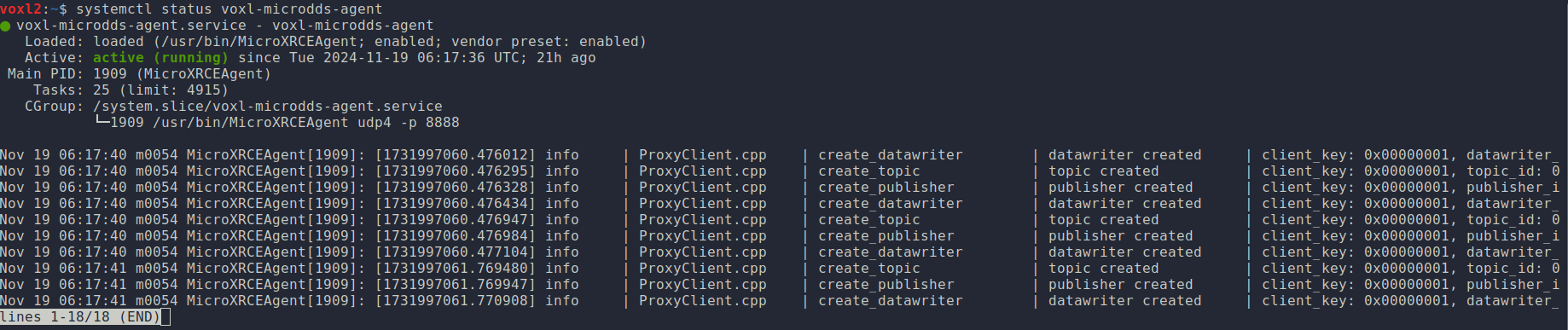
Meanwhile running :
ros2 topic listStill gives nothing:
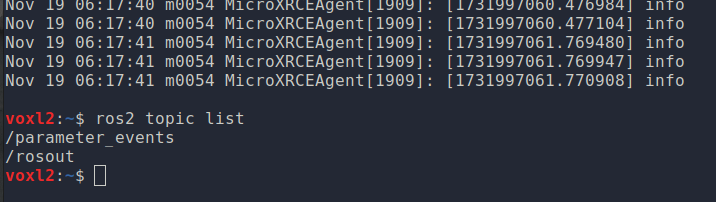
-
Hello, I managed to fix this issue. Turns out the ROS domain ID needs to be 0 (by default), I set it to 1 previously and could not echo out the fmu topics. By simply setting it to 0 again i am able to see the /fmu topics now.
export ROS_DOMAIN_ID=0However I encounter another issue where I am unable to see the /fmu out topics in an external computer but voxl2 can see topics that are being published by the computer as shown in the image below.
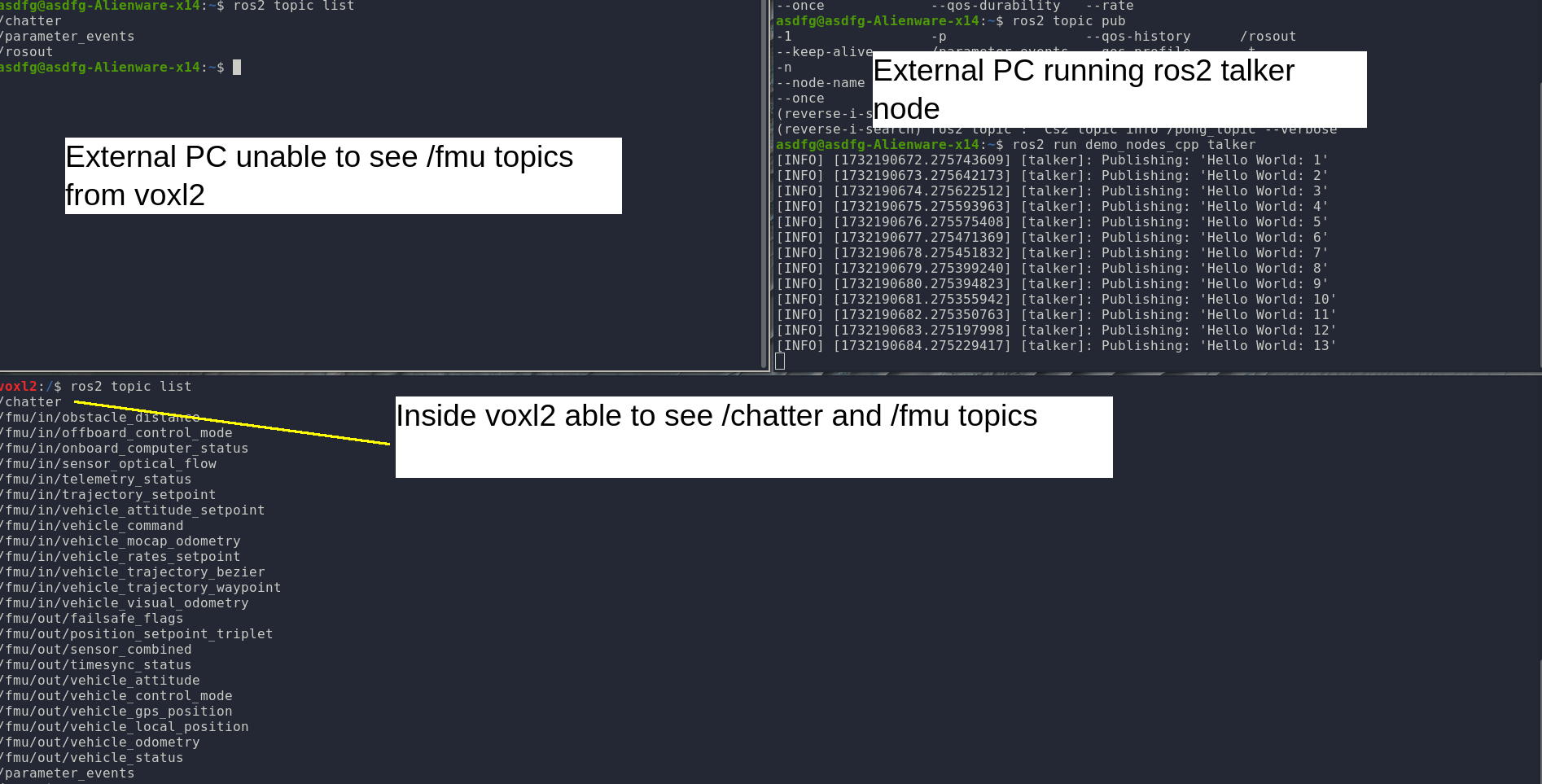
Also is there a way to remap the topic names ? i.e from /fmu to /drone_1.
To give some context, me and my lab is trying to experiment with indoor swarming. Thus it is essential for the drones to be able to communicate with each other (such as via ROS2).
-
Make sure these variables are set on the voxl2 and external pc:
ROS_DOMAIN_ID = 0
ROS_LOCALHOST_ONLY = 0You can check if multicast is enabled on both sides with this command (assuming external pc is linux):
ifconfig | grep -i multicastThis should show multicast enabled for the interface (wifi or ethernet) connected to the external pc via network.
-
Make sure these variables are set on the voxl2 and external pc:
ROS_DOMAIN_ID = 0
ROS_LOCALHOST_ONLY = 0You can check if multicast is enabled on both sides with this command (assuming external pc is linux):
ifconfig | grep -i multicastThis should show multicast enabled for the interface (wifi or ethernet) connected to the external pc via network.
@brahim I tried setting on both the voxl2 and external PC
ROS_DOMAIN_ID = 0 ROS_LOCALHOST_ONLY = 0and I am still unable to see the /fmu topics on the external pc. Running
ifconfig | grep -i multicastResults in something like in both the external pc and voxl2.
bond0: flags=5123<UP,BROADCAST,MASTER,MULTICAST>  mtu 1500
docker0: flags=4099<UP,BROADCAST,MULTICAST>  mtu 1500
wlan0: flags=4163<UP,BROADCAST,RUNNING,MULTICAST>  mtu 1500
Which indicates that multicast enabled on both the external pc and voxl2.
-
Okay I managed to solve the problem. The reason why my external pc is unable to see the /fmu topics is probably due to the voxl-microdds-agent service starting before the network is fully "set up". From this stack overflow topic, I edited my
/etc/systemd/system/voxl-microdds-agent.servicefile to include the lineExecStartPre=/bin/sh -c 'until ping -c1 google.com; do sleep 1; done;(this is the only "hacky" method that somehow worked). My entire service file is:[Unit] Description=voxl-microdds-agent SourcePath=/usr/bin/MicroXRCEAgent After=network.target After=multi-user.target # After=network-online.target # Wants=network-online.target [Service] User=root Type=simple ExecStartPre=/bin/sh -c 'until ping -c1 google.com; do sleep 1; done;' ExecStart=/usr/bin/MicroXRCEAgent udp4 -p 8888 [Install] WantedBy=multi-user.targetAfter modifying the service file and rebooting the voxl2, the external computer can now see and echo topics from the /fmu. This will obviously not work if the voxl2 is not connected to the internet.. However you can still manually fix this by ssh or adb shell into the voxl2 and restart the service using the commands:
systemctl stop voxl-microdds-agent
systemctl start voxl-microdds-agent
and the external computer should be able to see /fmu topics.
On a side note, to customize & add a prefix to the /fmu topic such that it is /drone1/fmu/ in ROS2, edit the px4 start up script
/usr/bin/voxl-px4-start. There is a line that starts the microdds_client for px4 where:# Start microdds_client for ros2 offboard messages from agent over localhost microdds_client start -t udp -h 127.0.0.1 -p 8888Simply add -n <desired _name> such that it becomes:
# Start microdds_client for ros2 offboard messages from agent over localhost microdds_client start -t udp -h 127.0.0.1 -p 8888 -n drone2 -
T teddy.zaremba referenced this topic on


Reading along? Create a free ModalAI Forum account to join in.
With an account you can reply, ask your own question, get an email when a ModalAI engineer answers, and mark the reply that solved it. Your place in each thread is saved between visits.
Questions about VOXL, Flight Core, ESCs and ModalAI drones are answered here by the engineers who build them.
Register Login