
Starling 2 Max Quickstart Guide + Initial Setup
-
Hello, we recently purchased a full Starling 2 Max kit. It arrived with a card pointing to a 'QuickStart' guide but the website documentation seems to be absent. Is there an up to date QuickStart guide for the Max?
The batteries arrived without a charger - is there a recommended charger for the Amprius 3A batteries?
We opted for the microhard addon. Is there a default network ID and frequency/channel for the microhard radio?
-
Hello, we recently purchased a full Starling 2 Max kit. It arrived with a card pointing to a 'QuickStart' guide but the website documentation seems to be absent. Is there an up to date QuickStart guide for the Max?
The batteries arrived without a charger - is there a recommended charger for the Amprius 3A batteries?
We opted for the microhard addon. Is there a default network ID and frequency/channel for the microhard radio?
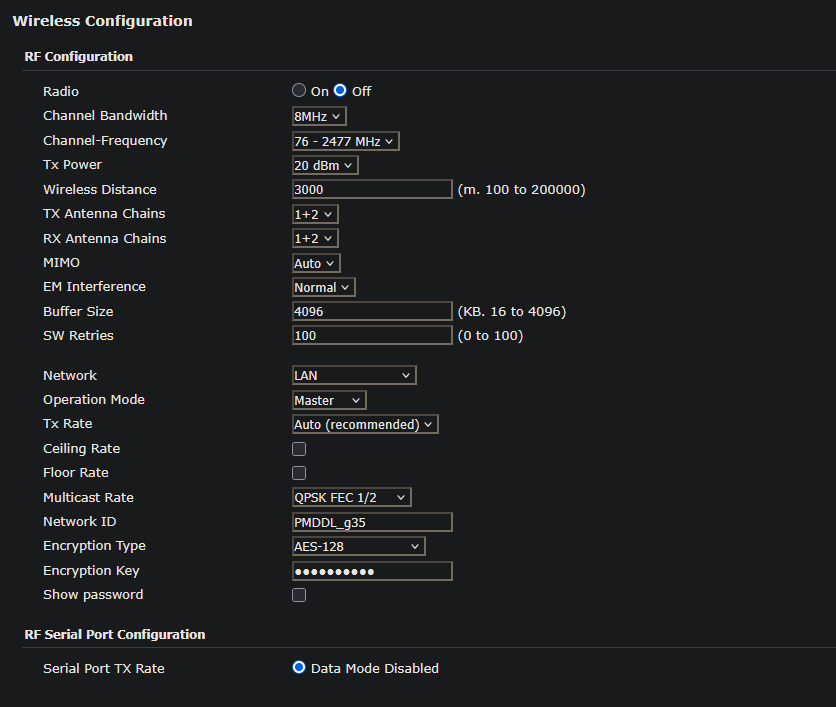
If anyone is struggling to find the pMDDL2450 info that arrives with the Starling 2 Max + Microhard option (mine didn't come with any documentation) here is the RF configuration. By default the Max arrived with the radio turned off. I have paired mine with a pMDDL2450-ENC module connected to a laptop running QGround / MissionPlanner.
One way to access the settings without having an external radio module to pair is ssh port forwarding. Make sure you're connected to the drone / have setup your VOXL WIFI settings then ssh into the VOXL using ssh -L 8443:192.168.168.1:443 root@192.168.8.1
You can then access the microhard landing page at https://localhost:8443
My pMDDL2450 has the following default settings for the radio:
Reading along? Create a free ModalAI Forum account to join in.
With an account you can reply, ask your own question, get an email when a ModalAI engineer answers, and mark the reply that solved it. Your place in each thread is saved between visits.
Questions about VOXL, Flight Core, ESCs and ModalAI drones are answered here by the engineers who build them.
Register Login